
How to Lock Cells in Excel (and When a Lock Isn't Enough)
Locking cells in Excel takes two steps. First you unlock the cells people should be able to fill in: Format Cells > Protection and clear Locked. Then you protect the sheet: Review > Protect Sheet. Every cell on a sheet starts out marked “Locked”, but that box does nothing until the sheet is protected. Most “I locked it but people can still type” and “now everything is locked” complaints come down to the order of those two steps.
Below I cover the steps, how to lock only formulas, two different things people often mean by “locking” (anchoring a cell reference and freezing rows), Excel for the web and Google Sheets. The last section is about when a lock stops being enough; that’s where the real question starts once a team grows.
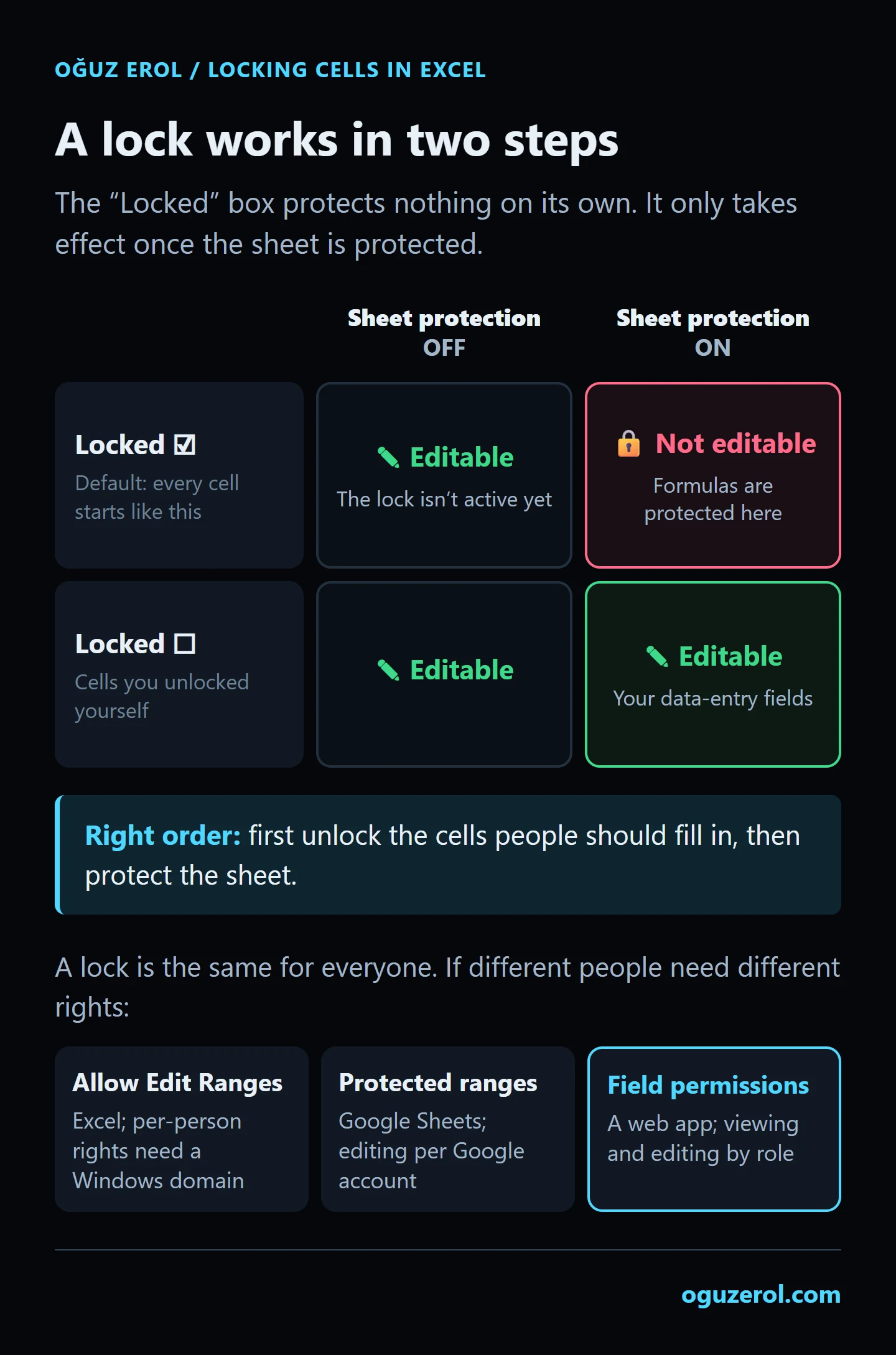
How to lock specific cells, step by step
The typical case: formulas and fixed values stay protected while the team types into a few columns.
- Select the cells people will fill in. Hold Ctrl to select several ranges.
- Unlock them. Right-click > Format Cells (or Ctrl+1; Command+1 on a Mac) > Protection tab > clear Locked > OK.
- Protect the sheet. Review tab > Protect Sheet. Choose what users are allowed to do; by default they can select locked and unlocked cells.
- Add a password if you want one. It’s optional. Without a password, anyone can remove protection with Review > Unprotect Sheet; that’s often fine, because the goal is to prevent accidents.
Once the sheet is protected, the Protect Sheet button turns into Unprotect Sheet, which is how you can tell protection is on.
⚠️ If you forget the password, Microsoft can’t recover it. If you use one, write it down somewhere.
How to lock only the formulas
When formula cells are scattered across the sheet, use Go To Special instead of selecting them one by one:
- Select the whole sheet (the triangle in the top-left corner, or Ctrl+A).
- Ctrl+1 > Protection and clear Locked. Now no cell is locked.
- Home > Find & Select > Go To (or Ctrl+G) > Special > Formulas > OK. Excel selects only the cells that contain formulas.
- With that selection still active, Ctrl+1 > Protection and tick Locked.
- Review > Protect Sheet.
Now fixed values and empty cells can be edited and formulas can’t. If you don’t want the formula itself to be visible either, also tick Hidden in step 4: the cell shows the result, the formula bar stays empty.
“Locking a cell in a formula” means using $
Many people searching for “lock a cell in a formula” don’t want protection at all; they want a cell reference to stay put when a formula is copied. That has nothing to do with protection. You add $ to the address:
| Reference | What happens when you copy it |
|---|---|
A1 | Row and column both shift |
$A$1 | Neither shifts (fully anchored) |
$A1 | Column stays, row shifts |
A$1 | Row stays, column shifts |
With the cursor on a reference in the formula bar, each press of F4 cycles through these four forms. Example: drag =B2*$E$1 down and B2 changes row by row while $E$1 (say, the tax rate) always points to the same cell.
“Locking a row” or “locking a column” is often freezing
If what you want is for the header row or first column to stay on screen while you scroll, you need Freeze Panes, not protection:
- View > Freeze Panes > Freeze Top Row: the header row stays visible as you scroll down.
- View > Freeze Panes > Freeze First Column: column A stays put as you scroll sideways.
- For several rows or columns: select the cell just below and to the right of the area you want to keep, then View > Freeze Panes > Freeze Panes. Rows above and columns to the left of that cell stay fixed.
- To undo it: View > Freeze Panes > Unfreeze Panes.
Freezing only fixes the view; it doesn’t stop anyone typing in that row. To stop that, you need the protection steps above.
What to watch for when you protect a sheet
- Sorting and filtering. On a protected sheet, a range that contains locked cells can’t be sorted, and a filter has to be added before protection is switched on. Add the filter first, and leave the data cells of a table you want to sort unlocked.
- Inserting rows. Allow “Insert rows” and leave “Delete rows” off, and people can add rows but not delete them.
- Sheet versus workbook. Review > Protect Workbook doesn’t protect cells; it stops people adding, deleting, renaming or unhiding sheets. Cell protection needs Protect Sheet.
- Stopping people from opening the file is a different job: you set a password to open the file. Sheet protection doesn’t hide data from anyone who can open it.
Locking cells in Excel for the web
Excel in the browser has sheet protection too: open Review > Manage Protection, switch on sheet protection, add the editable areas as “unlocked ranges”, and optionally set a password for a range or for the sheet. A user can pause protection for their own session only; it stays on for everyone else. The Locked and Hidden settings in Format Cells are changed in desktop Excel.
Protecting cells and ranges in Google Sheets
Google Sheets takes a different route with similar logic: Data > Protect sheets and ranges > Add a sheet or range, then Set permissions. You get two options:
- Show a warning when editing this range: it doesn’t block editing; it just asks “are you sure?”. Enough to prevent accidental typing.
- Restrict who can edit this range: choose “Only you” or “Custom” to decide, per Google account, who can edit.
The key difference: in Google Sheets, per-person protection works with any Google account. The file’s owner can always edit a protected range.
Where a lock isn’t enough
A lock is a good tool for preventing accidents inside a team: nobody can type a number over a formula by mistake. But it is not two things:
It isn’t security. Microsoft says so plainly on its own support page: “Worksheet level protection isn’t intended as a security feature.” (Microsoft Support) Google gives the same warning about range protection. Anyone who opens the file sees what’s in a protected cell, and a hidden sheet isn’t fully closed off to someone who can view the file.
It isn’t permissions per person. Sheet protection is the same for everyone. Excel does have Review > Allow Edit Ranges to open specific ranges to specific people, but per-person permissions require the computers to be on a Windows domain. Most small businesses don’t have one, so they end up with “one range password for everyone”, and that password is soon known by everyone.
The ladder below sums up which tool solves what:
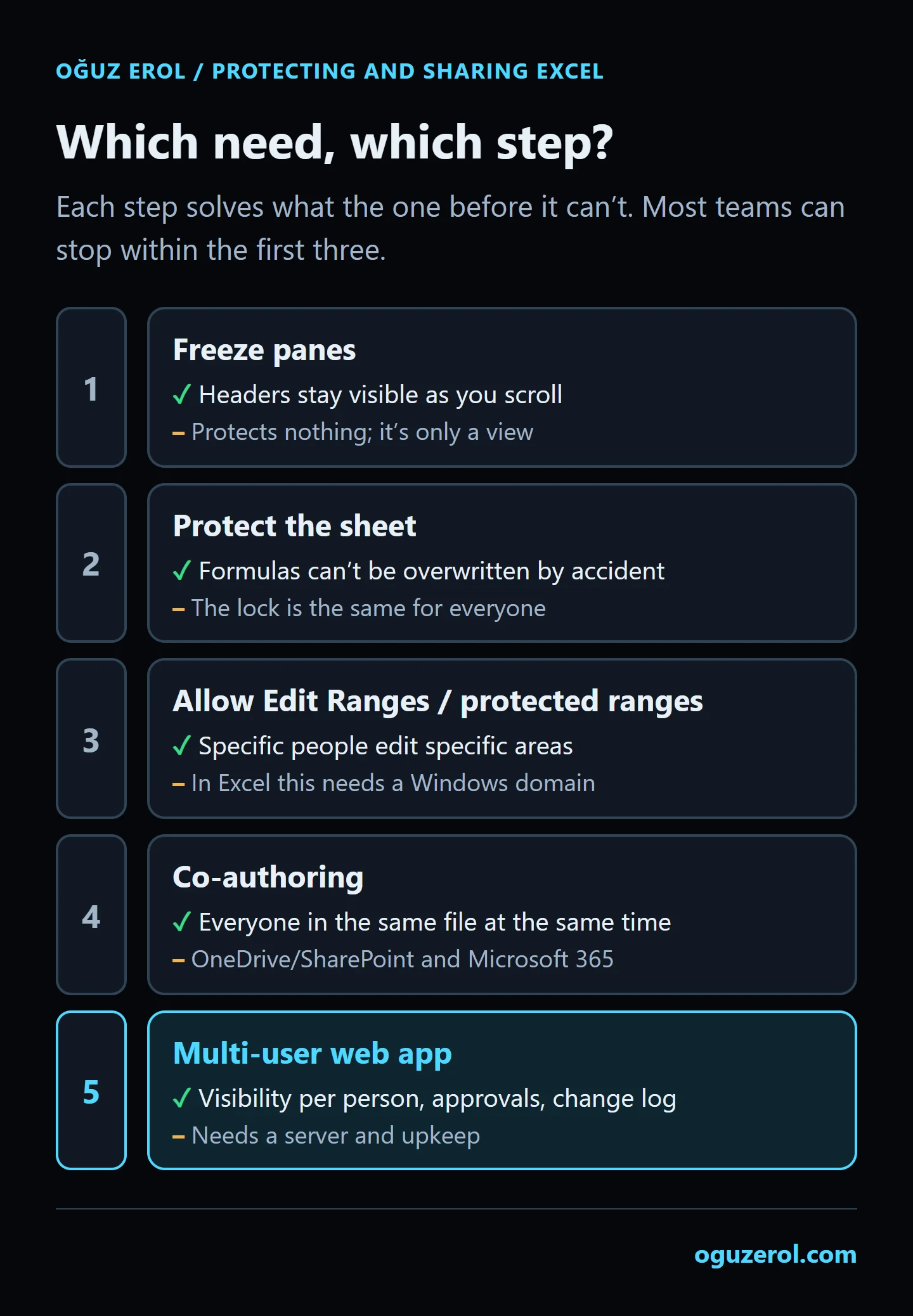
| Need | Excel sheet protection | Excel Allow Edit Ranges | Google protected ranges | Web app |
|---|---|---|---|---|
| Formulas can’t be overwritten by accident | Yes | Yes | Yes | Yes |
| Specific people edit specific areas | No | With a domain | Yes | Yes |
| Specific people never see a column | No | No | No | Yes |
| A lasting record of who changed what | Partly (Show Changes) | Partly | Partly (edit history) | Yes |
| A record can’t change after approval | No | No | No | Yes |
If you need any of the last three rows, a lock won’t solve it. For rules like “the warehouse enters delivered quantities but never sees prices” or “sales can change quantities but not on an approved order”, I build a team-specific cell-level permissions panel. How moving a whole spreadsheet into a server-based app with per-person permissions works is on the Excel to web app page.
If you’d like to see a sheet set up this way, the Excel inventory tracking template uses this method: the formula-driven “Stock Levels” sheet is protected without a password and the data entry sheet is left open.
Frequently Asked Questions
How do I unlock a locked cell in Excel?
Turn off sheet protection with Review > Unprotect Sheet; you’ll be asked for the password if there is one. Once protection is off, locked cells can be edited again. To unlock a cell permanently, also clear Ctrl+1 > Protection > Locked.
I locked the cells but people can still type in them. Why?
Most likely the sheet isn’t protected. The “Locked” box does nothing on its own; you need Review > Protect Sheet. If the sheet is protected and a cell can still be edited, that cell’s “Locked” box has been cleared.
I forgot the sheet protection password. What can I do?
Microsoft can’t recover a forgotten password. If you have an older copy without a password, or version history, going back to that is the cleanest route. That’s why it’s worth using a password only when you really need one, and writing it down.
Can I sort a table that has locked cells?
On a protected sheet, a range that contains locked cells can’t be sorted, even if you allow sorting in the protection settings. Leave the data cells of a table you want to sort unlocked, or remove protection temporarily before sorting.
Can only certain people edit certain cells in Excel?
Yes, with Review > Allow Edit Ranges, but per-person permissions require the computers to be on a Windows domain; otherwise you can only use a range password. Google Sheets does the same per Google account. If you also need to stop people seeing data and add an approval step, a multi-user web app is the better fit.
How do I lock cells in Google Sheets?
Use Data > Protect sheets and ranges, pick the range or sheet, then Set permissions to either show a warning or restrict who can edit. The file’s owner can always edit a protected range.