
How to Share an Excel File With Multiple Users (and When It Isn't Enough)
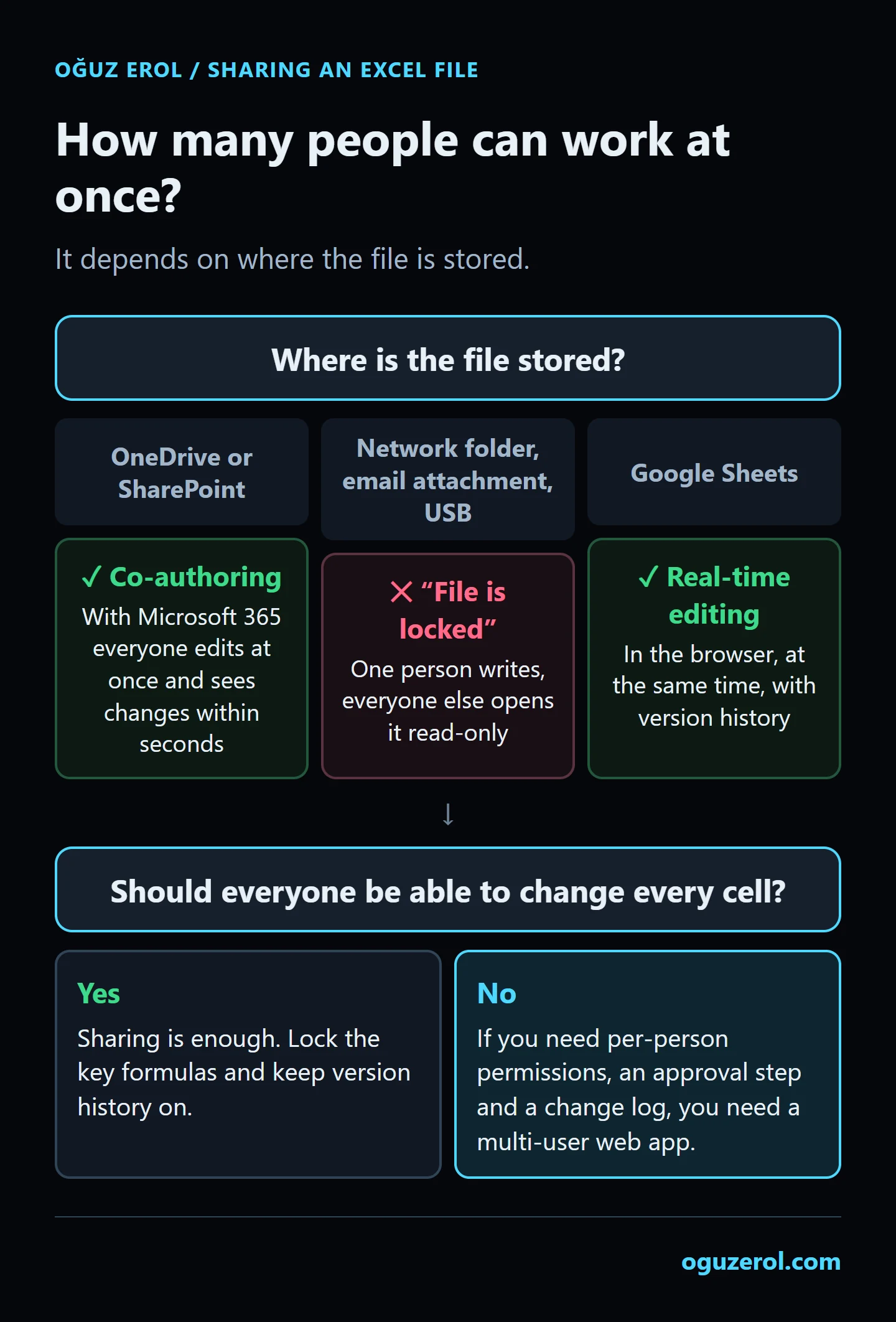
To let several people work in the same Excel file at the same time, save it to OneDrive or SharePoint and use the Share button in the top-right corner to give them “Can edit” access. Microsoft calls this co-authoring: everyone edits the same file at once and changes appear for everyone within seconds. It needs a Microsoft 365 subscription, a file in .xlsx, .xlsm or .xlsb format, and an up-to-date version of Excel. With a file on a network folder, sent as an email attachment or kept on a USB stick, only one person can write at a time; everyone else gets a “file is locked” message.
Many guides still explain the old “Shared Workbook” method. It still exists, but Microsoft no longer recommends it. Below I cover the current way, why the “locked for editing” message appears, when the legacy method is still useful, Google Sheets, and where sharing stops being enough.
How to share an Excel file through OneDrive, step by step
- Check the file format. If the file is
.xlsor another format, use File > Save a Copy and save it as an Excel Workbook (*.xlsx)..xlsmworks for files with macros. - Save it to OneDrive or SharePoint. If you have a work account, use OneDrive for Business or your team’s SharePoint library, not a local folder or a network drive.
- Check that AutoSave is on. Once the file is in the cloud, the AutoSave switch in the top-left corner turns on. Changes reaching everyone within seconds depends on it.
- Share it. Top right, Share > enter people’s email addresses > set the permission to Can edit > Send. You can also copy the link and send it yourself.
- Make sure everyone opens it the same way. From the shared link, in Microsoft 365 Excel or in Excel for the web. Someone who opens a copy attached to an email is working in their own copy, not in the shared file.
The names of everyone in the file appear in the top-right corner, and each person’s current cell is marked with a coloured border.
Co-authoring requirements
According to Microsoft’s pages on co-authoring and the “file is locked” error:
| Works | Doesn’t work | |
|---|---|---|
| Excel version | Excel for Microsoft 365 (Windows, Mac), Excel for the web, Android and iOS | Excel 2016, 2019 and 2021 LTSC |
| File format | .xlsx, .xlsm, .xlsb | Strict Open XML and the old .xls |
| Where the file lives | OneDrive, OneDrive for Business, SharePoint in Microsoft 365 | Network folders (\\server\folder), Dropbox, Box, Google Drive, local folders, on-premises SharePoint |
The point people miss most is the first one: if a single person on the team opens the file in Excel 2016, 2019 or 2021, everyone else gets the “locked” error. If you’re not sure who’s on which version, the quickest fix is for everyone to open the file in Excel for the web.
Why does “file is locked for editing by another user” appear?
Microsoft lists these causes and fixes for the message:
- The “other user” may be you. The file may still be open on another computer or phone of yours, or a previous session didn’t close properly. Close the file on all devices and wait a few minutes.
- If someone else really has it open, wait, open it read-only, or ask them to close it.
- A version that doesn’t support co-authoring may have opened the file (Excel 2016, 2019, 2021).
- The file may be on a network folder or another unsupported location. Move it to OneDrive or SharePoint.
- The format may be wrong. Save it as
.xlsx,.xlsmor.xlsb. - The OneDrive sync app may be paused or out of date.
- A setting that blocks co-authoring may be on: the legacy Shared Workbook feature, password encryption or restricted access on the file, “refresh data when opening the file” on tables, or certain add-ins.
The lasting fix is usually the same: move the file to OneDrive or SharePoint and make sure everyone opens it in an up-to-date Excel.
The legacy method: Shared Workbook
To let several people edit a file on a network folder, people used to use Review > Share Workbook. In Microsoft 365 those buttons have been removed from the ribbon and Microsoft recommends co-authoring instead (Microsoft Support). If you must stay on a network folder, you can bring it back: File > Options > Quick Access Toolbar > All Commands and add Share Workbook (Legacy).
Know its limits before choosing it:
- A workbook that contains an Excel table can’t be shared.
- While sharing is on, you can’t add or change conditional formatting or data validation, delete sheets, merge cells, write or change macros, or add or remove sheet protection.
- The file can’t be edited in Excel for the web.
- Change history is kept for 30 days by default.
How much gets switched off explains why the method was retired.
Sharing in Google Sheets
If your file is in Google Sheets, real-time editing is built in: Share > add people > choose Editor, Commenter or Viewer. According to Google’s help page, a file can be edited at the same time in up to 100 open tabs or devices and shared with up to 600 people (Google Support). Uploading an Excel file to Google Drive isn’t enough on its own: according to Microsoft’s list, Excel co-authoring doesn’t work on files in Google Drive. On the Google side, the smoothest way to work together is to convert the file to Google Sheets format.
How to see who changed what
- Excel: the Review > Show Changes pane shows who changed what, where and when, with the previous value, going back up to 365 days (Microsoft Support). To go back to an earlier version, use File > Info > Version History; restoring requires everyone to leave the file first.
- Google Sheets: version history lets you restore an earlier version; for a single cell, right-click > Show edit history. Inserted rows, formatting changes and changes produced by formulas may not appear in a cell’s history.
If two people change the same cell at the same time, Microsoft’s general rule is that the last change saved wins. Its advice is practical: give each person their own area or sheet and put names in the headings.
Where sharing isn’t enough
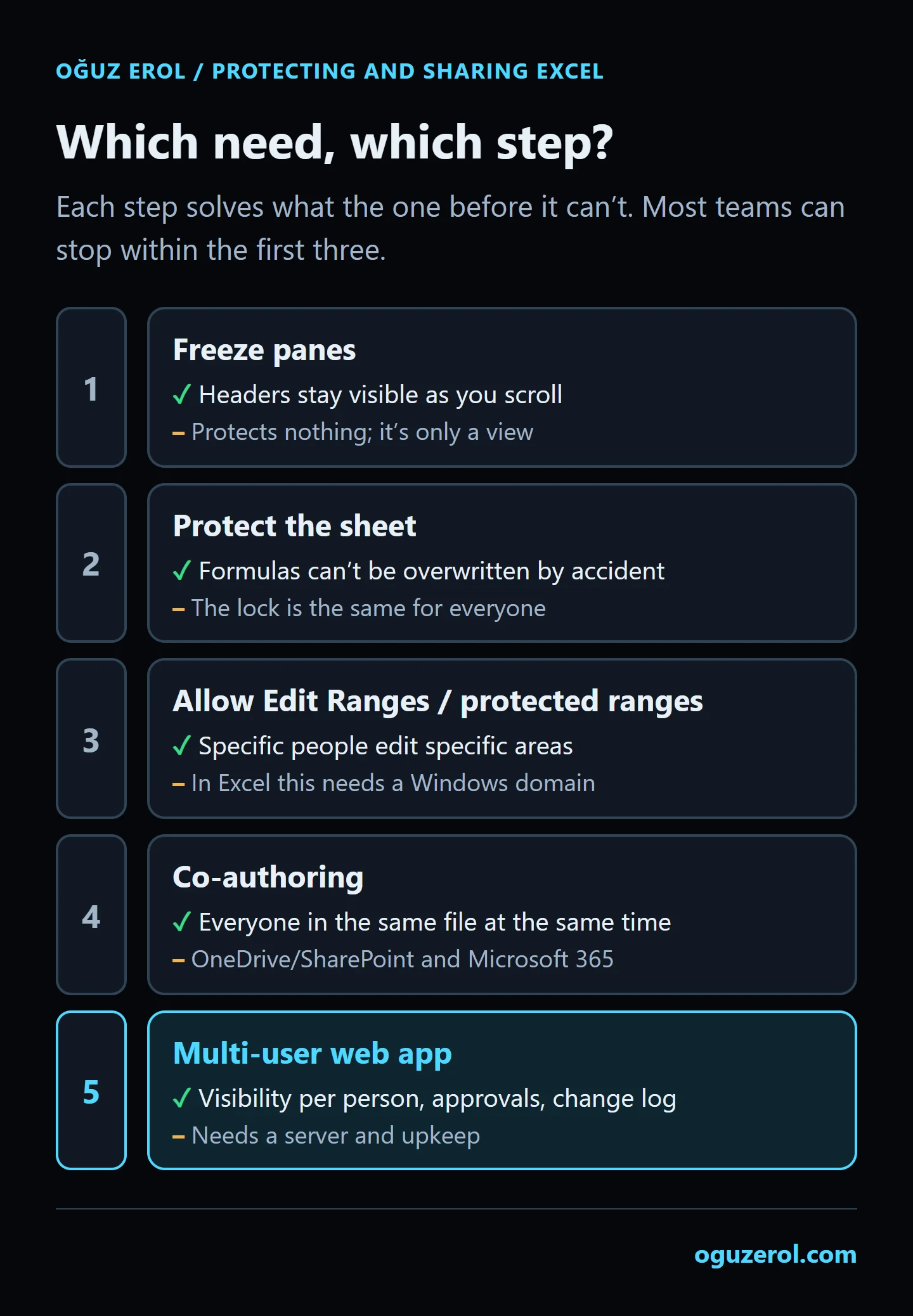
Co-authoring solves one problem: everyone in the same file, at the same time. The “which is the latest version?” argument ends. In these situations, though, sharing isn’t enough:
- Everyone sees every column. In a shared file there’s no reliable way to hide costs from the warehouse or discounts from the field team. A hidden column or sheet isn’t fully closed off to someone who can open the file.
- Everyone can change every cell. Locking cells protects formulas from accidents, but a lock is the same for everyone.
- One person enters, another approves. The approval lives in an email or a cell colour, and nothing stops the figure changing after approval.
- “Who deleted this?” comes up every month. There is a history, but it’s scattered, and restoring a version means everyone has to leave the file.
- Data is entered from phones in the field. Moving cell by cell on a phone ends with values in the wrong row.
At that point, instead of sharing a file, the same records need to move to one database on a server, with each person getting a screen that matches their permissions. I describe how I do that, with a sample screen, on the Excel to web app page. If you’re in the Google ecosystem, it’s also worth checking where AppSheet is enough as a no-code middle ground.
Frequently Asked Questions
How many people can edit an Excel file at the same time?
Microsoft’s Excel support pages don’t give an upper limit for co-authoring on OneDrive and SharePoint. With the legacy Shared Workbook method, the limit for people who can have the file open at once is 256. In Google Sheets, a file can be edited at the same time in up to 100 open tabs or devices.
Why does a shared Excel file open as read-only?
Most likely the file is somewhere co-authoring doesn’t work (a network folder, an email attachment) and someone else has it open, or someone on the team opened it in Excel 2016, 2019 or 2021. Move the file to OneDrive or SharePoint and make sure everyone opens it in an up-to-date Excel or Excel for the web.
Can I co-author with Excel 2019?
No. According to Microsoft, Excel 2016, 2019 and 2021 LTSC don’t support co-authoring, and a single person opening the file in one of those versions causes the “locked” error for everyone else. Those people can open the file in Excel for the web instead.
Where did the Share Workbook button go?
It was removed from the Review tab in Microsoft 365. You can add it back as Share Workbook (Legacy) via File > Options > Quick Access Toolbar > All Commands. Microsoft recommends co-authoring through OneDrive or SharePoint instead.
Can I hide some columns from some people in a shared Excel file?
Not reliably. A hidden column or sheet can still be seen by someone with access to the file, and Microsoft states that sheet protection isn’t a security feature. If different people need to see different columns, the data shouldn’t live in a shared file but in an app whose permissions are defined on a server.
If I put an Excel file in Google Drive, can people edit it together?
Excel’s co-authoring doesn’t work on files in Google Drive. On the Google side, the smoothest way to edit together is to convert the file to Google Sheets format. Before converting, keep in mind that macros and some Excel features won’t work in Google Sheets.