Source: https://oguzerol.com/en/how-to-lock-cells-in-excel/ # How to Lock Cells in Excel (and When a Lock Isn't Enough) [Oğuz Erol](https://oguzerol.com/en/about-me/) | 12 min read | Published: 1 October 2026 | Updated: 24 October 2026 ## Quick summary Lock Excel cells with a downloadable example. Follow Windows, Mac and web steps, protect formulas, check filter permissions and test editable input areas. Locking cells in Excel takes two steps: **unlock the input cells that should remain editable, then turn on sheet protection.** Ticking “Locked” alone does not prevent editing. Most cells start with that setting enabled, but remain editable while protection is off. This guide is for teams sharing spreadsheets whose formulas and fixed prices must survive everyday editing. It covers Windows, Mac and browser instructions, hidden formulas, filtering and sorting, and the difference between an editing lock and access control. ## Cell locks, dollar signs and frozen panes do different jobs | Desired behaviour | Feature | What it does not do | | --- | --- | --- | | Prevent overwriting a formula | Locked cell + Protect Sheet | Prevent opening the file | | Keep F1 unchanged when copying a formula | Absolute reference `$F$1` | Prevent editing F1 | | Keep headings visible while scrolling | Freeze Panes | Protect the row | | Prevent deleting or renaming worksheet tabs | Workbook structure protection | Protect cell contents | | Require a password to open the file | File encryption | Assign column-level roles to people who open it | Microsoft distinguishes worksheet, workbook and file protection. A worksheet lock should not be treated as a confidentiality boundary. Source: [Protection and security in Excel](https://support.microsoft.com/en-us/excel/protection-and-security-in-excel), checked 22 October 2026. ## Download the example: edit quantities only [Download the cell protection workbook (.xlsx)](https://oguzerol.com/indir/excel-cell-protection-example.xlsx). It has no macros and **no protection password**, so you can unprotect it and inspect the settings. It contains “Order” and “Read Me” sheets. All data is fictional, not a quotation or a customer record. | Range | Contents | Expected behaviour | | --- | --- | --- | | A2:A4 | Product names | Visible, not editable | | B2:B4 | Quantities | Editable | | C2:C4 | Unit prices | Visible, not editable | | D2:D4 | Calculated totals | Results visible, formulas hidden and locked | | F1 | Fictional 10% discount | Visible, not editable | D2 contains `=B2*C2*(1-$F$1)`. Copied down, B and C move with the row while F1 stays fixed. Editing B2 should update D2; typing over D2 should be blocked. The workbook’s formulas, protection attributes and expected calculations were checked, but this release was not opened and tested in desktop Excel. Run the acceptance checks below in your own Excel version. ## Windows: leave a few input cells open and lock everything else Work on a copy. If protection is already on, start with **Review → Unprotect Sheet**; obtain any required password from the owner. 1. Click the **Select All button at the top-left corner**, where the row and column headers meet. Ctrl+A inside a table may initially select only that table. 2. Open **Ctrl+1 → Protection** and ensure **Locked** is checked. This establishes a known starting state. 3. Select **B2:B4**, open Ctrl+1 → Protection and clear **Locked**. Use Ctrl to select several separate input areas if needed. 4. To hide formulas too, select D2:D4 and enable **Locked + Hidden**. Locked prevents editing; Hidden also suppresses the formula in the formula bar while protection is on. 5. Choose **Review → Protect Sheet** and permit the actions users need. Keep “Select unlocked cells” enabled. Permission to select locked cells is not permission to edit them. 6. Optionally set and confirm a password for removing protection. Without it, users can readily unprotect the sheet; that is deliberate in this teaching workbook. 7. Test B2 and D2 separately, then save, close and reopen the file. This approach makes permitted entry areas explicit. When the owner adds another input area, it needs to be unlocked deliberately. Detailed source: [Microsoft, locking and unlocking specific areas](https://support.microsoft.com/en-us/excel/get-started/lock-or-unlock-specific-areas-of-a-protected-worksheet). [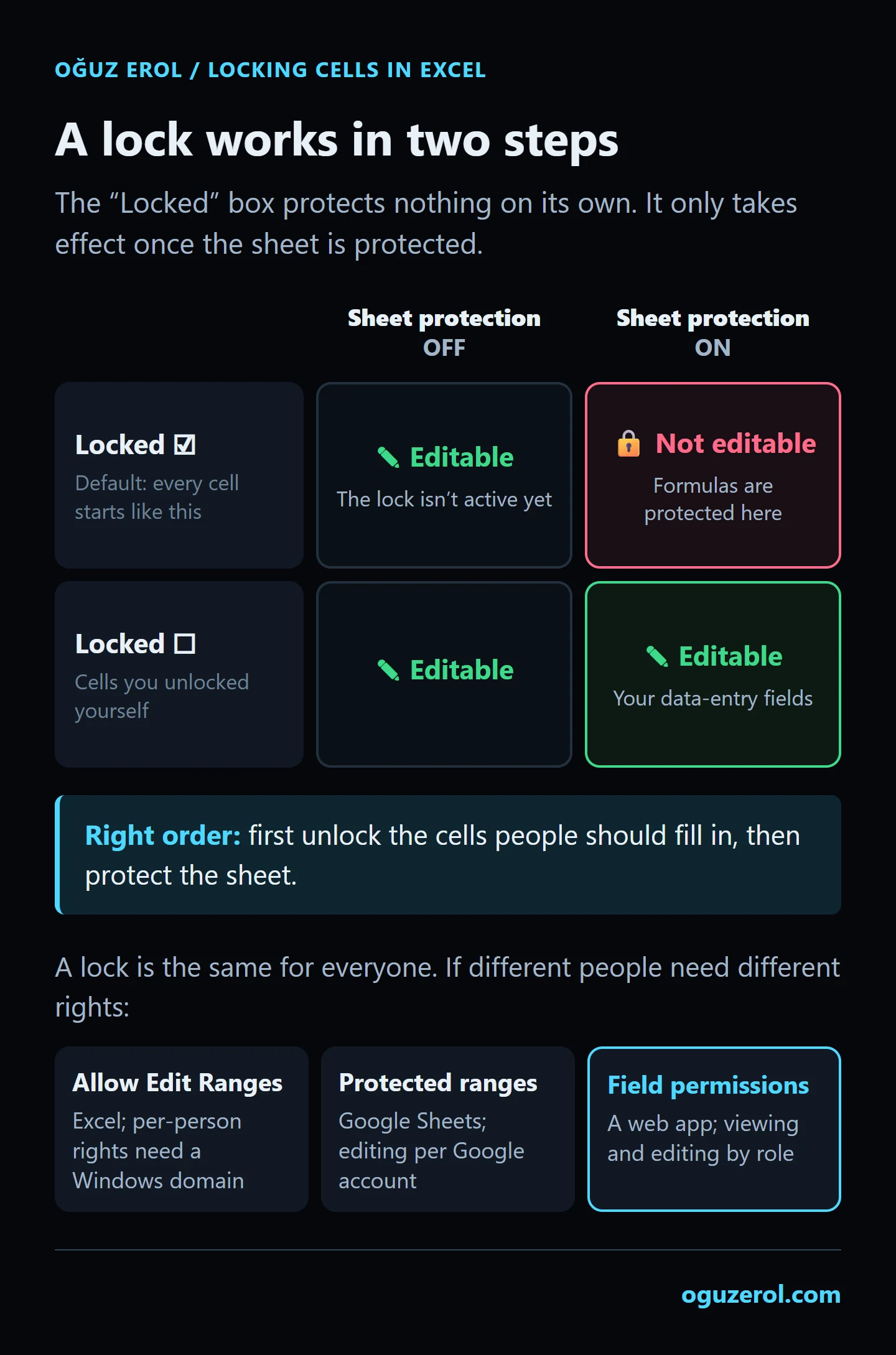](https://oguzerol.com/gorseller/web-uygulama/how-excel-cell-locking-works.webp) A lock only takes effect once the sheet is protected. Unlock the cells that should stay editable first, then protect the sheet. ## The opposite approach: lock only selected cells or formulas If most of the sheet should be editable, reverse the setup: unlock everything, lock only the required cells, then protect the sheet. Mixing the two approaches can leave everything open or everything closed. **For existing formulas only:** unprotect the sheet → Select All → Ctrl+1 → clear Locked → **Home → Find & Select → Go To Special → Formulas** → Ctrl+1 → enable Locked → Protect Sheet. This selects existing formulas in the selected scope; it does not create a permanent rule for all future formulas. It also leaves **non-formula constants** such as prices and discount rates unprotected. In the example, C2:C4 and F1 must remain locked too. Selecting formulas alone does not protect every business rule in the workbook. ### Hiding a formula does not hide its result or source data With Hidden enabled on D2 and sheet protection active, the formula is suppressed in the formula bar while the calculated result remains visible. Hiding column C likewise does not securely conceal prices from someone who has the file. If a person must never see prices, do not distribute those prices in their workbook, or enforce visibility in a system designed for access control. ## Mac and Excel for the web **Mac:** select the input cells, use **Command+1 → Protection** and clear Locked, then choose **Review → Protect Sheet**. Test the same editable B2:B4 and protected D2:D4 ranges. Do not treat Windows domain-based user permissions as identical Mac functionality. Source: [Microsoft, locking cells on Mac](https://support.microsoft.com/en-us/excel/lock-cells-to-protect-them-in-excel-for-mac). **Browser:** open **Review → Manage Protection**, enable sheet protection and define **Unlocked ranges**. **Pause Protection** affects your current editing session; if a protection password is set, you must enter it. This is different from removing protection for everyone. Source: [Microsoft’s Web protection instructions](https://support.microsoft.com/en-us/excel/protect-a-worksheet), checked 22 October 2026. If a menu is missing, establish whether you are using desktop Excel or the browser, whether you can edit the file, and which version you have. Look for that version’s protection interface rather than assuming Windows menu labels apply everywhere. ## Filtering, sorting and adding rows “Users should filter, sort and add rows” describes three separate permissions and tests. | Action | Setup | Limitation to check | | --- | --- | --- | | Use an existing filter | Create it before protection; permit Use AutoFilter | This does not mean users can create a new filter while protected | | Sort | Consider the Sort permission | A range containing locked cells still cannot be sorted | | Insert rows | Permit Insert rows if needed | Table expansion, formula propagation and cell locks need separate testing | | Delete rows | Leave disabled unless necessary | Insert permission is not delete permission | Do not unlock protected formulas simply to make sorting work. Separate input data from calculated reports, or let an authorised owner temporarily unprotect, sort and restore protection. Source: [Microsoft worksheet protection options](https://support.microsoft.com/en-us/excel/protect-a-worksheet). The downloadable example has only three data rows. To add a fourth, the owner must unprotect, extend formulas and formatting, unlock the new quantity cell and reprotect. The example should not be treated as an automatically expanding template. ## What $F$1 actually fixes Copying `=B2*C2*(1-$F$1)` from D2 to D3 produces `=B3*C3*(1-$F$1)`. Dollar signs control which coordinates change when a formula is copied: | Reference | Copy behaviour | | --- | --- | | `F1` | Row and column may change | | `$F$1` | Both stay fixed | | `$F1` | Column fixed, row may change | | `F$1` | Row fixed, column may change | On Windows, select the reference while editing a formula and press F4 to cycle through these forms; some keyboards need Fn. **Dollar signs do not prevent editing.** To protect the discount, F1 must be locked and sheet protection must be on. ## Freeze a row or column Use **View → Freeze Panes → Freeze Top Row** to keep headings visible while scrolling. Freeze First Column does the same for column A. To freeze several rows or columns, select the cell immediately below and to the right of the area to retain, then choose Freeze Panes. For example, B2 freezes row 1 and column A together. This affects the view, not editing permissions. ## Protect opening the file or changing its tabs **Workbook structure protection** restricts actions such as adding, deleting or renaming worksheet tabs. It is separate from Protect Sheet, which controls cell editing. To require a password when opening a file in Windows Excel, use **File → Info → Protect Workbook → Encrypt with Password**. Save, close and reopen it to check the password prompt. Microsoft cannot recover a forgotten password; use your organisation’s password-management and backup process. Source: [Microsoft, protecting an Excel file](https://support.microsoft.com/en-us/excel/get-started/protect-an-excel-file). ## Protect a range in Google Sheets Use **Data → Protect sheets and ranges → Add a sheet or range → Set permissions**. “Show a warning when editing” does not block the edit. “Restrict who can edit this range” lets you choose editors; the owner cannot be excluded. If the menu is missing, the file may be in Microsoft Office editing mode; convert it to Google Sheets first. Range protection is not a confidentiality boundary: viewing and copying are separate issues. Source: [Google’s protection guide](https://support.google.com/docs/answer/1218656?hl=en), checked 22 October 2026. ## When a cell lock is not enough “Nobody should accidentally delete formulas” is a good use for sheet protection. “Warehouse staff enter quantities but must never see prices” is a different requirement. Excel’s **Allow Edit Ranges** requires a Windows domain for user-specific permissions; a Microsoft 365 account alone does not establish that condition. A range password gives the same access to anyone who knows it. Source: [Microsoft range permissions](https://support.microsoft.com/en-us/excel/get-started/lock-or-unlock-specific-areas-of-a-protected-worksheet). Rules about who may change an approved record, when and why require their own design. A custom web application can implement roles, field visibility and change records, but the label “web app” does not guarantee those controls. Excel or Sheets can also support additional workflow automation; a cell lock alone does not build it. For that requirement, I assess an [Excel cell permissions panel](https://oguzerol.com/en/excel-cell-permissions-panel/) field by field: who sees it, who edits it and what happens after approval? If ordinary file sharing is sufficient, configuring the protection described here may be the shorter solution. ## Who updates prices after you lock the workbook? Design the update process alongside protection. If protection is not restored after a price or exchange-rate change, the workbook may be shared with unintended editing access. 1. **Separate changing values.** Prices, rates and exchange rates can live on a `Parameters` sheet. Names such as `VAT_Rate` and `EUR_Rate` make formulas easier to read. Still test names and references after inserting or deleting rows; naming a range does not make every structural change safe. 2. **Assign value and structure owners.** Someone updating prices may not need to edit formulas. Separate sheet or range passwords can organise this work, but anyone knowing a password receives the same access. This is not individual application-level authorisation. 3. **Use the same update sequence.** Save a dated copy, remove the necessary protection, change values, record the update date and reapply protection. Then try typing into a locked formula cell and verify that Excel refuses it. 4. **Test new rows separately.** Check formulas, validation and locking on a new product row. Table expansion alone does not prove every setting has propagated as intended. The new input cell should be editable and the calculation cell locked. 5. **Do not leave passwords and previous versions with one person.** Assign an authorised backup owner in the company’s password manager. Do not assume Microsoft can recover a forgotten password, or include it in the same email as the workbook. The downloadable example does not contain a separate `Parameters` tab: its editable quantities are in `Order!B2:B4`, and the discount is in `F1`. The separate parameters sheet above is a suggestion for developing your own workbook, rather than a claim about the example file. After an update, repeat the acceptance checks below using the eventual user’s access. ## Six checks before sharing with the team 1. **Input:** change B2; editing should be accepted. 2. **Calculation:** D2 should equal `B2 × C2 × (1 − F1)`. 3. **Lock:** try typing in C2, D2 and F1; these edits should be blocked. 4. **Hidden formula:** select D2. With Hidden applied, its formula should be absent from the formula bar while its result remains visible. 5. **Workflow:** separately try the filtering, sorting, pasting and row insertion the team actually needs. Tighten unexpected permissions. 6. **Persistence:** save, close and reopen. Repeat the input and lock checks in the intended application using a colleague’s account. ## Frequently Asked Questions ### Locked is checked, but I can still edit. Why? Check whether sheet protection is on. Locked does not prevent editing while protection is off. If protection is active, the cell may be unlocked or the range may grant editing permission. ### How do I unlock a cell while protecting the rest? Use Review → Unprotect Sheet and enter any password. Clear Locked under Ctrl+1 → Protection for that cell, then protect the sheet again. The other cell locks continue to work. ### Do hidden formulas still calculate? Yes. Hidden affects display; Locked affects editing. If a result does not update, check calculation mode, references and whether the input is numeric. Removing protection is not the first remedy. ### What if I forget the protection password? Ask the owner or consult the organisation’s password record. Consider an authorised earlier version or backup. Microsoft cannot recover forgotten passwords. First distinguish a sheet-protection password from the password required to open the file. ### Does locking stop selection, copying or viewing prices? An editing lock does not automatically block all of these actions. Selection is a separate option, and worksheet protection is not intended to provide confidentiality. Do not distribute sensitive values to someone who must not see them. ### Why can I not sort after allowing sorting? A protected range containing locked cells cannot be sorted. Separate the calculation area or use a controlled unprotect/sort/reprotect process operated by an authorised owner. [Back to top ↑](https://oguzerol.com/en/how-to-lock-cells-in-excel/#icerik)