
Google Sheets Data Entry Form: Connecting Google Forms, Limits and a Worked Example
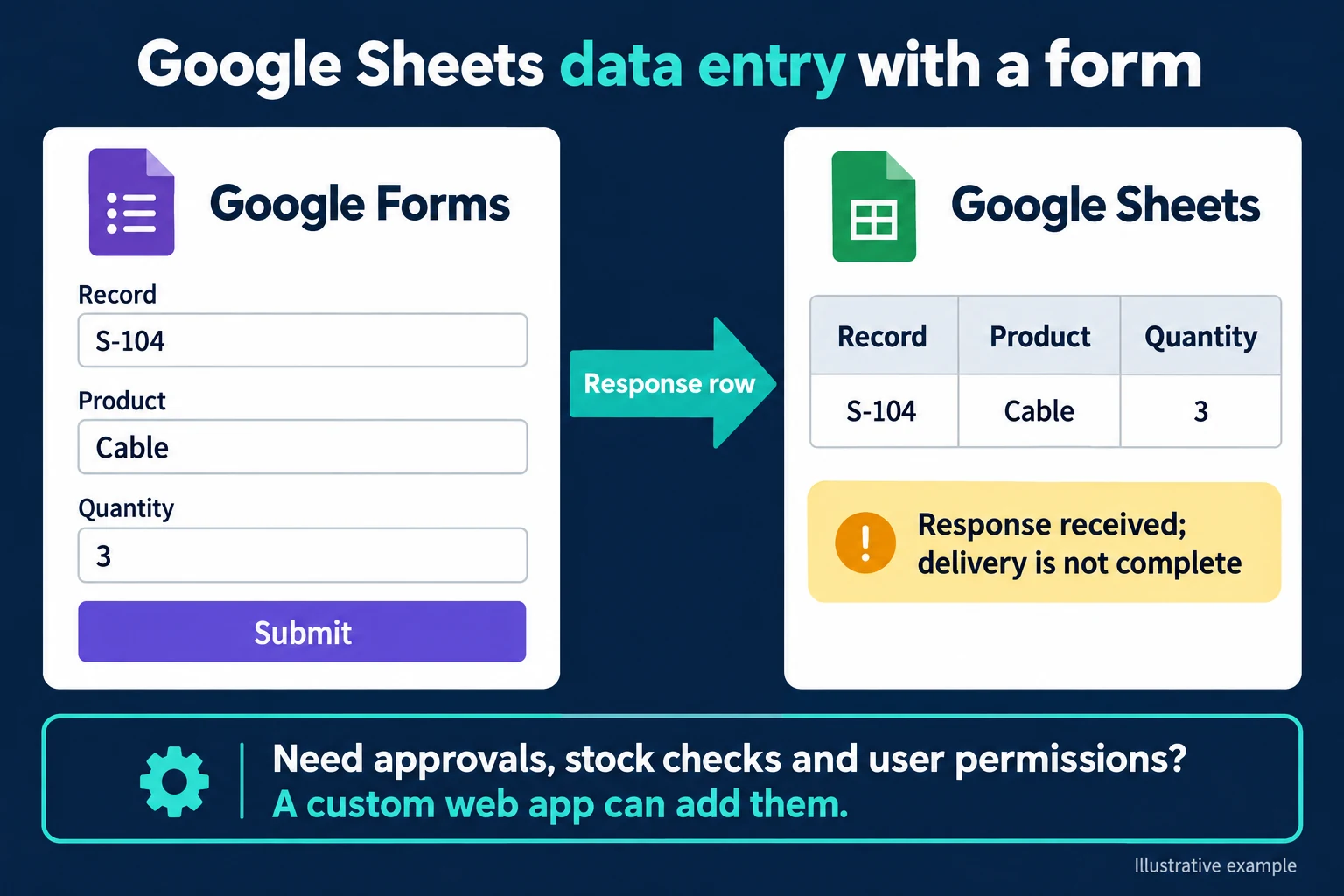
The quickest way to build a data entry form for Google Sheets is to link a Google Form to the spreadsheet. In your spreadsheet, choose Tools > Create a new form: the form opens and responses are written to a new tab in the same file. Each question becomes a column, each submission a new row. Never type into the response tab; calculate on a separate tab. Google Forms cannot check answers against existing records, and record updates, approvals or per-person visibility need more than a form. I read the Google sources here on 31 October 2026; undocumented behaviour is listed before the web application section.
How do you connect Google Forms to a spreadsheet?
You link a form from the spreadsheet with Tools > Create a new form, or from an existing form with Responses > Summary > More > Select destination for responses, which offers Create a new spreadsheet or Select existing spreadsheet. A form created from the spreadsheet adds a new tab, and responses are saved there (Google Help, using Forms; choose where to save responses). I call this tab the “response tab”.
Form collaborators get access to a new response spreadsheet automatically, but later form permission changes do not carry over; remove people from both.
What does each setting do?
The four settings that matter most in an internal form:
| Setting and where it is | What it does | Limit |
|---|---|---|
| Collect email addresses (Settings > Responses): Verified / Responder input | Verified records the Google Account email; Responder input records a typed address | A typed address proves nothing. On a shared tablet, Verified records the tablet’s account, not the person (my inference) |
| Allow response editing (Settings > Responses) | Respondents can change a submitted response | How an edit shows up in the spreadsheet is unverified (see the list below) |
| Limit to 1 response (Settings > Responses) | One response per person; respondents must sign in to a Google Account | Keep it off on a breakdown form: one operator can report several breakdowns in a shift |
| View results summary (Settings > Presentation) | Shows respondents a results summary | Anyone who can respond sees it; keep it off on an internal form |
Sources: form settings, view and manage responses.
Which column does each question type produce?
Each question gets a column headed with its text; the first column is the timestamp. Google does not show how each type appears, so this is my expectation:
- Short answer, multiple choice, dropdown, date: one value per cell.
- Checkboxes: several selections share one cell. If one choice is enough, use multiple choice.
- Grid questions: one column per grid row; a ten-row grid is ten columns.
What happens to the columns when a question changes later?
My assumption: a cell value is written when the response arrives and never changes. Rename an option and old rows keep the old name; a new question opens a new column, empty on older rows. Google does not document this, and the example relies on it. Try any change on a copy of the form and spreadsheet first.
Example: 186 breakdown reports in 28 days
The factory, machine codes, operators and every figure below are fictional; the numbers were generated by a Python script, which also checks each one.
A metal parts plant runs 24 machines: 8 CNC machines (CNC-01…), 6 presses (PRS-01…), 4 compressors (KMP-01…) and 6 welding robots (KYN-01…); the prefixes come from Turkish names. 18 operators on three shifts report breakdowns through Google Forms; the maintenance supervisor watches the spreadsheet.
First version (days 1–14). Four questions, titled exactly:
- “Machine code” (short answer)
- “Breakdown type” (Mechanical, Electrical, Hydraulic, Other)
- “Description”
- “Operator code”
94 reports arrive in two weeks, 6.7 a day on average. 20 of them (21.3%) have a missing or wrong field:
- 13 wrong machine codes: “CNC 04”, “CNC4”, “PRES-02”, “CNC-O3” (letter O instead of zero) and similar. Two, CNC-09 and PRS-07, are perfectly formatted but name machines the factory does not have (it has 8 CNC machines and 6 presses).
- 7 empty descriptions: “Other” chosen, nothing written; 7 of the 19 “Other” answers.
Another 6 are duplicate candidates: a second report for the same machine within 30 minutes, each from a different operator. Google Forms never sees other responses, so it cannot stop them.
Second version (days 15–28). Machine code becomes a dropdown with 24 options. “Hydraulic” is renamed “Hydraulic / Pneumatic”. A new required question goes into the first section: “Did the machine stop?” (Yes / No). “Other” now requires a description:
- Make “Breakdown type” the last question of the first section and use Add section below it.
- Move “Description” into the second section and turn on Required.
- On “Breakdown type”, choose More > Go to section based on answer: section 2 for “Other”, Submit form for the rest.
- At the end of section 2, choose Submit form too.
Every type except “Other” now submits straight away, so no description is asked; the cost is that other types collect none. If you want one, add an optional description question to the first section (it gets its own column). Making the description required for everyone also works, but forces one on every report.
92 reports arrive, 6.6 a day. Wrong codes: 0. Empty descriptions: 0. Duplicate candidates: still 5; a dropdown does not solve that. Of 186 reports in 28 days, 175 remain once the 11 duplicate candidates are set aside.
The report broke in two places when the questions changed:
- The breakdown-type count split in two. Because a cell value is written at submission, the 12 old responses stayed “Hydraulic” and the new ones read “Hydraulic / Pneumatic” (14). The real total of 26 appears on no row.
- The stoppage rate halved. “Did the machine stop?” has 31 “Yes” answers. The first 94 rows were never asked, so the column is empty there. Divide by all rows and you get 31 / 186 = 16.7%, with blanks silently counted as “No”. The right denominator is the 92 rows where it was asked: 31 / 92 = 33.7%. Maintenance would see half the real stoppages.
A regular expression rule on the machine code in the first version, ^[A-Z]{3}-[0-9]{2}$ (three capitals, a hyphen, two digits), would have stopped 11 of the 13 wrong codes. The path: question > More > Response validation > Regular expression > Matches, the pattern and a Custom error text (set rules). CNC-09 and PRS-07 match the format and would pass.
The verdict for this factory: the form is enough. Two changes eliminated wrong codes and empty descriptions, a separate calculation tab handles duplicates and the broken report, and no rule yet calls for an application.
Why should you never type into the response tab?
The response tab is the raw record the form writes; manual edits, extra formula columns, sorting and deleting make it unreliable:
- Form and spreadsheet are separate files. Fixing “CNC 04” in the spreadsheet leaves the form’s copy unchanged; a CSV from the form shows the old value.
- Each response is a new row. A formula typed row by row there does not extend to new rows, which quietly drop out of totals.
- Sorting and deleting destroy the trail. A deleted row looks like a report that never arrived. Why it may not show in cell edit history, and how to pair Google Forms with a protected update tab, is in the concurrent data entry guide.
How do you calculate on a separate tab?
Calculations go on a “Calc” tab that only reads the response tab, with ARRAYFORMULA filling each column from one cell. Two setup notes first. The formulas use English function names; their language depends on “Always use English function names” in File > Settings (locale). They also use commas; spreadsheets in a locale such as Turkish expect semicolons, so swap them if Sheets reports a parse error.
Response tab columns in the example: A timestamp, B machine code, C breakdown type, D description, E operator code, F “Did the machine stop?”. A “Machines” tab holds the 24 codes in A2:A25. I call the response tab “Responses”; use your own tab name.
On the Calc tab, type headers in row 1 (A1 “Type”, B1 “Code on list”, C1 “Duplicate candidate”). Put the three formulas in A2, B2 and C2; each spills down its own column. Typing into those columns blocks the spill. Put the QUERY in E1; leave D empty.
A2, one name per breakdown type:
=ARRAYFORMULA(IF(Responses!A2:A="","",IF(Responses!C2:C="Hydraulic","Hydraulic / Pneumatic",Responses!C2:C)))B2, is the machine code on the list (FALSE means a wrong code):
=ARRAYFORMULA(IF(Responses!A2:A="","",COUNTIF(Machines!A2:A,Responses!B2:B)>0))C2, was the same machine reported in the previous 30 minutes (TRUE is a duplicate candidate):
=ARRAYFORMULA(IF(Responses!A2:A="","",COUNTIFS(Responses!B2:B,Responses!B2:B,Responses!A2:A,">="&(Responses!A2:A-30/1440),Responses!A2:A,"<"&(Responses!A2:A-0.5/86400))>0))The half-second margin stops a row counting itself if the timestamp is rounded when turned into criterion text (in a decimal-comma locale, write 0,5/86400).
E1, count by type:
=QUERY({Calc!A2:A},"select Col1, count(Col1) where Col1 <> '' group by Col1 label Col1 'Type', count(Col1) 'Reports'",0)Stoppage rate: =COUNTIF(Responses!F2:F,"Yes")/COUNTA(Responses!F2:F). This denominator is only right if the question is required; otherwise skipped answers drop out of it. With COUNTA(Responses!A2:A) as denominator you get the wrong 16.7%.
I have not run these formulas in Google Sheets; I reproduced their logic in Python on the example data, where 13 wrong codes, 11 duplicate candidates, 26 hydraulic and 33.7% all matched. Test them on a small copy. Syntax: Google’s ARRAYFORMULA and QUERY pages; the QUERY reporting guide goes deeper on date-range reports.
What a form cannot do
Three limits surprise people most.
Validation against records. The rules page offers number, text, length and regular expression rules, plus selection counts for checkboxes; nothing validates against a spreadsheet or list. CNC-09 is caught only afterwards, in column B of the Calc tab. A dropdown closes the gap if options are few and stable; otherwise you update the form by hand.
Dependent dropdowns. A dropdown’s options cannot change with another answer. The closest workaround is branching: ask the machine group (CNC, Press, Compressor, Welding) as multiple choice, then send each group with Go to section based on answer to a section with its own dropdown. The cost: the code splits across four questions, so four columns with one filled per row. If they are G to J, join them:
=ARRAYFORMULA(IF(Responses!A2:A="","",Responses!G2:G&Responses!H2:H&Responses!I2:I&Responses!J2:J))Not tested either. For 24 machines, one dropdown is simpler.
Limits of branching. Google’s two pages disagree: the sections page names only multiple choice and dropdown questions, while the question types page also describes sending checkbox respondents to a section; try it in your own form. I found no condition that combines several answers (“a press, and it stopped”), which is why the example’s “Other” branch is a single condition.
File upload needs a Google Account. Respondents must sign in, files go to a folder in the owner’s Drive, and the type is unavailable in a shared drive or with Data Loss Prevention on (question types). Operators or contractors without a Google Account cannot send a photo this way.
What can Apps Script do when a response arrives?
To act the moment a response arrives (here, emailing the supervisor when a machine stops), use an Apps Script bound to the spreadsheet with a form-submit trigger. The event object carries namedValues (question titles and answers), values (answers in column order) and range (the row written) (event objects). namedValues is keyed by question title, so the names in the code match the example’s titles exactly:
// Not tested. Try it first on a copy of the spreadsheet, with your own email address.
function breakdownReported(e) {
  var v = e.namedValues;
  var questions = ['Machine code', 'Breakdown type', 'Operator code', 'Did the machine stop?'];
  questions.forEach(function (q) {
    if (!v[q]) throw new Error('Question not found: ' + q);
  });
  if (v['Did the machine stop?'][0] !== 'Yes') return;
  MailApp.sendEmail('maintenance@example.com',
    'Machine stopped: ' + v['Machine code'][0],
    'Breakdown type: ' + v['Breakdown type'][0] +
    '\nOperator code: ' + v['Operator code'][0] +
    '\nSubmitted: ' + e.values[0] +
    '\nSpreadsheet row: ' + e.range.getRow());
}
Paste it into the Apps Script editor (the spreadsheet’s Extensions menu) and add a trigger: function breakdownReported, event source the spreadsheet, event type form submit. Add it after “Did the machine stop?” exists. Installable triggers run under their creator’s account, and failures produce a summary email; Google’s page does not name the recipient, and my expectation is that it goes to the creator (installable triggers), so avoid the account of someone who may leave. The first check turns a renamed question into an error email instead of silent missing alerts.
Quota: daily MailApp recipients are 100 for consumer accounts and 1,500 for Google Workspace, and may change without notice (Apps Script quotas). The example’s 31 emails in two weeks are far below that.
Keep the script to email. Any job that updates or closes a record raises the first question in the web application section.
What I could not verify: check on your first test responses
None of this is in the Google pages I read. Before going live, send test responses through a copy of the form and spreadsheet and check:
- Does an edited response update the same row or add a new one?
- Does an edited response fire the trigger again (a second email)?
- After a question title changes, do the column header and the
namedValueskey carry the old or the new title? - Do question types produce the column layout above, and which column does a new question land in?
- If one section has two branching questions, which one wins?
- Does deleting a response from Responses > Individual remove its row from the spreadsheet? If not, manage the two separately.
Where does a web application start?
The reason to move to a web application is not response volume but a rule the form and spreadsheet cannot handle without strain. Four questions for the example factory:
- Are records updated later? Does a technician mark the breakdown fixed and enter downtime? Google Forms adds each response as a new row and only the respondent can edit it; maintenance cannot update an operator’s record through the form. If this is the only “yes”, Google Forms plus a protected update tab (guide above) is enough.
- Does a step need approval? Should part orders wait for the supervisor, then lock? Protected ranges and scripts can partly do this, but upkeep and auditing are fragile.
- Should some people see only part of the data? The compressor contractor only compressors, a line supervisor only their line? Sharing is file-level; separate files fed by scripts work but get harder to manage as people are added.
- Must entry check existing records? A warning that CNC-04 already has an open record, or retired machines leaving the list. The Calc tab only flags this afterwards.
A “yes” to the second or third is usually enough on its own; the fourth can wait a while. Four “no” answers: stay with the form.
In an application these rules apply as data is entered; AI can suggest a breakdown type from the operator’s note, and maintenance confirms it. The screens can be built to fit the need, and the scope is written down in the first step. See the Google Forms alternative for a flow that started with a form. The application runs on a virtual private server (VPS) that can be set up in your company’s name; the data is yours, and you can export it to Excel or CSV at any time. For small and medium-sized teams there is no per-user licence; the cost is the server and maintenance. The source code sits in a repository you can access, with run instructions, a dependency list and known limitations.
Send your form’s questions and a few masked rows from the response tab through the contact page.
Frequently Asked Questions
Can someone outside the company, such as a maintenance contractor, fill in the form?
In Google Workspace, by default only people in your organisation can open the form. To open it to outsiders, turn off the domain restriction under Settings > Responses (Google Workspace, create a form). If the form has a file upload question, the outside person still needs a Google Account.
Does the data stay if I unlink the form from the spreadsheet?
Yes. Responses > Summary > More > Unlink form stops new responses reaching the spreadsheet while the current data remains intact; Select destination for responses in the same menu links it again. They are separate Drive files; you can delete one and keep the other (Google Help).
Can I close the form on a set date or after a number of responses?
Yes. In a published form, click Published and turn off Accepting responses, or set a close date or response limit; if the form already has responses, the limit must exceed the current count (Google Help). Useful for stock counts, not for a breakdown form that must stay open.