
Google Sheets Protect Cells: Restrict Editing Access
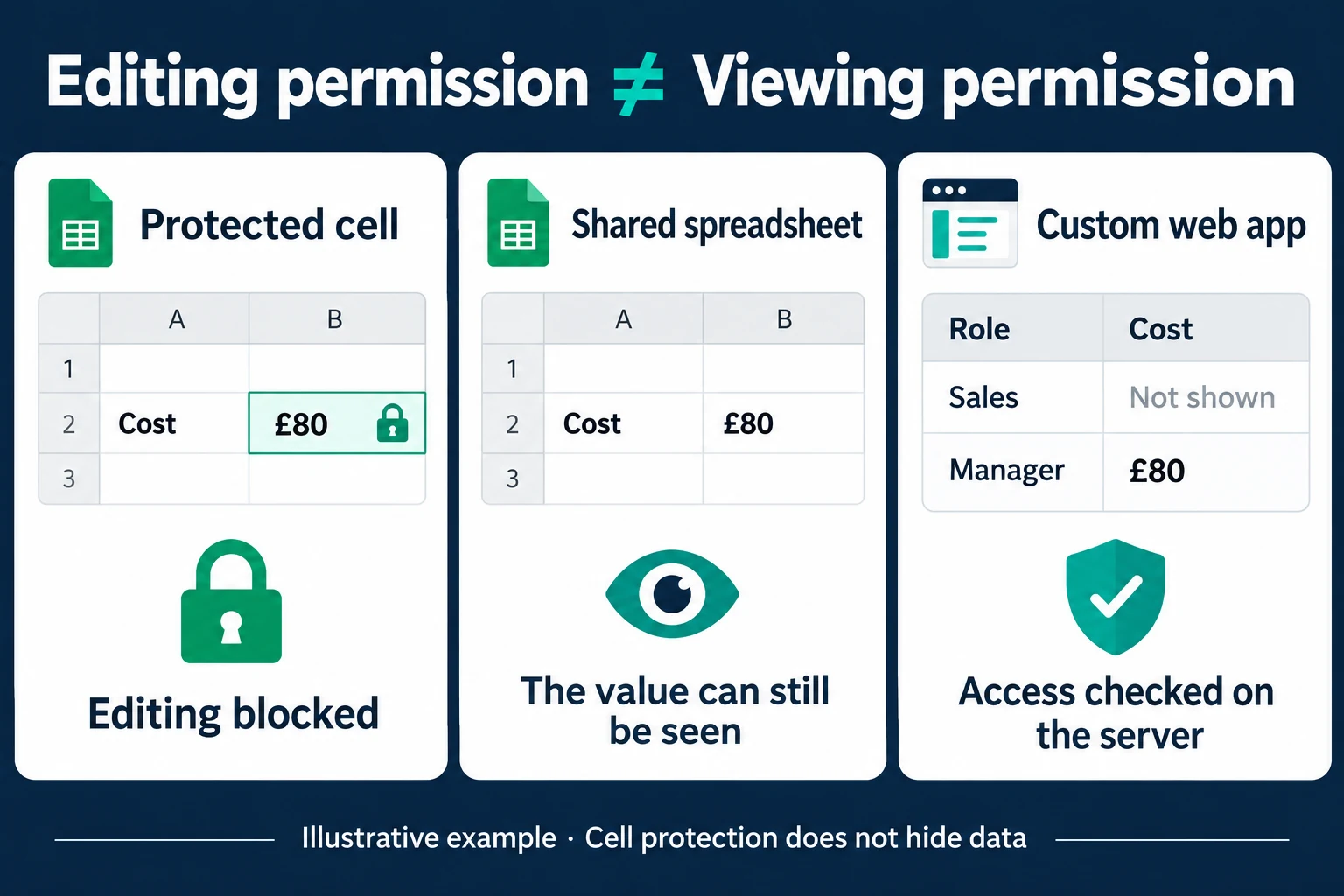
Protecting cells in Google Sheets controls who may edit selected areas. It can help prevent accidental formula changes or reserve a price column for the responsible person. Editing restrictions and hiding confidential data are different requirements: a person may see a value they cannot change.
Add range protection
Assume costs occupy D2:D100. Select the range and open Data → Protect sheets and ranges. Confirm the cells, give the protection a meaningful description and set its permissions. Use the option to restrict who can edit the range and identify the authorised editors.
The warning-only option has different behaviour: a person may proceed after seeing the warning. If your requirement is an editing restriction, test the permissions option rather than treating a warning as a lock. Google’s protection documentation explains range protection and these choices.
If you are editing an Excel-format file, conversion to Google Sheets may be required to use these features. Test a copy and check the existing formulas and sharing settings. Consider cell protection separately from the file-level decision about who can access the spreadsheet.
Test with another role
The manager should be able to change D2 while an unauthorised employee should not. Testing only as the file owner is insufficient; the owner’s view does not represent every colleague’s permissions. Use an account that has the same sharing role as the person doing the work.
When rows are added, check whether the protected range covers them. A rule ending at row 100 does not establish a policy for every future row. Moving formulas, adding columns and creating copies can also affect how the workbook is used. Review these ordinary actions rather than checking only a single cell once.
Write down who maintains the protections. Otherwise, a new manager may inherit a file without knowing why some columns are restricted. When somebody leaves the team, review access to the file as well as individual protected ranges.
A protected cost may still be visible
In an illustrative example, cost is €80. An employee may be unable to edit the protected cell while still seeing that value in the shared spreadsheet. Hiding a column or sheet is not a substitute for user-specific data access. If the rule is “sales staff must not see cost,” editing protection alone does not satisfy it.
In a custom application, I can omit the cost field for a Sales user while showing €80 to a Manager. That is role-based data delivery, not an automatic outcome of the Sheets protection setting. See the cell permissions panel for the related application scope.
Keep the spreadsheet where it is sufficient
If everyone may see the information and the concern is accidental formula damage, protection and appropriate sharing may be enough. There is no need to move the workflow solely because a range should be harder to edit.
User-specific records, field-level reading permissions or a workflow-specific approval history can justify the broader Excel and Sheets to web app approach. I define who may read, change and export each field, and how access should end when a colleague leaves. A role name alone does not answer those questions.
Frequently Asked Questions
Does a warning lock the cell?
No. A warning and an editing restriction are separate settings.
Does protecting cost hide it from sales staff?
Cell protection is not a visibility security mechanism. Treat the confidentiality requirement separately.