
Excel Inventory Tracking Template: A Simple Stock In/Out Sheet
The rule for reliable inventory tracking in Excel fits in one sentence: don’t type current stock into a cell; calculate it. Every receipt, issue, return and count adjustment goes in as its own row, and current stock is worked out from those movements with a formula. Three tabs are enough: Products, Movements and Stock Levels. That way, when a number looks wrong, you can always see where it came from.
You can download the template I built on this layout and use it with your own products. Below I explain how it’s set up, the formulas it uses, and where Excel starts to struggle with inventory.
Download the Excel inventory tracking template (.xlsx, 55 KB). It also opens in Google Sheets: File > Import > Upload. The products and movements in it are samples; delete them and enter your own.
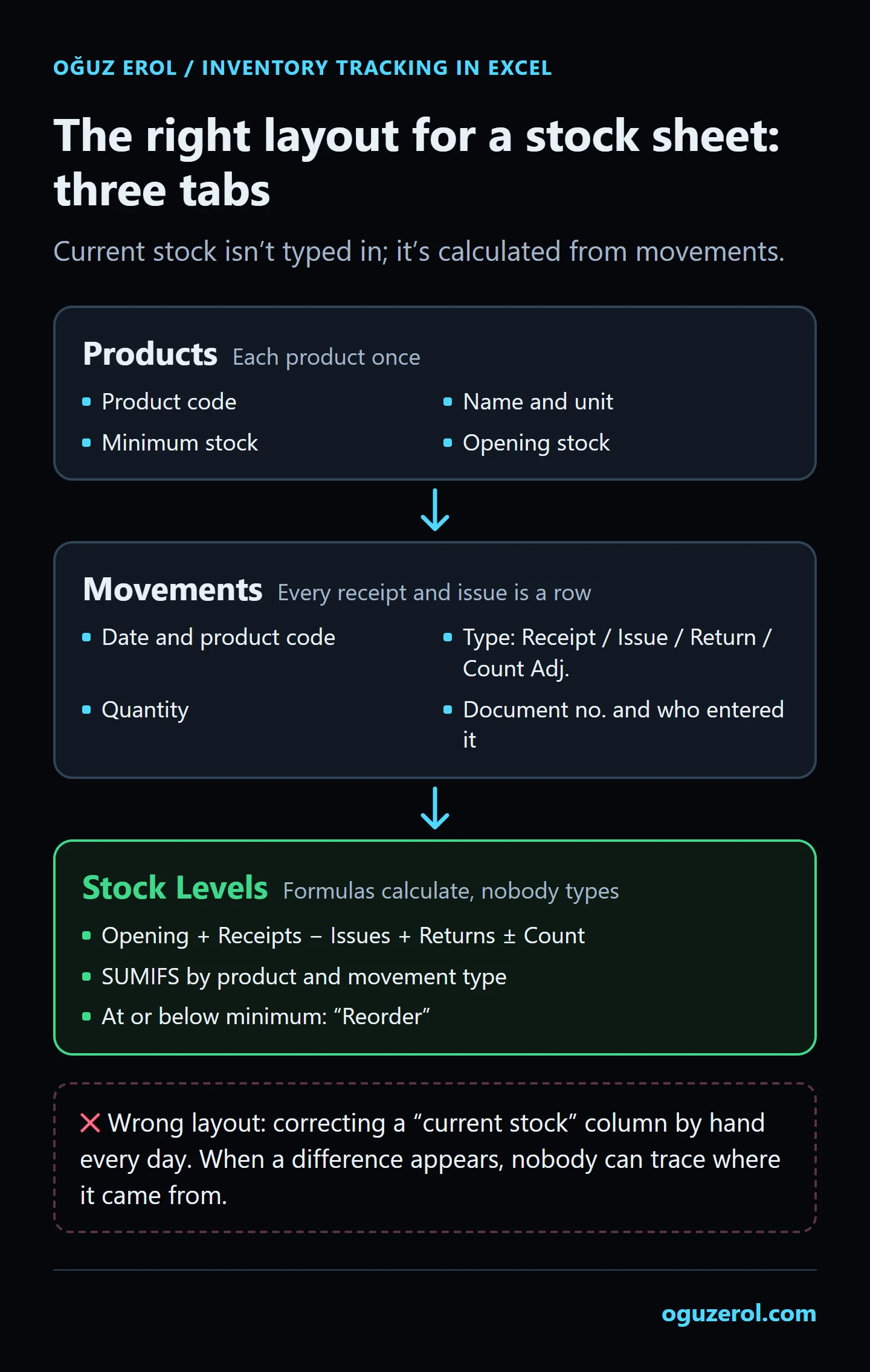
1. The Products tab
One row per product: Product Code, Product Name, Unit, Minimum Stock and Opening Stock.
- Use codes, not names. “PVC pipe 50mm”, “PVC Pipe 50 mm” and “pvc pipe 50” are three different products as far as Excel is concerned. A short, unique code (
PVC-050) ends that confusion. - Opening stock belongs to a date. The count or verified quantity on the day you switch to the template becomes the opening figure; movements before that date aren’t re-entered.
- Minimum stock is your reorder point. When current stock drops to it, the Stock Levels tab flags the product.
2. The Movements tab
Anything that comes into or leaves the warehouse is a new row: Date, Product Code, Movement Type, Quantity, Document / Note and Entered By.
-
Make the movement type a dropdown. Data > Data Validation > Allow: List with “Receipt, Issue, Return, Count Adjustment” means nothing else can be typed. In the template the product code is also picked from the Products list, and an unknown code triggers a warning.
-
Let a formula fill in the product name. The formula that looks up the name from the code is below. In Microsoft 365,
XLOOKUPdoes the same job more briefly. If you see?instead of a name, the code was mistyped.=IFERROR(INDEX(Products!$B$2:$B$500,MATCH(B2,Products!$A$2:$A$500,0)),"?") -
Quantities are always entered as positive numbers. Turning issues into negatives is the formula’s job; the one exception is a “Count Adjustment” entered as a negative when a count comes up short.
In the template the grey columns are formulas; don’t type in them.
3. The Stock Levels tab
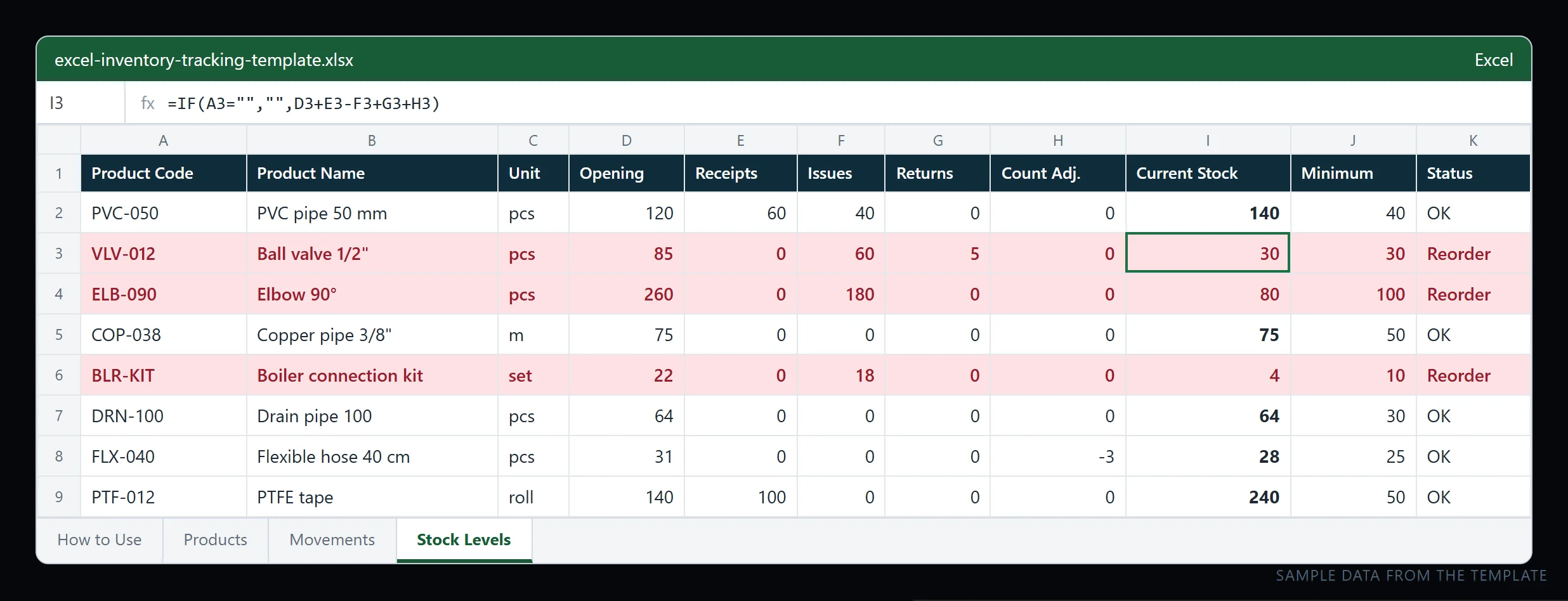
Nobody types on this tab; everything is a formula. The total of a product’s movements of one type is found with SUMIFS:
=SUMIFS(Movements!$E$2:$E$1001,Movements!$B$2:$B$1001,A2,Movements!$D$2:$D$1001,"Receipt")The same formula is repeated in one column each for “Issue”, “Return” and “Count Adjustment”. Then:
- Current Stock = Opening + Receipts − Issues + Returns + Count Adjustments
- Status =
=IF(I2<=J2,"Reorder","OK") - Conditional Formatting turns rows that say “Reorder” red: Home > Conditional Formatting > New Rule > Use a formula to determine which cells to format, with the formula
=$K2="Reorder".
If your Excel is set to a language that uses semicolons as separators, use ; instead of ,. The formulas in the template adapt automatically to the language of the Excel you open it in.
How to record count differences and returns
If the month-end count finds 28 on the shelf but the sheet says 31, don’t change the current stock cell to 28. Add a “Count Adjustment, −3” row to Movements with “September count” as the note. The number ends up in the same place, but when and why the difference arose stays on record. Returns are a separate type too: goods coming back from a customer go in as “Return”, with the order they came from in the note.
Protect the formulas
Someone typing a number over a formula on the Stock Levels tab quietly breaks the whole setup. In the template this tab is protected without a password: its cells can’t be changed, and you can open it with Review > Unprotect Sheet when needed. How to do the same in your own file is in my guide on how to lock cells in Excel.
Where Excel inventory tracking gets stuck
This layout works well for a stockroom run by one person or a small team, with a few dozen movements a day. It starts to struggle when:
- Several people enter movements at the same time. On a network folder only one person can write at once. Co-authoring on OneDrive fixes that, but then anyone can change any row.
- Negative stock can’t be prevented. You can partly stop someone issuing 60 when only 40 are on hand with data validation, but a value pasted into a cell skips validation.
- More than one warehouse, colour and size variants, or stock reserved for orders. Each one means another column and another layer of formulas, and the sheet quickly gets fragile.
- Who changed what? When a movement row is deleted or its quantity changed, there’s no lasting record of who did it.
- Entries from a phone in the warehouse. You need a one-screen form where people pick a product and type a quantity, not cell-by-cell navigation.
Off-the-shelf inventory software is an option too: if you sell retail and need barcode checkout and invoicing, ready-made products are built for exactly that. If your work doesn’t fit that mould (materials issued per project, stock held for specific dealers, approved issues), I move the same three-tab logic into an app that runs on a server and that your team uses from their phones: movement rows can’t be deleted, negative stock is blocked, and every change is logged with who made it. Details are on the inventory tracking system page; for related needs see multi-warehouse stock, colour and size variants, reserved stock and low-stock purchasing.
Frequently Asked Questions
How do I track inventory in Excel?
Set up one tab with your product list, one tab where every receipt and issue is recorded as its own row, and a third tab that calculates current stock from those movements with SUMIFS. Current stock is never typed in. You can download a ready-made template with this layout from this page.
Which formula calculates stock in Excel?
SUMIFS adds up a product’s movements of a given type. Current stock is opening stock plus receipts and returns, minus issues, plus any count adjustment. For a low-stock alert, IF and conditional formatting are enough.
Does the template work in Google Sheets?
Yes. When you open the file in Google Sheets with File > Import > Upload, the formulas and calculated values work as they are; I checked this by opening the template in Google Sheets before publishing it.
How do I track stock for more than one warehouse in Excel?
Add a “Warehouse” column to the Movements tab and one more condition for it in SUMIFS; on Stock Levels, each warehouse gets its own column. As the number of warehouses and transfers grows, the sheet gets complicated; at that point a multi-warehouse stock tracking app is a sturdier route.
Free inventory software or Excel?
With few products and few movements, a well-built Excel sheet is often enough and doesn’t require learning another program. If you need barcode sales and invoicing, off-the-shelf software is made for that. For a stockroom where several people enter data and you have your own rules, a team-specific app is worth considering.
How do I fix a mistake in my stock sheet?
Don’t change the current stock cell. Correct the movement row that was entered wrongly, or add a “Count Adjustment” movement based on the physical count. That way, when and why the correction was made stays on record too.