
Excel Multi-Select Dropdown: VBA Code and Alternatives
Excel’s built-in dropdown (Data → Data Validation → List) puts one value in a cell; a second pick overwrites the first. If you want “Cutting, Packing” accumulated in one cell, there are two routes: add a small VBA macro to the sheet, or store each choice in its own row. Both are below, and you can copy the macro as it stands.
What the built-in list does and does not do
Put Cutting and Packing in a helper range. Select the input cell, open Data → Data Validation, choose List and use that range as the source. Pick Cutting, then Packing: the cell ends up holding only Packing. Microsoft’s drop-down list page (read October 2026) describes choosing a single item and does not define a multi-select option. If your own version shows something different, trust that; I did not find one on that page.
The same page suggests keeping the list items in an Excel table, so the list updates when you add or remove items.
Method 1: accumulate selections in one cell with VBA
The idea: when the user picks an item, the macro appends it to the text already in the cell. Picking an item that is already there removes it. The code below follows a widely used pattern; I wrote it to that pattern and walked through its logic step by step. Even so, try it on a copy before adding it to your own file: go through the test steps under it, and change the input range (C2:C200) and the list name (OptionList) to match your file.
Setup
- Select the option range (for example A2:A6 on a Lists sheet) and name it
OptionListvia Formulas → Define Name. - Select the input cells (for example C2:C200). In Data Validation choose List and enter
=OptionListas the source. - Save the file as an Excel Macro-Enabled Workbook (.xlsm).
- Press Alt + F11, double-click the sheet that holds the input cells in the left pane, and paste the code below into that sheet’s module. It must go in the sheet module, not a standard module.
The code
Option Explicit

Private Const SEP As String = ", "
Private mOld As String   ' the cell's value before the pick

Private Sub Worksheet_SelectionChange(ByVal Target As Range)
    If IsError(ActiveCell.Value) Then mOld = "" Else mOld = CStr(ActiveCell.Value)
End Sub

Private Sub Worksheet_Change(ByVal Target As Range)
    Dim picked As String, result As String
    Dim parts() As String
    Dim i As Long, found As Boolean

    If Target.CountLarge > 1 Then Exit Sub
    If Intersect(Target, Me.Range("C2:C200")) Is Nothing Then Exit Sub
    If IsError(Target.Value) Then Exit Sub

    picked = CStr(Target.Value)
    If Len(picked) = 0 Then             ' cell was cleared: forget the old value too
        mOld = ""
        Exit Sub
    End If
    ' Leave typed or pasted text that is not in the list untouched
    If IsError(Application.Match(picked, ThisWorkbook.Names("OptionList").RefersToRange, 0)) Then Exit Sub

    On Error GoTo Done
    Application.EnableEvents = False

    If Len(mOld) = 0 Then
        result = picked
    Else
        parts = Split(mOld, SEP)
        For i = LBound(parts) To UBound(parts)
            If StrComp(parts(i), picked, vbTextCompare) = 0 Then
                found = True                ' already selected: remove it
            Else
                If Len(result) > 0 Then result = result & SEP
                result = result & parts(i)
            End If
        Next i
        If Not found Then
            If Len(result) > 0 Then result = result & SEP
            result = result & picked        ' new item: append it
        End If
    End If

    If Len(result) = 0 Then Target.ClearContents Else Target.Value = result
    mOld = result

Done:
    Application.EnableEvents = True
End Sub
What the code is doing:
Application.EnableEvents = False: stops the macro’s own write from firingWorksheet_Changeagain. TheDonelabel turns it back on even after an error. If it stays off, the macro never runs again; this is the most common way this pattern breaks.- The previous value is stored separately:
SelectionChangerecords the cell’s text when you click it, so the code does not depend on Excel’s Undo. - Repeat pick: selecting an item that is already in the cell removes it; there is no separate delete button.
- Text not in the list: typed or pasted values are left alone. Pasting bypasses data validation anyway, and this check keeps the macro from mangling it.
- When the cell is cleared: after Delete the old text is forgotten as well; otherwise the next pick would bring the deleted text back.
- Several cells at once: fills and multi-cell pastes make the code exit.
- Separator: change the
SEPconstant. For one item per line usevbLfand turn on Wrap Text.
How to test it
- Pick Cutting in C2: the cell should read
Cutting. - Pick Packing in the same cell:
Cutting, Packing. - Pick Cutting again:
Packing. - Pick Packing again: the cell should be empty.
- Clear the cell with Delete and pick again; it should start fresh.
If a step fails, first confirm macros are enabled and the code sits in the sheet module.
Limits
- It does not run in Excel for the web. Microsoft states that VBA macros cannot be created, run or edited in Excel for the web, and that existing macros stay in the workbook (read October 2026). Anyone opening the file in a browser gets the plain single-select list.
- Item names must not contain the separator. An option called “Cutting, Painting” would be split and handled wrongly.
- The cell is one piece of text. Counting, filtering, or attaching a date or quantity to a selection means parsing that text later.
- Validation only checks the item picked. The combined text the macro writes is not validated, so do not rely on the “value not in list” check for these cells.
- Macro security: a file received by email or downloaded may have macros blocked until the user enables them.
- Protected sheets: a macro cannot write into locked cells; unlock the input cells or extend the code to unprotect and re-protect.
Macro-free alternatives
A Form Controls list box can allow multiple selection, but according to Microsoft’s documentation multi-select list boxes cannot be linked to a cell with LinkedCell (read October 2026). Reading the chosen items still needs VBA, so a list box is not a macro-free way out.
Method 2: store each selection as its own row
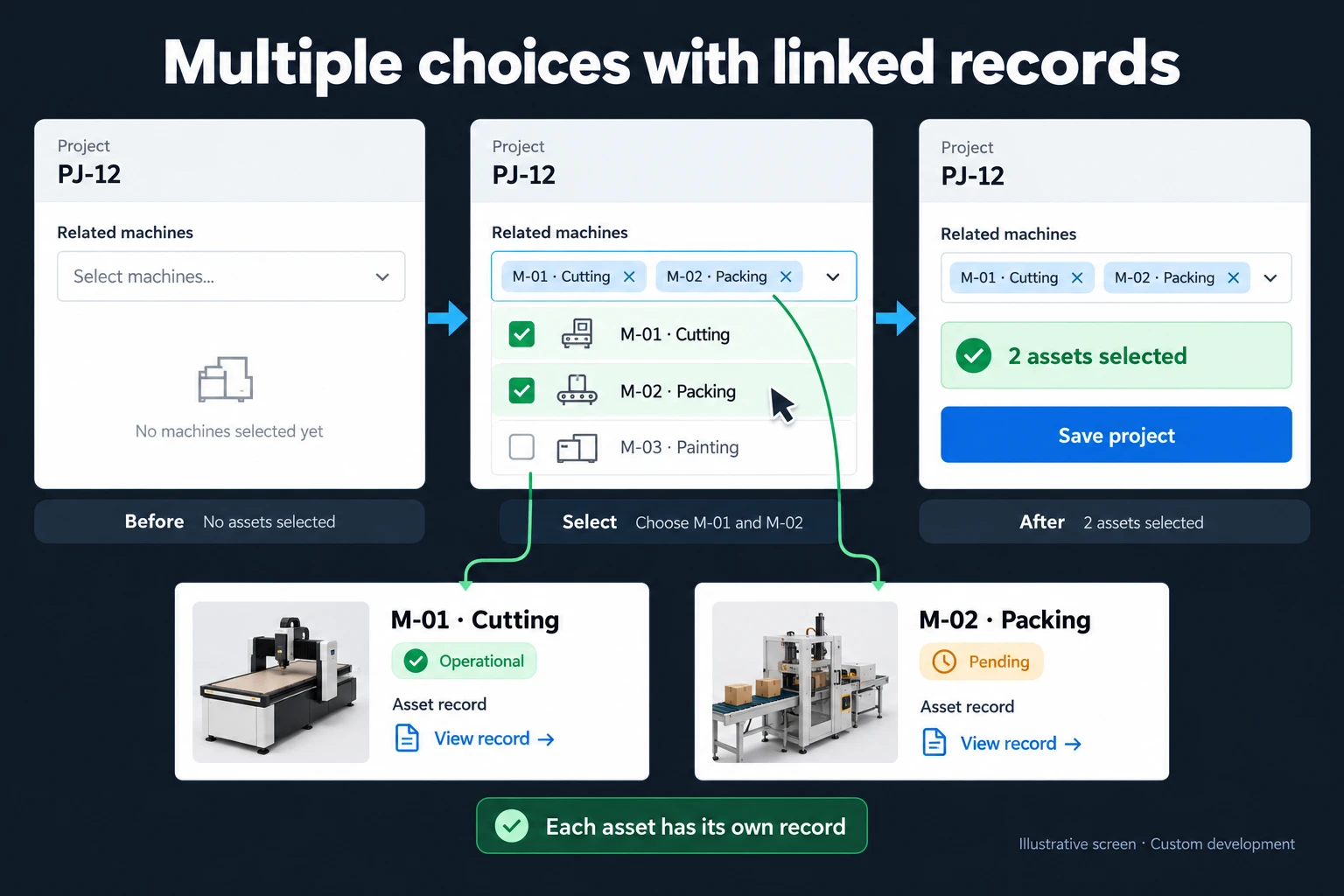
A macro-free alternative is to give each selection a row. Create Project, Equipment ID and Equipment name columns. This illustrative example connects two machines to project PJ-12:
| Project | Equipment ID | Name |
|---|---|---|
| PJ-12 | M-01 | Cutting |
| PJ-12 | M-02 | Packing |
Use ordinary validation on the Equipment ID column if appropriate. The second row is the second choice. It does not give a multi-select cell interface, but it makes counting, filtering and attaching other information easier. That can be more valuable than a compact display when the selections will feed a report.
Check duplicates in context. The same machine may legitimately appear in two projects, while being listed twice within one project could be an error. Removing every repeated equipment ID from the workbook would delete valid relationships. Likewise, changing an equipment name is different from removing the machine from a project.
If each selected machine needs a usage date, quantity or project owner, that information belongs to the relationship. A comma-separated cell gives those details nowhere reliable to live; separate rows carry them cleanly.
Which one should you use?
| Situation | Better fit |
|---|---|
| One person, desktop Excel, a short list of tags | VBA macro |
| Some users open the file in Excel for the web | Separate rows |
| Selections will be counted, filtered or reported | Separate rows |
| Each selection needs a date, quantity or owner | Separate rows |
| Macros are not allowed, or the file is copied around often | Separate rows |
Ask who will open the file, whether macros are allowed and who maintains the code. A working record structure should not become fragile merely to produce a particular visual effect.
When an application becomes useful
In a multi-select relationship form, PJ-12 can link to M-01 and M-02 as two separate records. Removing M-02 from PJ-12 removes the relationship, not the equipment itself or its history in other projects. Preventing a machine under maintenance from being selected, or showing each user only the equipment they may use, are explicit business rules that are applied as data is entered once they are defined; they are not properties of a standard Excel dropdown.
See the broader Excel to web app approach when the workflow involves a team.
Frequently Asked Questions
Is typing several labels a multi-select dropdown?
No. It may be adequate for notes, but it does not provide separate selection identity or managed removal.
Does removing a choice delete the equipment?
It should not if the project relationship and the equipment record are modelled separately.
How do I remove one item with the VBA code above?
Pick the same item from the list again and it is taken out of the cell. To empty the whole cell, press Delete.
Does a multi-select dropdown work in Excel for the web?
Not with a macro: VBA does not run in Excel for the web, so a macro-based multi-select does not work there. If people will open the file in a browser, the separate-rows structure is safer.
The macro stopped working. Why?
Most often Application.EnableEvents was left switched off after an error. In the VBA editor, type Application.EnableEvents = True in the Immediate window, press Enter, then try again.