
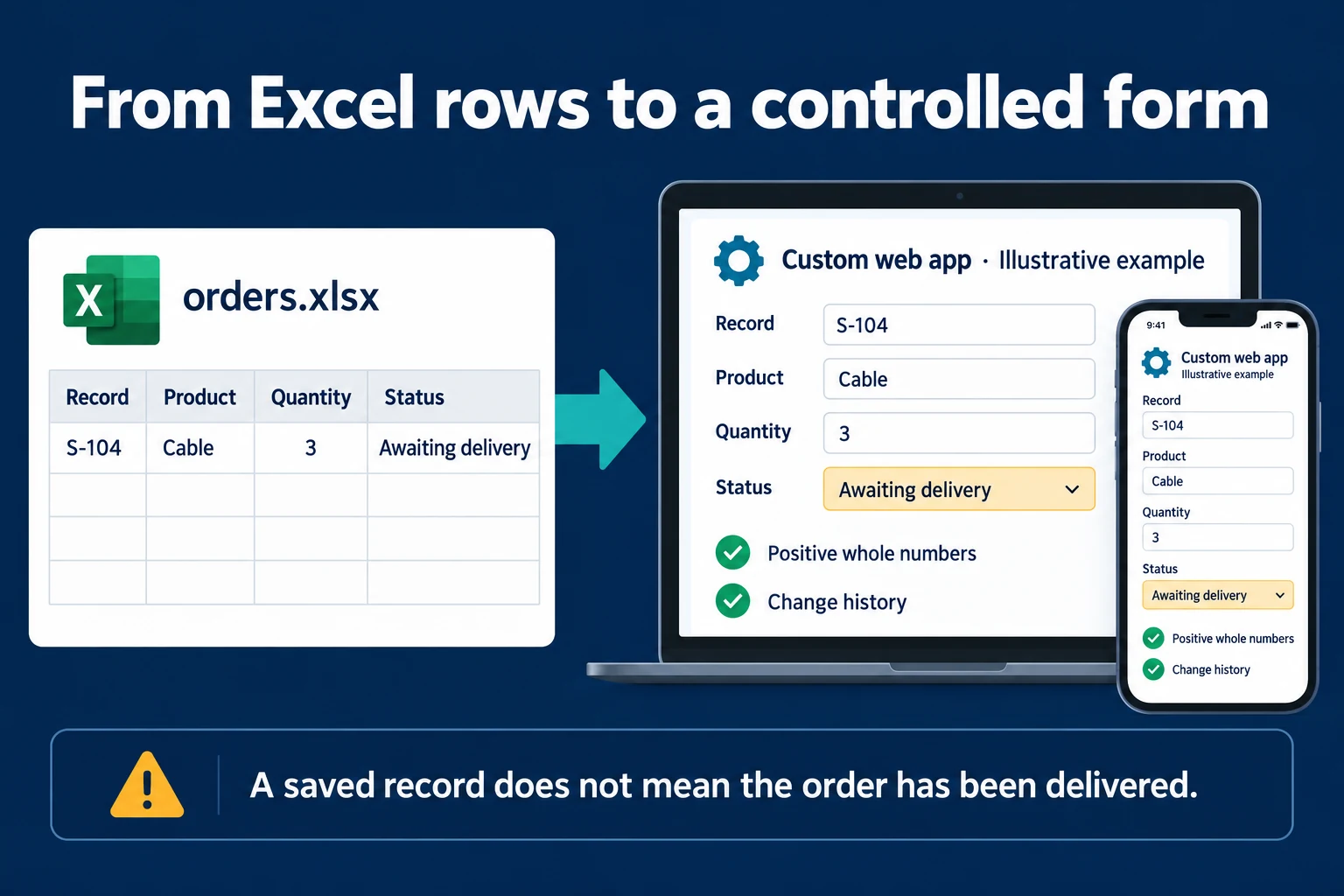
Excel Data Entry Form: Four Ways, Their Limits and How to Choose
If one person enters records in desktop Excel, the Form command or a validated Excel table is enough. If the people entering data should never see the file, or will use a phone, Microsoft Forms fits. If you want a window with your own rules, such as a duplicate check, you need a VBA UserForm. Once several people enter and approve the same records, no form is enough.
I read the Microsoft sources linked below on 31 October 2026.
Which method fits when?
Three questions decide it: who enters data, on which device, and which rule applies at entry.
| Method | Use it when | Limit |
|---|---|---|
| Form command | One person, fixed columns, desktop Excel | No drop-down lists, up to 32 columns, no documentation found for Mac or the web |
| Microsoft Forms | People entering data should not see the file, phones are used | Each submission is a new row; corrections and approval stay in Excel |
| Validated Excel table | A team types into one file, rules are simple | Does not stop pasted values or skipped blanks |
| VBA UserForm | You need a duplicate check and your own fields | Does not run on the web or iOS, needs .xlsm and macro permission |
1. Excel’s built-in Form command
The Form command shows one table row in a window, using the column headings as field labels; it is not on the ribbon, so you add it to the Quick Access Toolbar.
Prepare the table. Put Date, DeliveryNote, Customer, Product and Qty in the first row. Headings become labels, so none can be blank; leave no empty rows inside the range. Try it on a copy.
Add the button. Quick Access Toolbar arrow > More Commands, set “Choose commands from” to All Commands, add Form. Click inside the table and press it; New adds a record, Enter writes it (Microsoft: the Form command).
Limits (Microsoft’s data form documentation):
- Up to 32 columns; beyond that you see “Too many fields in the data form”. Microsoft’s suggested fix is to insert a blank column that splits the range in two and open a separate form for the columns to its right.
- No list box or spin button, so no drop-down for the customer field.
- Formula fields show results; formulas cannot be edited here. The form cannot be printed.
- The page lists Microsoft 365, 2024, 2021, 2019 and 2016 without naming an operating system; I found no documentation for Mac or the web, so test there before making it the shared route.
Finding, editing and deleting an existing record
Find. Click Criteria, fill in a field, use Find Next. Criteria match from the beginning: DN-24 returns every note starting with it; use *07* for text in the middle. Return to Form view before adding a record.
Edit and delete. Enter saves a change; Restore discards it before Enter. A confirmed deletion cannot be undone, so copy the file first, or write “Cancelled” in a Status column instead.
“Cannot extend list or database” means growing the table would overwrite data below it; clear space under the list.
Test validation through the form. Microsoft does not say whether cell validation applies to form entries; try an invalid date and a blank or repeated note number through it.
2. Collecting responses into Excel with Microsoft Forms
Microsoft Forms writes responses to an Excel workbook in OneDrive for work or school (SharePoint for a group form) through a live connection; each submission is a new row.
Setup.
- Sign in at forms.office.com with your work account and select New Form.
- Add one question per column: text for note number, product and quantity, choice for customer, date for date. Microsoft lists Choice, Text, Rating and Date as basic types (Microsoft: create a form).
- Turn on required and add restrictions in each question’s settings; Microsoft names “branching, restriction, required” among them (new form page). That stops blank note numbers at entry. I found no official page detailing a numbers-only restriction, so test “480 pcs” in preview.
- Use Collect responses to choose who can respond: Anyone, Only people in my organization, or Specific people in my organization (Microsoft). I have not verified the link-copy step in the interface.
- Under View responses > Responses Overview, select Open results in Excel.
Per Microsoft’s results page, this opens the workbook in Excel for the web; new responses flow in, and workbook edits do not change the form. Open in Excel Desktop, under the arrow, needs Current Channel 2410 or later; Mac support is “coming”. Only the owner and organisation members with edit permission on the workbook can trigger a data update, so create the form from the shipping log owner’s account. Download a copy has no connection to the form.
Phones and limits. Microsoft describes Forms as optimised for current Chrome on Android and Safari on iOS (setup page). Microsoft’s organisational pages give different response caps; a personal account allows 200/1,000 responses (limits page).
Who submitted it. Responses from outsiders are anonymous; for internal ones, recording names is an admin setting, on by default (Forms admin settings).
What stays in Excel. A setting to let respondents edit a submitted response appears only in Microsoft community answers; I have not verified whether an edit updates the Excel row. I found nothing saying Forms checks your table for a repeated note number; my inference is that it does not. Customer options live in the form, so list changes must be made there too.
3. A validated entry sheet and an Excel table
Without any form window, you can convert the data to an Excel table, give each column a validation rule and flag what the rules miss with a Check column.
Setup.
- Select the data on the
Shipmentssheet, press Ctrl+T and name the tabletblShipments. - Put customer codes on a
Listssheet and name the rangeCustomers. - Customer column: Data > Data Validation, Allow: List, Source:
=Customers. - Qty column: Whole number between 1 and 10,000. Date column: Date within the period.
- On the Error Alert tab, choose Stop. According to Microsoft, Warning and Information let users accept an invalid value; only Stop prevents it.
Two gaps. The same page says validation works only when users type data directly in a cell; copied or filled data shows no message, so a pasted block goes in. The second gap is my inference: a blank cell nobody touches never gets typed into, so validation cannot make a field required. Afterwards, Circle Invalid Data under the Data Validation arrow marks rule-breaking cells, including copied, filled and macro-entered values (Microsoft).
The Check column. Add a Check column and enter this in its first cell:
=IF([@DeliveryNote]="","MISSING NOTE NO",IF([@Product]="","MISSING PRODUCT",IF(COUNTIFS([DeliveryNote],[@DeliveryNote],[Product],[@Product])>1,"DUPLICATE",IF(NOT(ISNUMBER([@Qty])),"QTY NOT A NUMBER",IF(COUNTIF(Customers,[@Customer])=0,"CUSTOMER NOT IN LIST",IF(ISNUMBER([@Date]),"","DATE IS TEXT"))))))It checks, in order: blank note number, blank product, the same product twice on one note, quantity as text, unlisted customer, date as text; duplicates flag both rows. A table-column formula fills the whole column; check with a test row that new rows get it. Have one person filter for non-blanks every evening and decide duplicates from the paper note. Fix the data, not the formula.
For a per-customer summary, =SUMIF([Customer],"K-07",[Qty]) works, but it misses codes written differently (K07, K 07) and quantities stored as text (480 pcs).
I have not run these formulas in Excel; I tested their logic in Python. If your regional list separator is a semicolon, replace the commas.
Example: a fastener manufacturer’s shipping log
Company, codes and numbers are fictional; error counts are my assumptions, arithmetic from a Python script.
A bolt and nut maker’s ERP prints delivery notes, but its report lacks the per-customer daily view the shipping office wants, so three people keep a separate Excel log of note lines: date, note number, customer (K-01 to K-18), product, quantity. The largest customer is K-07.
Earlier period: straight into the table, no rules
Over 20 working days, 640 rows went in; 59 (9.2%) had a problem:
| Error type | Rows | What it breaks |
|---|---|---|
Customer code written differently (K07, K 07, K-7, K12) | 23 | Missing from the customer total |
| Delivery note number blank | 14 | The line belongs to no note |
Quantity typed as text (480 pcs) | 9 | Missing from totals |
| Same line entered twice | 7 | Inflates the total |
| Date left as text | 6 | Lost in date filters |
At the end of the period, K-07’s SUMIF report showed 48,080 units against 56,640 actually shipped. 8,560 units, 15.1% of the real figure, were missing. 13 miswritten codes removed 7,540, 3 text quantities 1,740, and 2 repeated lines added 720. A Check column added then found the rows, but each needed checking against paper.
Later period: table, data validation and Check column
Same three people, the next 20 working days: tblShipments, Stop-style validation on customer, quantity and date, and a Check column. 652 rows went in.
- Validation stopped 31 entries as they were typed: unlisted codes, text quantities, out-of-range dates. None reached the table.
- 10 rows (1.5%) still had a problem. Nine came from where validation does not look: a pasted block of 12 K-07 rows held 2 miswritten codes, 1 text quantity and 1 line already entered, and 5 typed rows had no note number. The Check column flagged all nine that day. Until fixed, K-07’s summary was 500 short: the codes removed 540, the text quantity 480, the repeat added 520.
- The tenth row was a customer on the list but the wrong one (K-15 instead of K-05). No rule caught it; it surfaced when the customer queried the delivery.
What changed. The fall from 59 to 10 is the example’s assumption; yours will differ. The real change is that 9 of the 10 problem rows were found the day they were entered. Pasting still bypasses the rules, and no formula spots a valid but wrong choice; only a second person checking the record does, and the example had none.
4. VBA UserForm: a window with your own rules
A VBA UserForm is an entry window with fields, a drop-down and save rules you design; it runs in desktop Excel, not in Excel for the web.
Setup. Steps 2 and 3, and opening the form with Show, come from Microsoft Learn’s custom dialog box page; steps 1, 4 and 5 are common Visual Basic Editor steps not on that page:
- Save the file as
.xlsm. Press Alt+F11 to open the Visual Basic Editor (the Visual Basic button on the Developer tab does the same). - Insert > UserForm, then name it
frmShipmentin the Properties window. - From the Toolbox, drag four TextBoxes, a ComboBox and a CommandButton; name them
txtDate,txtNote,txtProduct,txtQty,cmbCustomer,btnSave. - Right-click the form, choose View Code and paste the code below.
- Insert > Module, add
Sub OpenShipmentForm(): frmShipment.Show: End Suband assign it to a button.
I have not run this code; try it on a copy.
' frmShipment code module. Column order: 1 Date, 2 DeliveryNote, 3 Customer, 4 Product, 5 Qty
Private Sub UserForm_Initialize()
    cmbCustomer.Style = fmStyleDropDownList         ' codes not on the list cannot be typed
    cmbCustomer.List = ThisWorkbook.Names("Customers").RefersToRange.Value
End Sub

Private Sub btnSave_Click()
    Dim tbl As ListObject, newRow As ListRow
    Dim note As String, prod As String, qtyText As String, qty As Double
    Set tbl = ThisWorkbook.Worksheets("Shipments").ListObjects("tblShipments")
    note = Trim(txtNote.Value): prod = Trim(txtProduct.Value): qtyText = Trim(txtQty.Value)

    If note = "" Or prod = "" Then MsgBox "Note number and product are required.": Exit Sub
    If cmbCustomer.ListIndex = -1 Then MsgBox "Pick a customer from the list.": Exit Sub
    If Not IsDate(txtDate.Value) Then MsgBox "Date is not valid.": Exit Sub
    If Not IsNumeric(qtyText) Then MsgBox "Quantity must be a number.": Exit Sub
    qty = CDbl(qtyText)                             ' Double first: a huge value cannot overflow Long
    If qty < 1 Or qty > 10000 Or qty <> Int(qty) Then
        MsgBox "Quantity must be a whole number from 1 to 10,000.": Exit Sub
    End If

    If tbl.ListRows.Count > 0 Then
        If Application.WorksheetFunction.CountIfs( _
            tbl.ListColumns(2).DataBodyRange, note, _
            tbl.ListColumns(4).DataBodyRange, prod) > 0 Then
            MsgBox "This product is already on this delivery note.": Exit Sub
        End If
    End If

    Set newRow = tbl.ListRows.Add
    newRow.Range(1, 1).Value = CDate(txtDate.Value)
    newRow.Range(1, 2).Value = note
    newRow.Range(1, 3).Value = cmbCustomer.Value
    newRow.Range(1, 4).Value = prod
    newRow.Range(1, 5).Value = CLng(qty)            ' safe after the range check
    txtProduct.Value = "": txtQty.Value = "": txtProduct.SetFocus
End Sub
It stops every error type among the example’s nine flagged rows; a valid but wrong customer still gets through, and on an unprotected sheet people can bypass the form.
Four limits to know up front:
- Code bypasses cell validation. A macro can enter invalid data (circle-invalid-data page above), so the 1–10,000 rule is repeated in the code.
- No web or iOS. According to Microsoft, VBA macros run in Excel for Windows and Mac, not on the web or iOS.
- The file must be
.xlsm. Macros in files from the internet or email are blocked by default. - Dates follow regional settings.
IsDateandCDateuse the computer’s date format; test each setting the team uses.
Macro security and handover are covered on the Excel macro (VBA) page.
When a form is not enough: where does a web app start?
Once several people touch the same record, enter it from a phone, or one person’s entry needs another’s approval, the question stops being about forms and becomes one of permissions: who can see, change and approve what.
- Do two roles write to the same record? The office enters a line; the warehouse lead checks and marks it shipped. In Excel both edit the row with the same rights.
- Will entry happen on a phone? I found no Mac or web documentation for the Form command, and VBA has no iOS or web version; Forms works, but next steps stay on desktop.
- Do you need to prove who entered and who approved a row? Forms can record the name on internal responses, but the approver still edits the Excel row with everyone else’s rights.
Application.UserNamein VBA is a read/write value (Microsoft Learn), not proof of identity. I know of no Excel formula that enforces “nobody approves their own row”. - Does entry need a record from another system? ERP stock, another site’s file, an open order. The VBA above checks the same file; another system is a different job.
Two or more yes answers: seriously consider a multi-user application. One: tighten Excel first with one file in one place, Stop-style validation, a Check column and a daily filter. None: I would not recommend an application.
Explaining a rule while someone types is the job of a rules-based data entry form. For the wrong-customer row, a web app can be built to fit: office entry and warehouse approval screens, a rule that nobody approves their own entry, server-side rejection of repeated notes, and an audit trail. Your spreadsheet decides the screens; scope, ERP connection, sign-in and IT approval are set out in writing in the first step.
On delivery: the VPS and server can be set up under your name; the data is yours, available as Excel or CSV at any time; in a small or mid-sized team there is no per-user licence, and the cost is the server plus maintenance; the source code sits in a repository you can access, with run instructions, a dependency list and known limits. The move itself is on the Excel to web app page.
Frequently Asked Questions
Will my existing Excel records move into Microsoft Forms?
No. The linked workbook holds only form responses. Keep old records in your own table and use the same column names in the form, so the two combine easily.
We have an ERP. Why keep this record in Excel at all?
If the record already originates in the ERP, do not type it into Excel again; export it from the ERP and report on that. Excel entry makes most sense for information the ERP does not hold, such as the example’s per-customer daily view or a quality note with no ERP field.
Why are Microsoft 365’s list and app tools not on this page?
This page sticks to methods in or next to an Excel file. Microsoft calls Forms a “simple, lightweight app” and points to its list and app tools for digitising company forms and workflows (setup page). Those, which I would class as low-code tools, are a separate setup job; if your company uses them, ask IT.
Discuss your workflow
Let us work out which method is enough for your shipping or quality log, and at which point an application becomes necessary: write to me through the contact page.