
Google Sheets Import JSON from an API with Apps Script
Importing JSON from an API into Google Sheets means fetching structured information through an authorised connection and writing selected fields to cells. A response might contain a product code and stock quantity. Before running a script, establish the endpoint, response structure and conditions under which you may use it.
Inspect the fields first
Our illustrative response is [{"code":"K101","stock":24},{"code":"A101","stock":8}]. Your source may use other names, nested objects or several pages. Confirm the actual response rather than assuming it matches an example.
Open Extensions → Apps Script and create a target sheet named Stock. Replace the URL below with your authorised endpoint. The example does not implement authentication or scheduling. Product codes must be text containing only letters, digits, underscores or hyphens; stock must be numeric. Use a separate, empty target sheet: results are written starting at A1.
function importStock() {
  const response = UrlFetchApp.fetch('https://example.com/stock.json',
    {muteHttpExceptions: true});
  if (response.getResponseCode() !== 200) throw new Error('Source unavailable');
  const data = JSON.parse(response.getContentText());
  if (!Array.isArray(data) || !data.length) throw new Error('List missing');
  const rows = data.map(item => {
    if (!item || typeof item !== 'object' ||
        typeof item.code !== 'string' || !/^[-A-Za-z0-9_]+$/.test(item.code) ||
        typeof item.stock !== 'number' || !Number.isFinite(item.stock)) {
      throw new Error('Invalid fields');
    }
    return [item.code, item.stock];
  });
  const sheet = SpreadsheetApp.getActive().getSheetByName('Stock');
  if (!sheet) throw new Error('Target sheet missing');
  sheet.getRange(1, 1, rows.length, 2).setValues(rows);
}
Google’s UrlFetchApp reference covers the request; the Range reference covers writing values. Review the permissions requested on the first run.
Understand the example’s limits
The script does not clear the table before validating the response. It also does not remove old trailing rows when the new list is shorter. Decide whether a missing product was deleted at the source or simply omitted from a partial response before removing it from the target.
Test repeated runs, HTTP errors, invalid JSON and empty lists separately. If stock arrives as text, define the conversion rule explicitly. Missing data is not automatically zero stock. Duplicate product codes and paginated responses also require handling before this becomes a production import.
Keep stable product identifiers instead of matching only on display names. A renamed product should still be recognised as the same record. If staff maintain descriptions in the target sheet, decide whether an import may replace them. Field ownership prevents a new source copy from overwriting useful local work.
Show the outcome of scheduled work
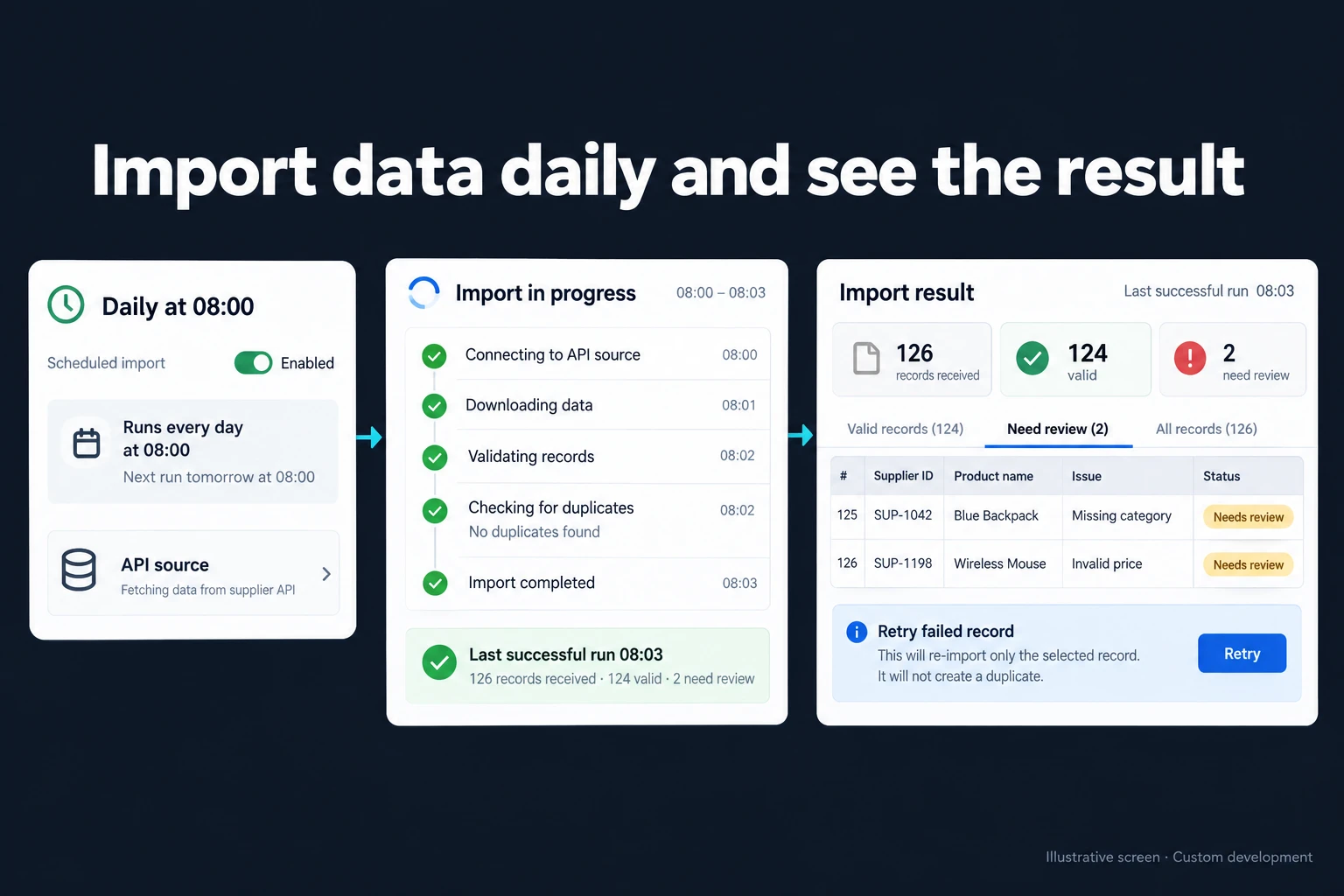
Apps Script can support scheduled updates, but quotas, expired access and response delays affect completion. Keep the last successful import separate from the latest attempted run. Retained data after an error should carry an old-data indication rather than silently appearing current.
A single source and simple table may remain in a small script. Review queues, permissions and controlled reprocessing can justify a daily API import application. Two-way updates are a different scope, covered by Sheets synchronisation. For the wider team process, see Excel to a web app.
Frequently Asked Questions
Do all APIs return the same JSON structure?
No. Field names, pagination and access rules belong to the source.
Should a failed request set stock to zero?
Unavailable information and zero stock should be distinct states. Define how staff may use retained data.