Source: https://oguzerol.com/en/share-excel-file-with-multiple-users/ [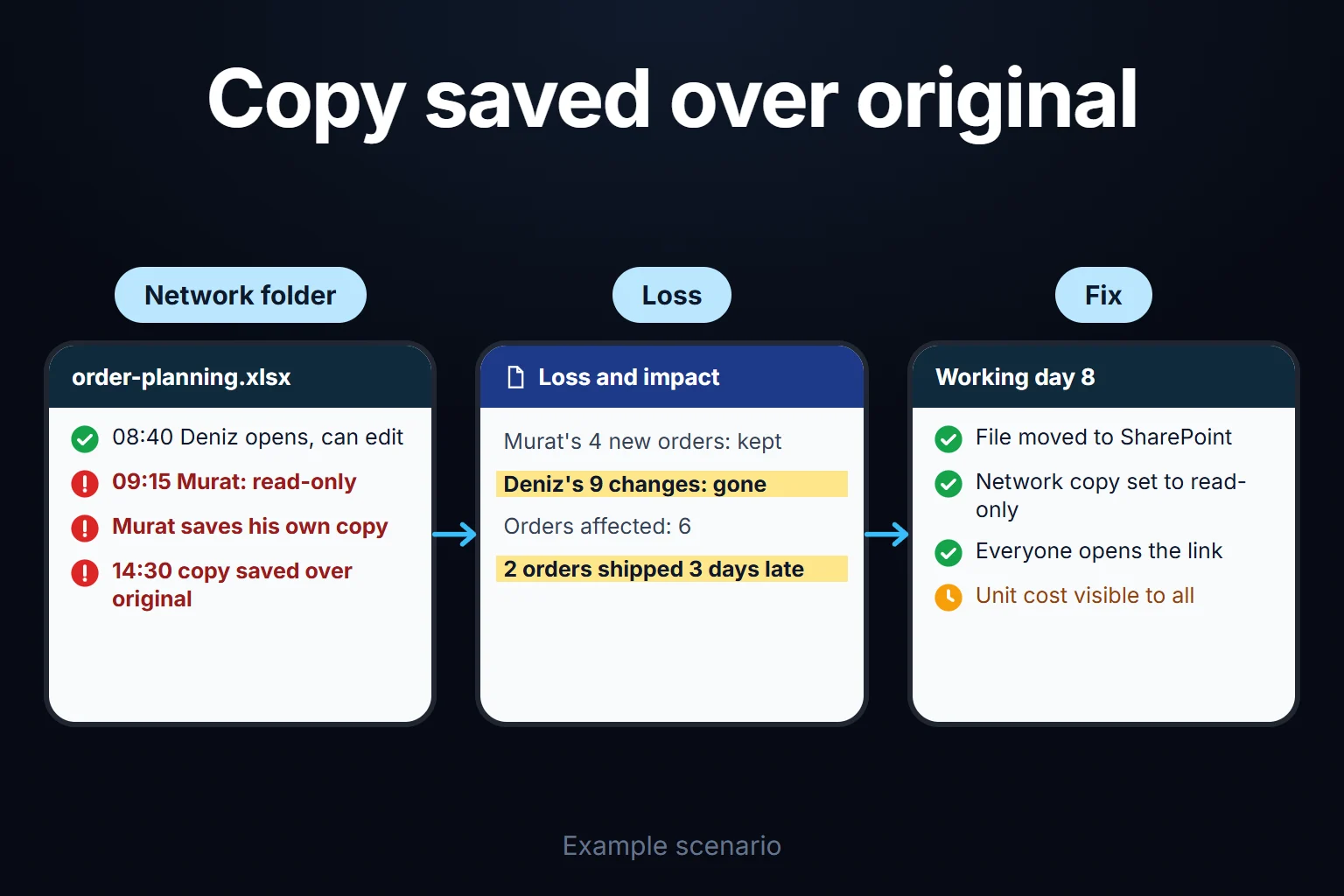 View full size](https://oguzerol.com/gorseller/senaryo/share-excel-file-with-multiple-users-senaryo-en.webp) # How to Share an Excel File With Multiple Users: Co-authoring, Locks and Permission Limits [Oğuz Erol](https://oguzerol.com/en/about-me/) | 16 min read | Published: 1 October 2026 | Updated: 16 October 2026 ## Quick summary If your team works in one Excel file, learn what co-authoring needs, why 'file is locked' appears, how far change history goes and where Excel stops. To let several people work in the same Excel file at the same time, save it to **OneDrive or SharePoint** and use the **Share** button to give them “Can edit” access. Microsoft calls this co-authoring: everyone edits at once and changes appear within seconds. Three things must be true: everyone uses Excel from a Microsoft 365 subscription (or Excel for the web), the file is `.xlsx`, `.xlsm` or `.xlsb`, and it lives in the cloud. On a network folder only one person can write at a time. And one person opening the file in Excel 2016, 2019 or 2021 gives everyone else a “locked” error. If your file opens “locked” today, first check it isn’t still open on another computer or phone of yours and wait a few minutes. If someone else has it open, wait or open it read-only. The lasting fix is moving it to OneDrive or SharePoint. [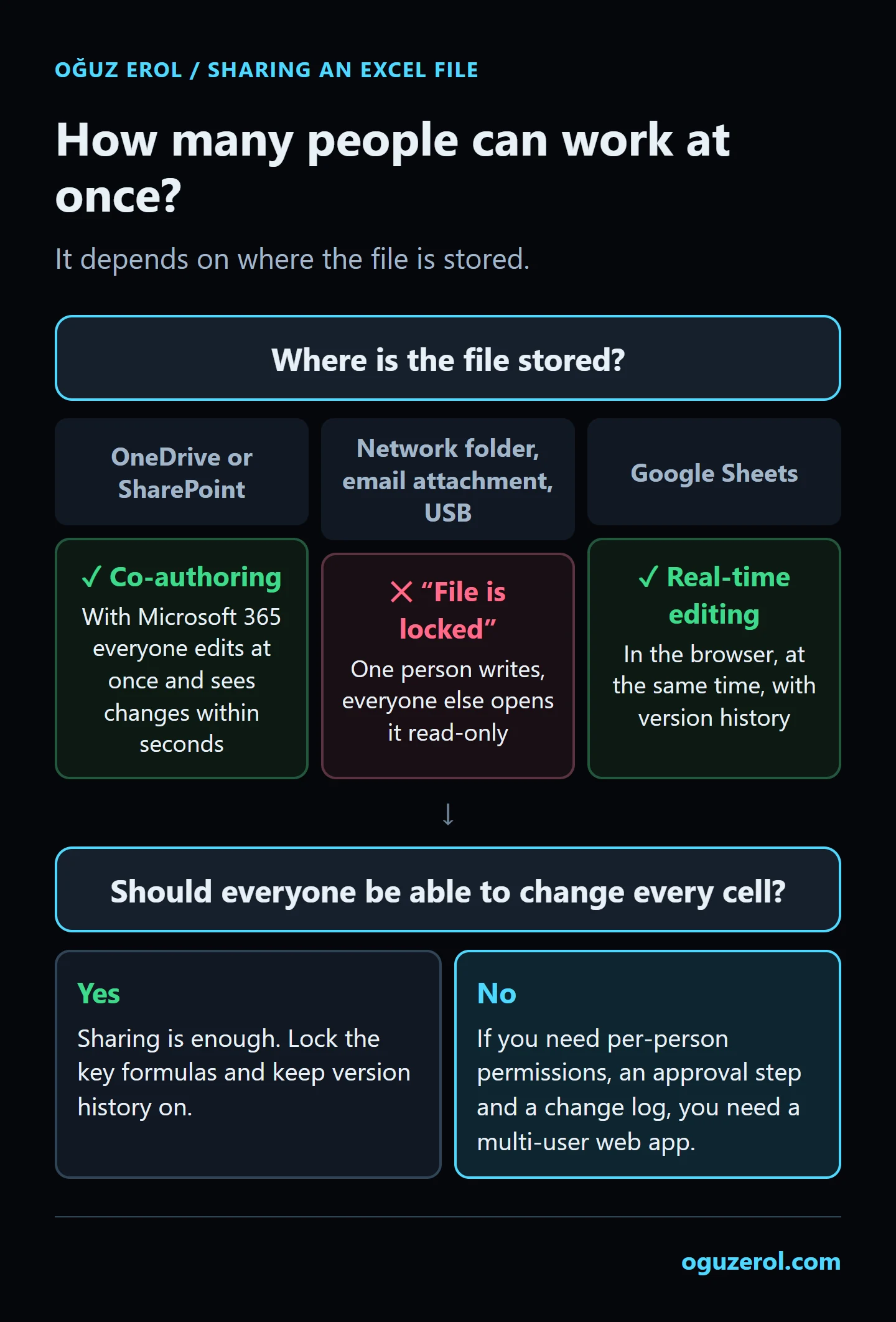](https://oguzerol.com/gorseller/web-uygulama/excel-sharing-decision-tree.webp) How many people can work at once depends on where the file is stored. Whether sharing is enough depends on who needs to change what. ## How to share an Excel file through OneDrive, step by step Sharing takes seven steps, and the two people skip most are checking everyone’s version and retiring the old network copy. 1. **Check everyone’s Excel version** under **File > Account > Product Information** ([Microsoft Support](https://support.microsoft.com/en-us/office/what-version-of-office-am-i-using-932788b8-a3ce-44bf-bb09-e334518b8b19)). “Microsoft 365” is the subscription; a year such as “Office 2019” usually means a perpetual licence. Microsoft lists Excel 2016, 2019 and 2021 LTSC as not co-authoring; for 2024 see the caveat below. 2. **Turn off legacy sharing.** Microsoft says the title bar then shows “Shared”; to turn it off, clear the **Editing** tab box allowing changes by more than one user in **Share Workbook** ([Microsoft Support](https://support.microsoft.com/en-us/office/about-the-shared-workbook-feature-49b833c0-873b-48d8-8bf2-c1c59a628534)). Restore a hidden button as described below. 3. **Check the format.** If the file is `.xls`, use **File > Save a Copy** and choose **Excel Workbook (\*.xlsx)**. A file with macros can stay `.xlsm`. 4. **Move it.** **File > Save As**, pick your OneDrive for Business or team SharePoint site, and save. 5. **Retire the old network copy:** delete it, or rename it “OLD - do not use” and make it read-only. Two live copies caused incident 1 below. 6. **Share it.** Check AutoSave is on, then **Share** > email addresses > **Can edit** > Send. 7. **Everyone opens it from the link.** Someone who opens an emailed attachment is working in their own copy. Everyone in the file appears top right, with coloured cell borders. ## Co-authoring requirements: which versions and features break it? Co-authoring works when a Microsoft 365 subscription, a supported Excel version, the right format and a cloud location come together. The table comes from Microsoft’s pages on [co-authoring](https://support.microsoft.com/en-us/office/collaborate-on-excel-workbooks-at-the-same-time-with-co-authoring-7152aa8b-b791-414c-a3bb-3024e46fb104) and the [“file is locked” error](https://support.microsoft.com/en-us/office/excel-file-is-locked-for-editing-6fa93887-2c2c-45f0-abcc-31b04aed68b3), re-read on 16 October 2026. | | Works | Doesn’t work | | --- | --- | --- | | Excel version | Excel for Microsoft 365 (Windows, Mac), Excel for the web, Android, iOS | Excel 2016, 2019, 2021 LTSC | | File format | `.xlsx`, `.xlsm`, `.xlsb` | Strict Open XML, old `.xls` | | Location | OneDrive, OneDrive for Business, SharePoint in Microsoft 365 | Network folders, Dropbox, Box, Google Drive, local folders, on-premises SharePoint | Perpetual-licence Excel 2024 isn’t on either list; Microsoft advises the subscription version or Excel for the web. I haven’t tested 2024: try it with one person first, and if the lock appears, that person opens the file in the browser. Microsoft also lists blockers: legacy Shared Workbook on (turn this off first), password encryption or restricted access, “Refresh data when opening the file” on a table or PivotTable (the table itself is fine), an add-in, or a SharePoint snapshot opened instead of the workbook. The most common cause is still one person on an unsupported version. ## Why does a file on a network folder open locked or read-only? A file on a network folder opens locked or read-only because Microsoft lists network folders among locations where co-authoring doesn’t work, so while one person has it open, others get the lock message. Microsoft’s fixes: - **The “other user” may be you**, on another device or after a session that didn’t close properly. Close it everywhere and wait a few minutes. If it still won’t open, I haven’t tested the server side here; ask your IT team. - **If someone else really has it open**, wait, open it read-only, or ask them to close it. With view-only access to a file on OneDrive or SharePoint, use **Viewing > Request more access**. - **The OneDrive sync app** may be paused or out of date. The real danger is the read-only copy. Its changes can only be saved as a separate file; if that copy is later saved over the main file, every change made to the main file in the meantime is lost, as in incident 1 below. ## The legacy method: Shared Workbook The legacy Shared Workbook still works on a network folder, but Microsoft says co-authoring replaced it. Bring the hidden button back through **File > Options > Quick Access Toolbar > All Commands** by adding **Share Workbook (Legacy)** ([Microsoft Support](https://support.microsoft.com/en-us/office/what-happened-to-shared-workbooks-150fc205-990a-4763-82f1-6c259303fe05)); step 2 above turns it off. Know the cost. Microsoft’s partial [unsupported features table](https://support.microsoft.com/en-us/office/about-the-shared-workbook-feature-49b833c0-873b-48d8-8bf2-c1c59a628534) and the [Excel specifications page](https://support.microsoft.com/en-us/office/excel-specifications-and-limits-1672b34d-7043-467e-8e27-269d656771c3) (read 16 October 2026) say that while sharing is on you can’t create or insert **Excel tables**, change **conditional formatting or data validation**, **merge cells**, delete sheets, change protection, or work with **macros**. It can’t be edited in Excel for the web. At most **256 people** can open it, history is kept **30 days** by default, and removing a user doesn’t stop that user editing again. For a planning file with tables and macros, the method is effectively closed. ## Example: seven people, one order planning file *The company, people and figures below are fictional; I built the scenario in a Python script and checked every number on this page against it.* At a machined-parts manufacturer, seven people share the order planning file: sales (Selin, Murat), planning (Deniz), the production supervisor (Kemal), purchasing (Ayşe), shipping (Burak) and accounts (Elif). It has 38 open orders and ten columns, including due date, material arrival, machine, unit cost and sale price. Days are working-day numbers. ### Incident 1: a copy saved over the original The file is on a network folder. On working day 1, Deniz has it open from 08:40 to 12:10. Murat opens it at 09:15, read-only, enters four new orders and saves a separate copy. That morning Deniz brings forward two due dates at customers’ request, pushes four back because material is late and sets three of those to “awaiting material”: 9 cells across 6 orders, all saved after 09:15. At 14:30 Murat saves the copy over the main file. Murat’s four orders survive; Deniz’s 9 changes don’t. Both brought-forward orders are produced on the old dates and ship 3 working days late; the problem surfaces on working day 5, when the first customer calls. With no Excel version history on a network folder, recovery depends on IT’s backup. **Fix:** After the decision and preparation, the file moves to SharePoint on working day 8, the network copy is renamed and made read-only, and everyone opens the link. ### Incident 2: one copy of Excel 2019 locks everyone out On working day 8, Elif opens the file in a perpetual-licence Excel 2019 and works from 09:05 to 09:52, 47 minutes. The other 6 people get the “locked” message: 282 person-minutes, about 4.7 hours. Per Microsoft, such edits also clear the Show Changes pane. **Fix:** Elif enters data in Excel for the web; Deniz, on subscription desktop Excel, runs the file’s macros. The lasting fix is the subscription version for everyone; until then the rule is “never open it in desktop Excel 2016, 2019 or 2021”. ### Incident 3: a filter and the same cell With three more orders after Murat’s four, the file has 45 rows. On working day 10, Kemal filters machine to “CNC-2” in the default view and saves, so everyone sees 9 rows. Among the 36 hidden is S-1047, which Selin entered at 09:50 for CNC-1. At 10:06 Selin can’t find it, assumes it was deleted and re-enters it at 10:09: a duplicate order for 120 parts, which planning spots on working day 11. On working day 12, Ayşe enters working day 16 as material arrival for S-1043 (11:20:05). Four seconds later Deniz, reading an old email, types 14 into the same cell. The last save wins, two working days too early. Ayşe finds the previous value in **Show Changes** and fixes it within 6 minutes. **Fix:** Sorting and filtering now happen in a **Sheet View**. Only purchasing writes material arrival, and the header says so; that’s Microsoft’s own advice. Two things remain unsolved: only two people (Deniz, Elif) need unit cost, yet all seven see it, and the credit approval from accounts is a cell colour that nothing locks. ## Who changed what: Show Changes and version history **Review > Show Changes** shows who changed which cell, when, and the previous value, for changes from the past **365 days** ([Microsoft Support](https://support.microsoft.com/en-us/office/show-changes-that-were-made-in-a-workbook-978ceea7-bbf6-4337-bca7-22e7cc9892e8), read on 16 October 2026). Before treating it as an audit log, know its [limits](https://support.microsoft.com/en-us/office/get-help-with-show-changes-in-excel-a1493bf9-25c3-470a-b970-60eceb0136e5): - **Shown:** cell values and formulas, including moving, sorting, inserting and deleting cells or ranges. - **Not shown:** chart, shape and object edits, PivotTable operations, formatting, hiding and filtering. Incident 3’s filter isn’t there. - **Cleared when** someone edits in a one-time-purchase or older version, uses a feature not fully supported in co-authoring, or re-uploads, copies or replaces the file. - **Previous value missing** when a VBA macro or Office add-in made the change. - **Can be wiped:** in Excel for the web, **File > Info > Reset Changes** clears it for everyone, permanently. Microsoft doesn’t say which permission level can do this. **Version history** survives a reset (**File > Info > Version History**). New SharePoint libraries default to 500 major versions per file with no expiry, which an admin can change ([Microsoft Learn](https://learn.microsoft.com/sharepoint/set-default-org-version-limits), as of October 2026). Microsoft’s co-authoring page says to restore when no one else is co-authoring. It shows the file’s past state, not who changed which cell. ## Conflicts: the last save wins, and other traps If two people change the same cell at the same time, Microsoft’s general rule is that the last change saved wins: the second value replaces the first. Microsoft mentions unlisted exceptions and advises giving each person their own area or sheet, named in the headings. Other traps: - **Filters and sorts change everyone’s screen.** [Sheet View](https://support.microsoft.com/en-us/office/sheet-views-in-excel-0eea3dc5-d7d1-44c5-a953-25ebfbd6c1a6) fixes this: in a view created under **View > Sheet View > New**, sorts and filters affect only you, while cell edits reach everyone. It works only on OneDrive or SharePoint, views aren’t private, and in desktop Excel a filter saved in the default view applies to everyone. - **Macros.** An `.xlsm` file can be co-authored. Microsoft’s service description says you can’t create or run VBA macros in Excel for the web, but can open and edit macro-enabled workbooks without damaging the macros ([Microsoft Learn](https://learn.microsoft.com/office365/servicedescriptions/office-online-service-description/office-online-service-description)). So the browser is the answer for data entry; someone on subscription desktop Excel runs the macros. - **Working offline.** Offline changes through OneDrive sync reach others only when the computer reconnects, all at once. Give offline workers a separate area. ## Protection layers: sheet, range and file permissions None of Excel’s three protection layers gives per-person permissions on its own. Microsoft says plainly: “Worksheet level protection isn’t intended as a security feature” ([Microsoft Support](https://support.microsoft.com/en-us/office/protect-a-worksheet-3179efdb-1285-4d49-a9c3-f4ca36276de6)). | Layer | What it does | Its limit | | --- | --- | --- | | Sheet protection | Stops changes to locked cells | Same for everyone; no password, anyone removes it | | Allow Edit Ranges | Opens a range to specific people | Per-person needs a domain; otherwise a range password | | File permission | Decides who opens and edits the file | All or nothing; can’t separate columns or rows | Per-person range permissions require the computer to be in a Windows domain; otherwise the range gets a password anyone who knows it can use ([Microsoft Support](https://support.microsoft.com/en-us/office/lock-or-unlock-specific-areas-of-a-protected-worksheet-75481b72-db8a-4267-8c43-042a5f2cd93a)). In Excel for the web, **Review > Manage Protection** sets unlocked ranges and range passwords, and **Pause Protection** lifts protection only for that person’s session ([Microsoft Support, Web tab](https://support.microsoft.com/en-us/office/protect-a-worksheet-3179efdb-1285-4d49-a9c3-f4ca36276de6)). A hidden or locked column isn’t invisible to anyone who can open the file. Steps are in [how to lock cells in Excel](https://oguzerol.com/en/how-to-lock-cells-in-excel/). ## What about Google Sheets? Google Sheets has real-time editing built in (**Editor**, **Commenter** or **Viewer**). A file can be edited in up to 100 open tabs or devices at once and shared with up to 600 email addresses ([Google Support](https://support.google.com/docs/answer/2494822?hl=en), as of October 2026). Protected ranges give per-person permissions with Google accounts and no domain, though Google says they shouldn’t be used as a security measure ([Google Support](https://support.google.com/docs/answer/1218656?hl=en)). Excel co-authoring doesn’t work on files in Google Drive. If you convert to Sheets, Google’s [Office files page](https://support.google.com/docs/answer/6055139?hl=en) says macros aren’t supported (rewrite them in Apps Script), and locked and hidden cells in protected sheets become viewable and editable. That page says nothing about Excel tables; check them after converting. In Sheets, version history shows who changed what, and needs edit access. For one cell, right-click > **Show edit history**; added or deleted rows and columns, formatting and formula-driven changes don’t appear there ([Google Support](https://support.google.com/docs/answer/190843?hl=en)). Record number clashes are covered on the [concurrent data entry](https://oguzerol.com/en/concurrent-data-entry-app/) page. ## Which route fits you? The table splits first by where the file lives, and in the last row by who needs to see what. | Your situation | Route | Simultaneous editing | Who changed what | | --- | --- | --- | --- | | People take turns | Network folder | No, one writer | No | | Network folder required, no tables or macros | Shared Workbook (Legacy) | Yes | 30 days by default | | Microsoft 365, everyone may see everything | OneDrive / SharePoint co-authoring | Yes | 365 days, can be wiped | | Microsoft 365, but one or two people on Excel 2019 | Same file; they open it in Excel for the web | Yes | 365 days, can be wiped | | File is in Google Sheets | Google Sheets | Yes | Version and cell history | | Rows or columns per person, approvals, audit trail | Multi-user web app | Yes | Per record | None of the first five shows different rows or columns to different people; if you need that, the file’s location isn’t the problem. ## When is Excel not enough? Excel is enough for a team where everyone may see everything. It stops being enough with any of three needs: 1. **Different people seeing different rows or columns**, such as sales seeing only their own customers. In Excel, access to the file is access to all of it. 2. **An approval flow** where an approved record stays unchanged. In Excel, approval is a cell value or colour. 3. **Records that can’t change without a trace.** Because of the limits above, Show Changes can’t stand in for an audit log. If none applies, stay in Excel; the rules above solved all three incidents in the example, but not hiding unit cost or locking the credit approval. I haven’t assessed ready-made tools such as SharePoint Lists or Power Apps here. [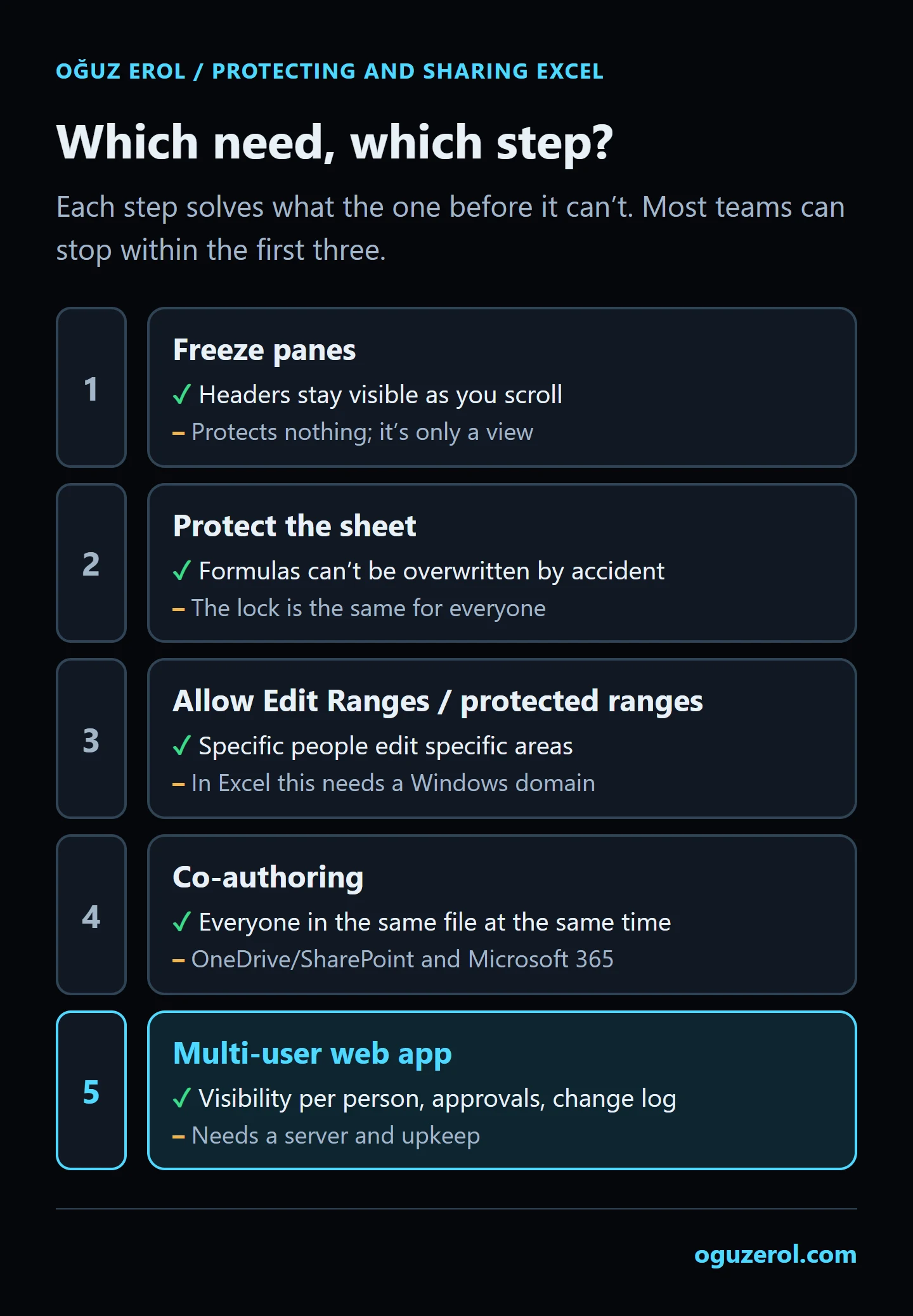](https://oguzerol.com/gorseller/web-uygulama/excel-protection-and-sharing-ladder.webp) Co-authoring is step four: it puts everyone in the same file, but it doesn't decide who can see or change what. Then the records need to move to a server database, with a screen per person’s permissions. For the example company, these could be built as needed: - Sales see only their own customers’ orders, without unit cost. - Due-date changes are logged with old and new values. - Once accounts approve the credit limit, the row closes to editing. - Only purchasing writes material arrival. - A second person editing the same record gets a warning instead of overwriting. - Change history is a separate record the app’s screens can’t edit. Defined business rules are applied as data is entered. Which go into the first version, who can access the server and how backups work are agreed in writing in the first step. Since the most common mistake I see in automation work is starting with the most complex process, the first version here could be order entry, roles and the audit trail. The app runs on a server (VPS) that can be opened in your company’s name. The data is yours; you can take it as Excel or CSV whenever you like. For a small or mid-sized team there’s no per-user licence; the cost is the server’s monthly fee plus maintenance. The full source code sits in a repository you have access to, with run instructions, a dependency list and a list of known limits. Scope and sample screens are on the [Excel to web app](https://oguzerol.com/en/turn-your-excel-into-a-web-app/) page. Send a masked copy of your file and a note on who needs to see what through the [contact page](https://oguzerol.com/en/contact/); in the first meeting we’ll separate what Excel can solve from what it can’t. ## Frequently Asked Questions ### How many people can edit an Excel file at the same time? Microsoft gives no co-author limit, neither on its Excel support pages nor on the [SharePoint limits](https://learn.microsoft.com/office365/servicedescriptions/sharepoint-online-service-description/sharepoint-online-limits) page (checked 16 October 2026). The legacy Shared Workbook allows 256 people at once. In Google Sheets, a file can be edited in up to 100 open tabs or devices at once (as of October 2026). ### How do I get back a row someone deleted by mistake in a shared Excel file? On OneDrive or SharePoint, open **Review > Show Changes** for the whole workbook; Microsoft says the pane lists deleted cells and ranges, so you can see who deleted what and when. To recover the content, open the earlier version through **File > Info > Version History** and copy the row across. Restoring the whole file rolls back everyone’s later changes. On a network folder, ask IT for the server backup. ### Can we co-author with Microsoft 365 Business Basic? Yes, in the browser. Microsoft’s plan comparison shows Business Basic includes the web apps but not the desktop apps, which come with plans such as Business Standard, Business Premium and E3/E5 ([Microsoft Learn](https://learn.microsoft.com/office365/servicedescriptions/office-365-platform-service-description/office-365-plan-options), read on 16 October 2026). VBA macros don’t run in the browser, so a file with macros needs at least one person with the desktop app. [Back to top ↑](https://oguzerol.com/en/share-excel-file-with-multiple-users/#icerik)