
Google Sheets Automation | Live Reports
Google Sheets (called “Google E-Tablolar” in Turkish) is Google’s spreadsheet program that runs in the browser. Several people can work in the same file at once, and it connects directly to Google tools such as Forms, Gmail and Calendar. This page first covers how to open it and how it differs from Excel, then what you can automate and where the limits are. If you want, I can also do the setup for you.
How do you open Google Sheets?
According to Google’s help page (as of October 2026), you open the Sheets home screen at sheets.google.com and click the “New” (plus) icon; a new spreadsheet is created and opens. The address sheets.google.com/create opens a blank spreadsheet directly.
Sheets or Excel?
Google’s “Use Excel and Sheets together” page (as of October 2026) recommends the following:
| Situation | Google’s recommendation |
|---|---|
| Editing at the same time as a team | Convert the Excel file to Sheets |
| Dataset of 20 million cells or fewer | Converting to Sheets is fine |
| More than 20 million cells | Keep working in Excel |
| Rare chart types (such as 3D pyramid) | Prefer Excel |
In addition, if you depend on VBA macros in Excel, they don’t move to Sheets directly; Google’s counterpart is Apps Script, and the code has to be rewritten. There’s no firm rule: if you work in a team in the cloud, Sheets is usually more practical; if you depend on heavy macros and custom formatting, Excel is sometimes easier.
How do I move my Excel file to Sheets?
Upload the Excel file to Drive, double-click to open it, then choose “File > Save as Google Sheets”. According to Google (as of October 2026), the conversion doesn’t change the original Excel file; Excel tables come across as tables and pivot tables can be imported too. Before you move, check the formulas, pivot tables and formatting in important reports in the new file. Complex VBA macros don’t transfer and have to be rewritten in Apps Script, which is a separate piece of work and scope.
What can you automate?
I build the automation with Google Apps Script (Sheets’ own scripting environment) or with my own AI-assisted scripts. Which fits depends on how many systems you need to connect and how complex the job is. Three typical uses:
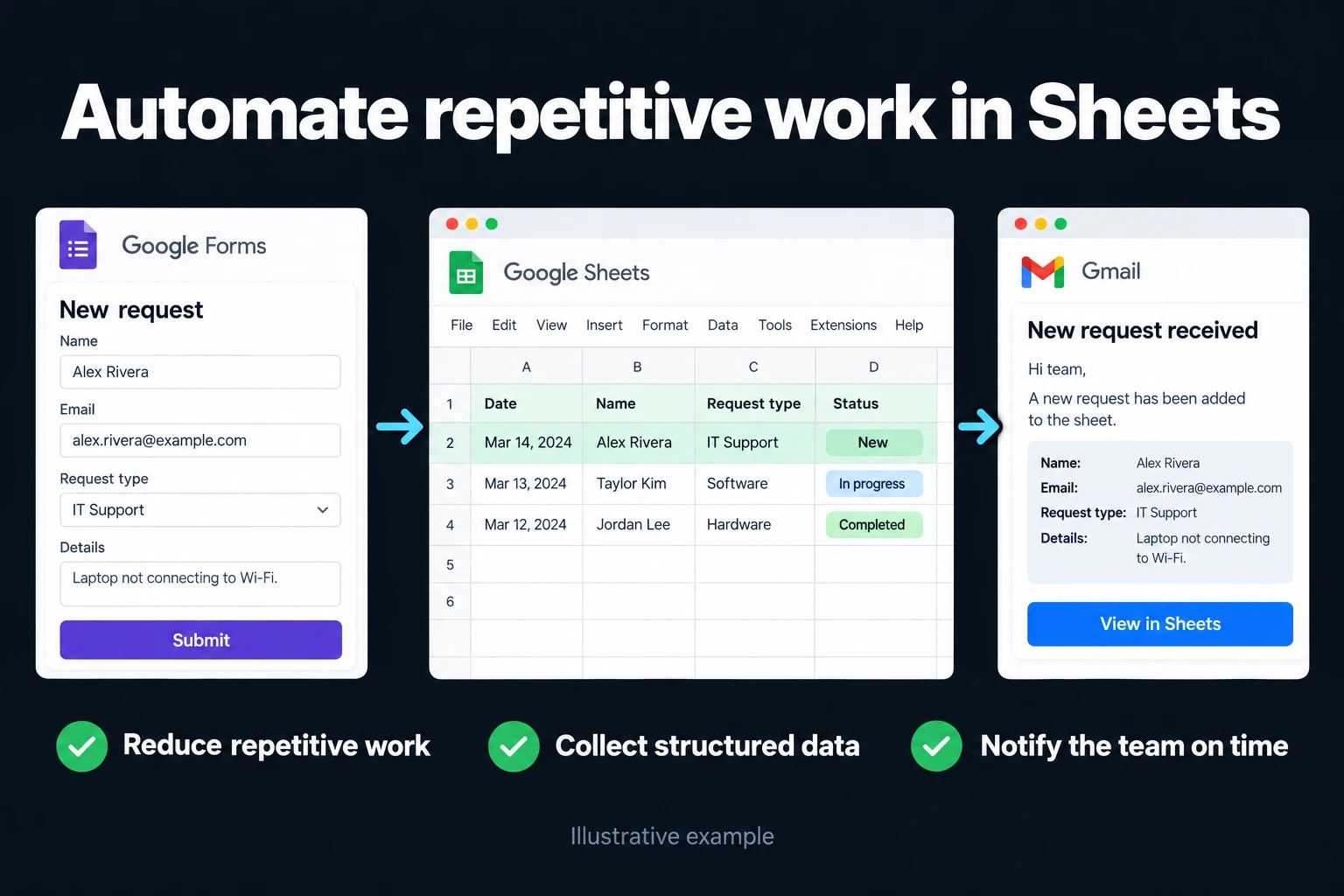
- Form → sheet → notification: data from Google Forms (a customer request, a job application, a satisfaction survey) lands directly in a sheet. When a new record arrives, an email goes out, a row is colored under a given condition, or the data is passed to another sheet or system. For small teams it’s a good stopgap before buying a separate CRM.
- Conditional alerts: an email or notification goes out when stock runs low, a date arrives, or a row is added. You don’t depend on someone remembering to check the dashboard.
- Automatic reports: a weekly or monthly report is prepared and sent on its own. More: monthly report automation.
The limits of automation
Apps Script has quotas that Google publishes (as of October 2026): a script run can last at most 6 minutes; with MailApp you can email 100 recipients a day on a consumer account and 1,500 on a Google Workspace account; total trigger runtime is 90 minutes a day on a consumer account and 6 hours on Workspace. So before you build a heavy bulk job, or a daily email to hundreds of people, in one script, check these quotas.
Hidden automation ceilings: quotas and ownership
A working script can stop when its account reaches a quota. I therefore check execution history and failed-job alerts as well as the code. On 24 October 2026, Google’s Apps Script quota table lists these principal limits:
| Limit | Personal Google account | Google Workspace |
|---|---|---|
| Email recipients per day | 100 | 1,500 |
| Total trigger runtime per day | 90 minutes | 6 hours |
| Single execution | 6 minutes | 6 minutes |
| Custom cell function | 30 seconds | 30 seconds |
| Triggers per user per script | 20 | 20 |
| URL Fetch calls per day | 20,000 | 100,000 |
Quotas are per user, account and trial conditions can impose extra restrictions, and Google can change the limits. The email quota counts recipients. Exceeding a limit raises an error; without monitoring, the owner may discover the failure late.
I split lengthy jobs into resumable batches and prevent a retry from processing the same record twice. Frequently scheduled jobs need measured runtimes and an agreed freshness requirement. An action requiring authorisation belongs in a suitable menu command or authorised trigger, rather than an ordinary custom cell function.
Checked on 24 October 2026, Google Drive’s documentation states a Sheets limit of 20 million cells or 100 MB. Cells across all tabs count: a single 40-column area reaches 20 million cells at 500,000 rows. That calculation is not a performance promise.
Handover should document the executing account, connection permissions, alert recipient and restart procedure. Transferring a departing employee’s file alone does not transfer triggers or authorisations; setup and tests under the new responsible account are needed.
Team sharing and permissions
Letting several people into one sheet also requires controls against accidental formula deletion and incorrect entry. During setup I review file sharing and protect editable ranges. Protecting or hiding a tab does not restrict which records an authorised file viewer can see; confidential rows may require separate files or an application with record-level access. Version history can help recover changes, with care around other users’ edits. Excel offers a similar history when the file is on OneDrive or SharePoint; see sharing an Excel file.
When does a spreadsheet stop being enough?
A spreadsheet can hit its limits as a business grows: two people edit the same row at once, it’s unclear who approves what, rules get checked after the fact rather than as data is entered. At that point, instead of using the sheet like a database, a small web app where the defined business rule applies as data is entered may be the better fit; I explain when to make the move in using Google Sheets as a database. If you’d like to turn a sheet into an app without writing code, see what AppSheet is.
How do we start? First we talk about what you want and what’s realistic. If it makes sense, I send the scope and price in writing, then we begin. Reach me via the contact page.
Frequently Asked Questions
Are “Google Sheets” and “Google E-Tablolar” the same thing?
Yes, the same product: its name in the Turkish interface is Google E-Tablolar, and in English it’s Google Sheets. People in Turkey mostly search for “Google Tablolar” or “e tablo”.
Is writing Apps Script risky?
Testing reduces risk but does not eliminate it. A script can process incorrect data or fail because of permissions, quotas or source changes. I use sample data, backups, monitored runs and reversible steps before relying on it in the workflow.
My data will be on Google’s servers — is that safe?
Google applies enterprise security standards, but if the data is sensitive, setting access permissions correctly is your responsibility. During setup we review those permissions together.
My dataset is large. Can Sheets handle it?
According to Google’s documentation (as of October 2026), a spreadsheet can hold at most 20 million cells and an uploaded file is limited to 100 MB. If you’re close to that limit, you need to go back to Excel or move the data to a database. Below that limit, speed still depends on the number of formulas and the file’s structure; I don’t give a speed limit I haven’t measured.
What if the employee who built the automation leaves?
Transferring the file is insufficient. Review the executing account, triggers, connection permissions and alerts, then rebuild and test them for the new owner. The quotas and ownership section above explains this handover check.
How do I work?
Work-hour packages
Tell me about your business and what you need on WhatsApp or by phone; we agree on a work block of somewhere between 5 and 40 hours and I start doing what is needed. What you get is not a calendar window — it is net working hours spent directly on your business. I can use 40 hours working three days straight, or deliberately spread it out and finish it over a year — whatever the work calls for. I do not spend my time estimating how long something will take, I spend it doing the work; every hour I spend leaves a lasting result in your business. We keep going for as long as you find it useful.
Why not monthly?
Is 40 hours a week?
On a fixed monthly fee both sides are watching the wrong thing: you watch a fixed cost, the other side watches how many more contracts like this they can line up. Working by the hour puts us both in front of the same thing — the real value of the work that got done. I know not having an upfront answer to "how much will this cost in total?" is the natural cost of this model. But instead of paying a fixed fee for months to a setup that is not producing results, you only pay for the qualified time spent on your work — and you see exactly where that time went, start to finish. That is why my clients keep coming back.