
PDF to Excel Conversion: Invoices and Bank Statements
How you get an invoice or bank statement from PDF into Excel depends on the kind of PDF. If you can select the text with your mouse, the file is text-based and Excel’s own tool is often enough: Data > Get Data > From File > From PDF. According to Microsoft’s version table, that menu exists only in Excel with a Microsoft 365 subscription, not in Office 2016 or 2019. If you can’t select the text, the file is a scanned image; it needs OCR (optical character recognition) first, and every figure it reads is a guess. Either way, the import is only half the job. The other half is checking: do the line items add up to the invoice’s net total, do the transactions add up to the statement’s closing balance, has the same document arrived twice?
Is your PDF text-based or scanned?
The fastest way to tell is to search the file for an amount with Ctrl+F: if it is found, the file contains text; if not, you are looking at a picture of a page. The distinction matters because it changes the kind of error you get.
| feature | text-based PDF | scanned PDF |
|---|---|---|
| Typical source | Invoice saved from software, online-banking statement | Printed and scanned, or photographed |
| Ctrl+F | Finds the amount | Finds nothing |
| Excel’s PDF tool | Lists the tables | Has no text to read |
| Typical error | Right figure, wrong place: shifted columns, extra rows | Right place, wrong figure: an 8 read as a 6 |
| Check | Totals and row count | Totals on every document, compared with the image |
Before you parse the PDF: is there an Excel or XML version?
Parsing a PDF is the last resort; first check whether the same data exists in a machine-readable form. Use your online banking’s Excel or CSV export if it has one. If a supplier sends e-invoices, ask for the structured XML file rather than the PDF: amount, VAT and invoice number sit in tagged fields, with no OCR and no column guessing.
To load XML, choose Data > Get Data > From File > From XML; Navigator shows the file’s collections of elements as tables. In Microsoft’s version table, XML is ticked for Office 2016, 2019, Microsoft 365 and the Mac table, so this route works even where From PDF is missing. Which element holds which total depends on the e-invoicing standard your supplier uses; check that standard’s documentation.
Excel’s built-in route: Power Query from PDF
In Excel, PDF import runs through Power Query’s PDF connector. In Microsoft’s Power Query data sources in Excel versions table, the PDF row is ticked only for the Microsoft 365 columns, blank for Office 2016 and 2019, and absent from the Mac table. Excel 2021 and 2024 have no column there, so check your menu (read on 16 October 2026). The connector requires .NET Framework 4.5 or later.
The steps:
- Data > Get Data > From File > From PDF, pick the file, select Open.
- Navigator lists the tables and pages it found. Choose Transform Data rather than Load.
- If columns arrive as Column1, Column2, use Use First Row as Headers.
- Filter out repeated headers and carried-forward rows (next section).
- Right-click the amount column: Change Type > Using Locale. Pick a decimal number type and the document’s locale. Do the same for dates.
- Where a description wraps onto several rows, fill the empty cells with Fill > Down.
- On the Home tab, Close & Load puts the result on a sheet.
For several PDFs a month, use Data > Get Data > From File > From Folder and Combine Files; the Source.Name column shows each row’s file, and the checks below rely on it.
(Most names appear in Microsoft’s help pages; Text Filters > Does Not Contain I didn’t find there or test, and names may vary by version.)
Behind the connector is Pdf.Tables. Per Microsoft Learn’s PDF connector page (read on 16 October 2026), its options include StartPage/EndPage, MultiPageTables (merges similar tables on consecutive pages, on by default) and EnforceBorderLines (off by default). Microsoft says small page ranges, or MultiPageTables off for one huge table, might help. The source step in the formula bar:
= Pdf.Tables(File.Contents("C:\Invoices\B-2.pdf"), [StartPage=1, EndPage=3, MultiPageTables=false])Built from Microsoft’s reference; not run in Excel.
Repeated headers and carried-forward subtotals on multi-page invoices
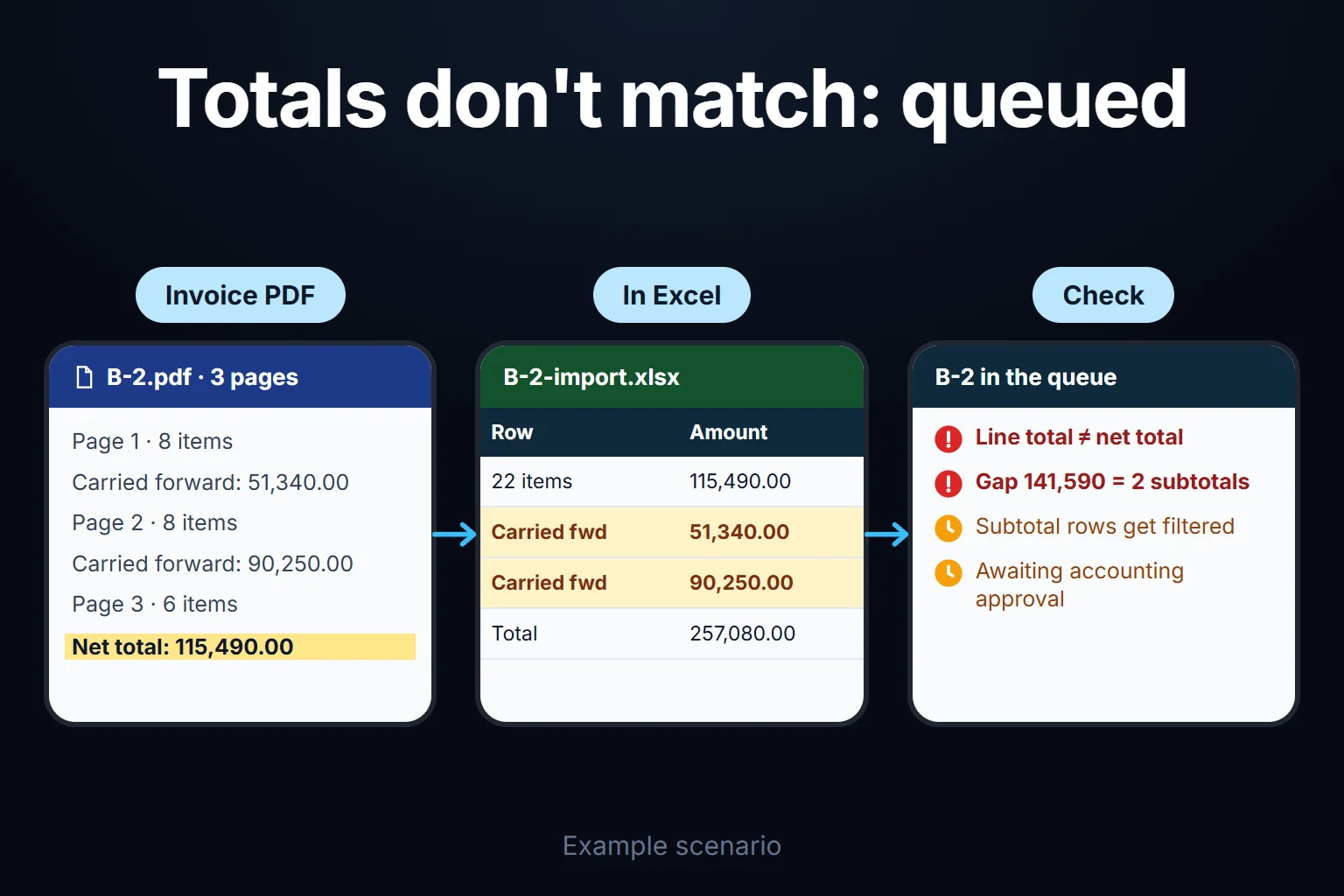
On a multi-page invoice the real danger is an extra row that looks like a line item. With MultiPageTables on, each page’s header and the carried-forward subtotal at its foot can land in the merged table. A header row fails number conversion; a subtotal silently inflates the total.
Invoice B-2 in the fictional worked month below shows this: 3 pages, 22 line items, and, in my script’s merged table, 26 rows (22 items, 2 repeated headers, 2 subtotals of 51,340.00 and 90,250.00). The amount column summed to 257,080.00 against a net total of 115,490.00. The gap, 141,590.00, is exactly the two subtotals.
To filter: click the arrow on the description column, then Text Filters > Does Not Contain. The Filter Rows dialog’s advanced mode takes several conditions: “carried forward”, “brought forward”, “page total” and the header text itself. Keep the phrase list per supplier. After filtering, the line items must add up to the net total.
Thousands separators, decimal separators and date formats
Separator and date errors are the quietest import errors. Many European documents use a dot for thousands. Convert an amount written without decimals, such as “1.250”, with a locale that treats the dot as a decimal point and it becomes 1.25, with no error message. I haven’t tested “1.250,00”. Either way, convert with Using Locale and the document’s locale.
Dates follow the same mechanism. Power Query’s data types page shows a day/month/year date failing under a month-first locale because there is no 22nd month (read on 16 October 2026). Under the same misreading, a day of 12 or lower doesn’t fail; it silently becomes another date. In the worked month, 6 of 13 invoices shift silently and 7 fail. Afterwards, check every date falls inside the period.
Bank statements in Power Query, and the balance check
A bank statement comes in through the same From PDF route, but you check balances instead of net totals. Adjustments to the usual date, description, debit, credit and balance columns:
- Multi-line descriptions: the second line has no date. Microsoft’s PDF connector page names the M functions
Table.FillDownandTable.Group; in the interface they are Fill > Down and Group By. - Newest first: sort the date column ascending before the row check.
- Balance brought forward: filter out these page-top rows, like carried-forward subtotals.
- Debit and credit: add one movement column = credit − debit, or check a signed column kept its sign.
- Dates and amounts: convert with Using Locale. A balance like “1,234.56 Dr” is split on the space first: the letters to their own column, the amount to a number.
Then two checks: opening + all movements = closing, and, row by row, previous balance + movement = this row’s balance.
A fictional example: opening 40,000.00, 6 movements, closing 44,737.50. The import lost page 2’s first row, a 26,750.00 transfer. Opening + 5 imported movements = 17,987.50 against a closing 44,737.50: exactly 26,750.00 short. The row check broke on the next row: 39,400.00 minus a 12.50 fee should give 39,387.50, but the row shows 66,137.50. The lost row sits just above.
In Excel, with A date, B description, C debit, D credit, E balance and the opening balance in row 2, enter =ABS(E2+D3-C3-E3)<=0.01 in F3 and fill down; the first FALSE marks the gap. Matching statement lines to card records is covered on the bank reconciliation app page.
A worked month: three suppliers, 13 invoices
This fictional worked month (company, suppliers and figures) was generated with a script that checks every figure. Amounts are in one currency unit, without a symbol. A mid-sized metal parts manufacturer receives PDF invoices from three suppliers:
| supplier | supplies | PDF type | invoices | gross total |
|---|---|---|---|---|
| A | sheet metal | text-based, e-invoice | 4 | 362,520.00 |
| B | cutting tools, consumables | text-based, one is 3 pages | 4 | 200,229.00 |
| C | haulage | scanned | 5 | 96,660.00 |
| total | 13 | 659,409.00 |
Most lines carry 20% VAT; one line on invoice B-3 carries 10%. Month totals: net 549,870.00, VAT 109,539.00, gross 659,409.00. Purchasing uploaded 14 files, because A-4 arrived twice by email.
Four rules ran on every invoice:
- Line items = net total (tolerance 0.01).
- VAT = each line × its rate, summed per rate (tolerance 0.05, my suggested starting point).
- Net + VAT = gross total (tolerance 0.01).
- Duplicate: the same tax ID with the same invoice number is rejected the second time.
Result: 1 of 14 files (A-4’s second copy) was rejected as a duplicate, 10 of 13 invoices passed all four rules, and 3 went to the exception queue:
- B-2: line items didn’t match net; the cause was the two subtotals above.
- C-2 (scanned): OCR read VAT as 1,840.00 instead of 1,640.00. 20% of the 8,200.00 net is 1,640.00; net plus the misread VAT is 10,040.00 against a printed gross of 9,840.00. Two rules caught it.
- C-3 (scanned): OCR read 18,450.00 as 16,450.00. Lines summed to 17,650.00 against a net of 19,650.00; the line rule and the VAT rule both caught it.
Two-rate B-3 passed: net 10,230.00, VAT 1,611.00 (1,176.00 + 435.00), gross 11,841.00. A single-rate formula checking VAT as 20% of net would have flagged this correct invoice with a 435.00 gap.
2 of 5 scans went to the queue and the 8 text-based invoices had no reading errors; that ratio comes from the fiction, not any OCR tool’s accuracy. Rules, not eyeballing, caught every error. The queue also led to a decision: A’s invoices are read from XML from next month, and C is asked for PDFs saved from its software instead of scans.
How to set up the check columns in Excel
The checks compare two independent sources: the lines the machine read and three totals from each invoice’s foot.
The Lines sheet comes from Power Query:
- File name: whoever saves the PDF from email names it by hand as
TaxID_InvoiceNo.pdf(e.g.1000000001_A-4.pdf; no dots or underscores in the number). - Split: after combining, split Source.Name with Split Column > By Delimiter on ”.”, delete the resulting “pdf” column, then split on ”_”: A tax ID, B invoice number.
- Other columns: C description, D amount, E VAT rate as a decimal (0.2; percent formatting shows 20% without changing the value), F
=IFERROR(D2*E2,0), the line’s VAT, 0 on header rows.
On the Invoices sheet, one row per invoice: A tax ID, B invoice number, C net, D VAT, E gross. Type the three totals from the invoice foot (39 figures for 13 invoices) or take them from XML; taken from OCR output they can be misread, as in C-2, and the checks catch it. Enter in row 2 and fill down:
F: =ABS(SUMIFS(Lines!D:D,Lines!A:A,A2,Lines!B:B,B2)-C2)<=0.01
G: =ABS(SUMIFS(Lines!F:F,Lines!A:A,A2,Lines!B:B,B2)-D2)<=0.05
H: =ABS(C2+D2-E2)<=0.01
I: =COUNTIFS(A:A,A2,B:B,B2)>1
F checks lines against net, G checks VAT per rate, H checks net plus VAT against gross, I flags duplicates. On a comma-decimal system, Excel uses semicolons between arguments and 0,01.
In the script these flagged A-4, B-2, C-2 and C-3 and passed two-rate B-3. With A-4 entered twice, I showed TRUE and F and G FALSE, since its lines loaded twice; check I first.
Scanned PDFs: where OCR and AI help
A scanned PDF can be read two ways, both producing candidates, not records. One: add a text layer with an OCR-capable tool you already have (a desktop PDF program, scanner software or your accounting package’s scanning module), then use Power Query. Two: OCR and AI-assisted parsing can extract number, date, net, VAT and lines as fields, useful when layouts vary by supplier.
What needs checking is the figure itself: 6 and 8, 1 and 7, the decimal mark. A model may write a plausible value for a field it can’t read, so confidence scores are no reason to approve. My rule: the four rules verify amounts; a failing candidate goes to the queue for a person to compare with the image. AI doesn’t approve or change tolerances, and its input and output are logged. I don’t claim any tool is “x% accurate”; it depends on print quality, resolution and layout. Before a large job, I recommend a small test with a few of your own PDFs.
Online converters: which documents can you upload?
Decide by content. A public document (a published statistics table, an open catalogue) is fine to convert online. A document with personal or commercial information (bank statement, supplier invoice, price quote) I would not upload: it goes to someone else’s server, and retention rests on the tool’s word. Use Excel, XML or a tool on your own server instead. Payers’ names and a sole trader’s name and tax ID are personal data; check with your data-protection adviser before sending them anywhere.
In Turkey, e-Fatura uses the XML-based UBL-TR standard, according to the Revenue Administration’s e-Fatura page (read on 16 October 2026), so between registered businesses the XML route is usually open. Sending personal data to a service abroad falls under Article 9 of the data protection law (KVKK), reworded by Law No. 7499 from 1 June 2024; I read the current text of Article 9 on mevzuat.gov.tr on 15 October 2026. Record retention is five years under Tax Procedure Law Article 253 and ten years under Commercial Code Article 82/5 (current texts checked on mevzuat.gov.tr on 16 October 2026).
When the job repeats monthly across several people, where does a web app start?
Excel checks suit one person and a few invoices a month. When purchasing uploads, accounting checks and finance approves, the problem is sequence and permission: a shared workbook’s change history shows who edited a cell, not who may approve and why. A role-based web app fits here. Five steps:
- Upload: purchasing uploads the PDF or XML; an identical file is rejected by its fingerprint.
- Extraction: PDF tables, XML tags, or OCR and AI for scans; each field is a candidate with its source page and row.
- Rule checks: the four rules plus date inside the period; supplier-specific filters run here.
- Approval queue: a passing invoice goes to accounting; a failing one to the exception queue with its reason. An invoice with a gross total of 100,000.00 or more needs a second approval from the finance manager: in the worked month, A-4 (129,840.00) and B-2 (138,588.00). The threshold is my suggested starting point.
- Record: the approved invoice is finalised and exportable to Excel or CSV; direct posting to accounting software is confirmed against the route it supports.
The defined business rule is applied as data is entered. Screens and notification channels can be built to fit; scope is set in writing at the first step. Continuous processing from inbox to record is covered on the invoice processing automation page.
Who does what?
| action | purchasing | accounting | finance manager | auditor |
|---|---|---|---|---|
| Uploads | ✓ | ✓ | — | — |
| Corrects a queued candidate | — | ✓ | — | — |
| Approves | — | ✓ below threshold | ✓ above threshold | — |
| Changes rules, tolerances, threshold | — | — | ✓ | — |
| Reverses with a reason | — | ✓ period open | ✓ | — |
| Views, exports audit trail | — | — | — | ✓ |
Above the threshold, the finance manager approves second. Purchasing sees only its own uploads. The rule I suggest: nobody approves a row they corrected. In a two-person team the other person approves; with one person, the rule is switched off deliberately and that is logged.
Every correction leaves an undeletable line: who, when, which field, candidate and corrected value, and reason. For C-3 it reads “first line 16,450.00 → 18,450.00, compared with the scan”. The original PDF or XML is stored with the record.
When Excel is enough, you don’t need an app
With a few text-based invoices a month and one person importing, you very likely don’t need an app: set up the query once, refresh monthly (Refresh All) and read the check columns. If invoices arrive as e-invoices, see whether your accounting software imports them directly. I would consider an app when several people touch the same invoices, many documents are scans, or approvals must be traceable in writing.
How I would build the first version, and who keeps the data and code
The first version starts with one supplier that sends text-based PDFs. The most common mistake I see in automation projects is choosing the most complex process first; here that would mean starting with the scanned haulage invoices.
- Manual check: we apply the four rules by hand to one de-identified month with your accounting lead, so we know what the app must find.
- First version: upload, extraction, rules, queue, roles and audit trail for that supplier; the month is rerun and every manual difference must reappear.
- Expansion: other suppliers, XML and scans after a clean month.
The app runs on a server (VPS), which can be opened in your name. The data is yours, and you can export all of it as Excel or CSV at any time. For a small or mid-sized team there is no per-user licence; the cost is the server plus maintenance. The source code sits in a repository you can access, delivered with run instructions, a dependency list and a list of known limits. Delivery details: custom web apps for your team.
To start with one month of your own PDFs, contact me and we will choose which supplier’s documents go first.
Frequently Asked Questions
The “From PDF” option is missing in my Excel. What can I do?
Check your version first: Microsoft’s table ticks the PDF source only for Windows Excel with Microsoft 365, not Office 2016, 2019 or Mac (read on 16 October 2026), and it needs .NET Framework 4.5 or later. Without it, ask your bank or supplier for an Excel, CSV or XML version; From XML is available in those versions.
Can Power Query read a scanned PDF?
Power Query’s PDF connector returns the tables it finds in the document; a scanned page has no text, so there is no table to find. Add a text layer with OCR first, then try again, and check totals on every document; both reading errors in the worked month came from scans.
Can I import a statement of several hundred pages in one go?
You can, but it may be slow and errors are harder to locate. Pull page ranges with StartPage and EndPage; my suggested starting point is fifty pages, splitting any batch that fails. Each batch must continue from the previous batch’s last balance, and the row check shows at which page break a row was lost or doubled.