
Excel Macro (VBA) Development: Which Jobs Suit a Macro and What Makes One Robust
A macro (VBA) is the right tool when one person at desktop Excel runs the same steps every time: building report sheets, formatting, stepping through sheets, batch PDFs or printing. If you build the same report by hand weekly, it usually fits: one person starts it, desktop Excel, a file as the result. Power Query suits combining data, Office Scripts suit browser or unattended work, and a web app suits several people entering and approving data.
Before commissioning one, check five things: source checks and a table or last row instead of a fixed range, error handling, an undo warning, a run log, separate settings. In the fictional example below, a weekly 12-region report takes 87 manual steps, 37 of which can send out a wrong PDF without warning. With a macro, 3 steps and 1 such point remain.
I read the Microsoft sources on this page on 16 October 2026.
Which jobs is a macro the right tool for?
A macro suits repeated desktop Excel actions with a fixed rule and a file or sheet as the result:
- Formatting. Widths, number formats and colours on the weekly export.
- Report sheets. One sheet or file per region, dealer or project from a template.
- Batch printing and PDF. Saving one sheet to PDF 12, 48 or 200 times with a different filter, done in VBA by
ExportAsFixedFormat(Microsoft Learn). - Stepping through sheets. Checking the same cell on 30 sheets into a summary.
Which jobs is a macro the wrong tool for?
A macro is the wrong tool for cleaning and combining data, for work that must run in the browser or unattended, and for several people entering the same data. I compare these limits in the Excel automation guide; the table sticks to this page’s question.
Should I have a macro built? Decision table
Have a macro built when the job runs on the desktop, is started by one person and produces a file. My starting recommendation:
| job | macro a fit? | why |
|---|---|---|
| Separate PDF per region, batch printing, stepping through sheets | Yes | Desktop action sequence started by one person |
| Formatting the export, report sheets from a template | Yes | Fixed weekly rule |
| Combining same-structure files from a folder | Usually no | Power Query’s job; in VBA a renamed column means fixing code |
| File opened in the browser (Excel for the web) or on iPhone/iPad | No | VBA doesn’t run there; Office Scripts run on the web, Windows and Mac |
| Must run at a set time with nobody at the desk | No | VBA has no Power Automate connector; a user starts the macro |
| File travels by email every week | With care | Windows blocks macros in files from the internet; keep one location |
| Several people enter and approve data, with an audit trail | No | The file is the problem; web app |
Source for the web, iOS and Power Automate rows: Microsoft’s comparison (Microsoft Learn). It says Office Scripts need an enterprise or educational (work or school) licence; VBA needs none in desktop Excel.
Example: the weekly report for 12 regions, by hand and by macro
Sample data, fictional. A distributor of bearings, seals and hydraulic consumables splits sales into 12 regions, B01 to B12. Every Monday the analyst turns the ERP export into a one-page PDF per regional manager via a Data sheet and a Report template. The export ends with a TOTAL row giving the record count.
By hand there are 3 fixed steps a week: paste the export, glance at the row count, open the week’s folder. Then 7 per region: pick the region, wait for calculation, compare totals by eye, choose PDF in Save As, type the file name, pick the folder, save.
| by hand | by macro | |
|---|---|---|
| Steps taken by a person | 87 (3 + 12 × 7) | 3 |
| Points where a wrong PDF can go out without warning | 37 (1 + 12 × 3) | 1 |
| Checks the macro runs each time | None | 13 (1 export + 12 region totals) |
| Check left to a person | Comparing totals by eye per region | Reading the log for warnings |
| Weekly time (fictional assumption) | 58 minutes | 8 minutes |
The 37 points: three in each of the 12 regions (wrong region saved under the right name, wrong code typed in the file name, skipped total comparison), plus pasting an incomplete or wrong-week export. None raises an error.
With the macro, the person pastes, presses the button, confirms and reads the log. Note the logic: the region total check can’t catch an incomplete paste, because report and macro both calculate from the same incomplete data. So the macro first checks the export: is the TOTAL row there, does the row count match the ERP’s? The remaining point is a wrong week’s export, complete with its own TOTAL row; comparing the Settings week with the export’s dates would close it. If your ERP gives no TOTAL row or record count, type the count shown on the ERP screen into a Settings cell for the macro to compare.
The same logic applies to a column shift: if the ERP inserts a column before the amount, template and macro both read column F, the totals still match and 12 wrong PDFs go out. So the export check also confirms the “Region” and “Amount” headers are in place.
The time row is fictional arithmetic: 4 minutes per region plus 10 fixed by hand; 5 to paste and 3 to read the log by macro. That is 50 minutes a week, 40 hours over 48 weeks. Time your own job first.
What happened the week the export passed 5,000 rows?
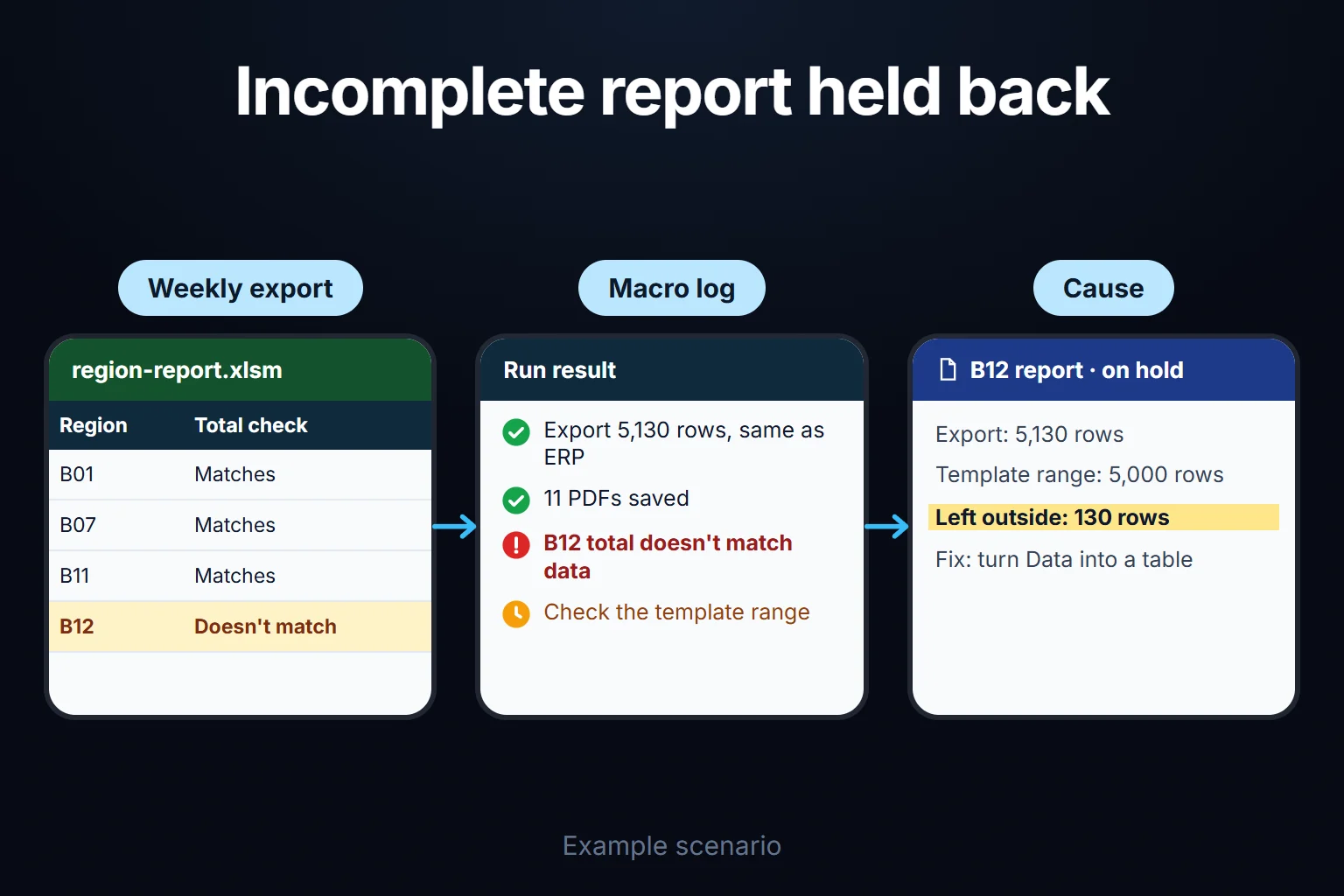
The previous export had 4,870 rows; this one 5,130. The template formulas looked at Data!A2:A5001, at most 5,000 rows. The ERP sorts by region code, so all 130 rows left out belonged to B12.
By hand, B12’s report would have gone out 25.4% short of the region’s real total, missing 130 of its 507 lines. The other 11 regions were correct, and no cell showed an error.
The export check passed. The macro then compared each region’s own total with the template’s: B12 differed, so 11 PDFs, B12 skipped, a warning logged. The analyst found the fixed range and fixed it for good by turning Data into an Excel table with table references, which grow with new rows.
The export check catches source faults, the region check template faults. I recalculated these figures and two incomplete pastes (cut at row 4,900; 230 rows skipped) in Python with fictional data. There is no Excel on this computer; I did not run the code in Excel.
What should a robust macro have?
A robust macro stops and tells you when the source file changes, instead of silently producing a wrong result. Check five things:
- Source checked, no fixed ranges. Before working, the macro checks the export is complete and its column headers are in place. Addresses like
Range("A1:H4870")in a recorded macro tie it to the row count on recording day. Keep the data as an Excel table or find the last filled row on each run (Cells(Rows.Count, "A").End(xlUp).Row), using a never-blank column such as a date. - Error handling. Errors are logged, the screen restored, and the macro stops without saying “done”.
- A warning that it can’t be undone. According to Microsoft, running a macro in Excel clears the undo stack (Microsoft Support). Ctrl+Z reverses neither the macro nor earlier steps; a data-changing macro should ask first, and I recommend saving a copy.
- A run log. Date, time, user, record and result (“ok”, “warning”, “error”) on a separate sheet.
- Settings on a separate sheet. Folder, week and region list in named cells; a new region is a new row, not a code change.
Sample code: saving each region’s report to PDF
The macro below checks the export, loops through the regions, compares each total, saves a PDF if it matches and logs every step. If you won’t write code, skip this section; the five tests above are enough. I did not run this code in Excel; try it on a copy of your file.
Option Explicit

' Saves each region's report sheet as a PDF.
' Settings: Folder, Week, Regions (named cells)
' Report: SelectedRegion, ReportTotal
' Data: A = date, B = region, F = amount; last row is the ERP TOTAL row (C = record count)

Sub ExportRegionReportsToPdf()
    Dim settings As Worksheet, data As Worksheet, report As Worksheet, logWs As Worksheet
    Dim folder As String, week As String, region As String, errText As String
    Dim totalRow As Long, lastData As Long, i As Long, count As Long
    Dim dataTotal As Double

    On Error GoTo Failed
    Set settings = ThisWorkbook.Worksheets("Settings")
    Set data = ThisWorkbook.Worksheets("Data")
    Set report = ThisWorkbook.Worksheets("Report")
    Set logWs = ThisWorkbook.Worksheets("Log")

    folder = settings.Range("Folder").Value
    week = settings.Range("Week").Value
    If Right(folder, 1) = "\" Then folder = Left(folder, Len(folder) - 1)
    If Dir(folder, vbDirectory) = "" Then Err.Raise vbObjectError + 1, , "Folder not found: " & folder
    folder = folder & "\"

    ' Export check: headers in place, TOTAL row there, record count matching?
    If data.Range("B1").Value <> "Region" Then Err.Raise vbObjectError + 4, , "Column missing: B1 should be 'Region'"
    If data.Range("F1").Value <> "Amount" Then Err.Raise vbObjectError + 5, , "Column missing: F1 should be 'Amount'"
    totalRow = data.Cells(data.Rows.Count, "A").End(xlUp).Row
    If data.Cells(totalRow, "A").Value <> "TOTAL" Then _
        Err.Raise vbObjectError + 2, , "Export incomplete: no TOTAL row"
    lastData = totalRow - 1
    If lastData - 1 <> data.Cells(totalRow, "C").Value Then _
        Err.Raise vbObjectError + 3, , "Export incomplete: " & (lastData - 1) & " rows, ERP says " & _
        data.Cells(totalRow, "C").Value

    If MsgBox(settings.Range("Regions").Rows.Count & " PDFs will be created." & vbCrLf & _
        "This cannot be undone with Ctrl+Z. Continue?", _
        vbYesNo + vbQuestion) = vbNo Then Exit Sub

    Application.ScreenUpdating = False
    For i = 1 To settings.Range("Regions").Rows.Count
        region = settings.Range("Regions").Cells(i, 1).Value
        report.Range("SelectedRegion").Value = region
        Application.Calculate

        dataTotal = Application.WorksheetFunction.SumIfs( _
            data.Range("F2:F" & lastData), data.Range("B2:B" & lastData), region)

        If Abs(dataTotal - report.Range("ReportTotal").Value) > 0.005 Then
            WriteLog logWs, week, region, "WARNING: report total does not match data, no PDF"
        Else
            report.ExportAsFixedFormat Type:=xlTypePDF, _
                Filename:=folder & region & "_Week-" & week & ".pdf"
            WriteLog logWs, week, region, "ok"
            count = count + 1
        End If
    Next i

Finish:
    Application.ScreenUpdating = True
    If errText = "" Then
        MsgBox count & " PDFs created. Details: Log sheet.", vbInformation
    Else
        MsgBox "Stopped: " & errText & vbCrLf & count & " PDFs created.", vbCritical
    End If
    Exit Sub

Failed:
    errText = Err.Description
    If Not logWs Is Nothing Then WriteLog logWs, week, region, "ERROR " & Err.Number & ": " & errText
    Resume Finish
End Sub

Private Sub WriteLog(ws As Worksheet, week As String, region As String, status As String)
    Dim r As Long
    r = ws.Cells(ws.Rows.Count, "A").End(xlUp).Row + 1
    ws.Cells(r, 1).Value = Now
    ws.Cells(r, 2).Value = Application.UserName
    ws.Cells(r, 3).Value = week
    ws.Cells(r, 4).Value = region
    ws.Cells(r, 5).Value = status
End Sub
How the code maps to the five tests:
Option Explicitand comments: catch mistyped names; list the sheets and cells the code needs.On Error GoTo Failed,Finish(test 2): every error is logged; Finish restores the screen and says “Stopped”, not “done”.- Folder check (tests 2, 5): path from Settings, trailing backslash removed before checking, re-added after.
- Export check (test 1): if B1 or F1 isn’t the expected header, the last row isn’t TOTAL or the count differs from the ERP’s, the macro stops and says why. This catches column shifts and incomplete pastes.
lastData(test 1): found on every run, whether the export has 4,870 or 5,130 rows.MsgBox ... vbYesNo(test 3): states the PDF count and that this can’t be undone.Forloop,SelectedRegion,Calculate(test 5): regions come from Settings.SumIfsandAbs(...) > 0.005: each region is totalled independently of the template; a mismatch above a cent means no PDF. This caught B12.ExportAsFixedFormatandWriteLog(test 4): names come from the list; each result is logged with time and the Excel user name (from Excel’s options, not a login).
To add a button, insert a shape, right-click it and choose “Assign Macro”.
Macro security: .xlsm, blocking, trusted locations and digital signatures
Before sharing a macro workbook, settle format, internet blocking, trusted locations and signing.
The file must be .xlsm. According to Microsoft, .xlsx can’t store VBA macro code; a macro workbook is saved as .xlsm, Excel Macro-Enabled Workbook (Microsoft Support). Save it as .xlsx and the code is gone.
Macros in files from the internet are blocked. On Windows, Microsoft blocks macros by default in files downloaded or received by email, rolling out from Current Channel version 2206 on 27 July 2022. The banner has no “Enable content” button. Mac, mobile and web Office aren’t affected. Files on a network share opened by IP address, outside the Local intranet or Trusted sites zone, are blocked too (Microsoft Learn). The same page says ticking “Unblock” in a file’s Properties lifts the block, and opening a OneDrive or SharePoint file with “Open in Desktop App” means the mark is never added. Keep the workbook in one location everyone opens rather than emailing it.
What to do when the “Enable Content” bar appears. With default settings, a macro workbook not from the internet opens with macros disabled and this button shown (Microsoft Learn). Microsoft says never enable macros unless you’re sure what they do; viewing or editing doesn’t need them (Microsoft Support).
Trusted locations. Files in a trusted location skip some Trust Center security checks. Add one under File > Options > Trust Center > Trust Center Settings > Trusted Locations (Microsoft Support). Microsoft asks for careful, sparing use and doesn’t recommend network locations (Microsoft Learn). I recommend one folder on the macro user’s computer, with known access.
Digital signatures. A signature shows the project hasn’t changed since signing. According to Microsoft, a self-created (SelfCert) certificate suits testing on your own machine only, and any code change removes the signature (Microsoft Support). Microsoft’s security baseline for macro users is “Disable all except digitally signed macros” with a trusted publisher requirement (Microsoft Learn). Under it, an edited macro may not run on other computers until re-signed with the company certificate. Ask IT who holds the certificate.
How do you know a macro you commissioned does nothing harmful? I recommend two tests: no password-locked VBA project, and a written reason for any file deletion, opening or outside connection.
Where is the macro: in the workbook or on the computer?
The storage location chosen while recording a macro affects whether the workbook works on another computer. Make this distinction before leaving workflow code on a single employee’s machine.
| Location | Suitable use | Handover check |
|---|---|---|
This Workbook, .xlsm | Code tied to one report or template | Code travels with the file; copies can drift into different versions |
Personal Macro Workbook, Personal.xlsb | Personal formatting and cleanup shortcuts | Sending the report does not send its personal macro |
Excel add-in, .xlam | A function shared across workbooks and a team | Installation, security, versions and updates need separate management |
Microsoft’s Personal Macro Workbook guidance explains that Personal.xlsb lives on the computer and opens with Excel through XLStart. Sharing requires transferring the file or module to other computers. Copying an update into a shared folder does not prove that every open Excel session immediately loads it; reopening and version checks are needed.
Locate your existing macro. A PERSONAL.XLSB! prefix in Developer → Macros identifies the personal workbook. On Windows, Alt+F11 opens the Visual Basic Editor, where a relevant module can be copied into the target workbook and saved as .xlsm. Work on copies of both files; sheet names, paths and button assignments also need checking.
Recording mode affects portability too. Absolute references return to fixed cell addresses; relative references move from the starting selection. In reports with changing row counts, I do not rely solely on recorded steps. The code must check the last occupied row, required headers and destination range. For a team macro, opening the correct code version is an acceptance condition alongside opening the correct workbook.
What should be written down at handover, and who maintains the macro?
A macro is tested at its first change. At handover I recommend written:
- A “How it works” sheet. Where the export comes from, what each sheet and Settings cell does, what to check after a “WARNING”.
- A copy outside the file. The code lives in your .xlsm file. The full source code also sits in a repository you can access, with run instructions and known limitations.
- An owner and maintenance. Adding a region needs no coding. Who changes code and who re-signs should be clear up front.
What happens when the Excel version changes? Three things can break a macro:
- 64-bit Office. Office 2019 and Microsoft 365 install 64-bit by default; old
Declarestatements calling Windows functions fail withoutPtrSafeand 64-bit data types (Microsoft Learn). The sample has none; check inherited macros for them. - VBScript being removed. Per Microsoft’s September 2025 announcement, VBScript goes off by default in Windows around 2026 or 2027; later, .vbs calls and VBScript RegExp references from VBA break unless Office is updated (Microsoft 365 Developer Blog, timeline as of October 2026).
- The file moving to the web or Teams. In the browser the button does nothing; consider Office Scripts or an app.
When should you move from a macro to a multi-user app?
Move from a macro to a multi-user app with roles and permissions when several people start entering or approving the same data. If the job is only distributing reports, stay with the macro.
Then the example’s managers want to enter corrections: 12 copies out, 12 back. A macro can combine them but can’t answer:
- Did B07’s manager see only B07?
- Who entered B03’s correction, when and why? If two people changed the same row, which stands?
- Did the figure change after approval?
Four signs: several people enter or approve data, each sees only their part, changes must be recorded, work happens in a browser or on a phone. With two or more, consider an app seriously. With one, tighten Excel first (one file in one location, a log, a separate corrections sheet) and review in a few months. With none, I wouldn’t recommend an app.
If you move, the macro’s rules carry over: the total check, region list and PDF template become business rules applied when data is entered, not at month end. Roles, permissions, audit trail, hosting and data ownership are covered on the custom web apps for your team page.
How do you start?
List your repetitive Excel jobs with the weekly time each takes. The most common mistake I see in automation projects is choosing the most complex process for the first automation. In the example, the first job wasn’t the dispute and approval flow but the 12 regional PDFs: one person, a clear rule, a result visible next Monday.
Time and price depend on scope, so I give no figures here; scope is set in writing in the first step: number of reports and regions, source file format, signing requirement, and whether a run log is wanted.
Write down your manual steps in order and send them with a sample file through the contact page.
Frequently Asked Questions
Can I record a macro myself or have AI write it?
Yes, for one person’s small, fixed job that is often enough. According to Microsoft, the Macro Recorder captures almost every move you make, unintended steps included (Microsoft Support), and the code memorises that day’s row count and column order. Read AI-written code against the five tests above too. I cover getting reliable Excel results from AI, with a test table, in the ChatGPT for Excel guide. If several people use it or it changes data, have someone who knows VBA read it.
If the team will use code tied to that workbook, choose “This Workbook” when recording. For shared use across files, review the add-in and personal-workbook distinction above.
Do macros run on a Mac, in Excel for the web and on a phone?
According to Microsoft’s table, VBA macros run in Excel for Windows and Mac, not on the web or iOS (Microsoft Learn). The internet-file blocking in the security section doesn’t affect Mac. If it must run on a Mac, say so; I haven’t tested the sample there.
Do I have to send my real data to have a macro built?
You can start with a sample file: a few rows with the same columns and sheets, amounts and names changed. I recommend running the final test on a copy of your own file.