
7 Essentials You Need to Know When Using Google Antigravity
On YouTube
7 Essentials You Need to Know When Using Google Antigravity
Gemini keeps releasing new models, and Google Antigravity keeps getting stronger right alongside them. In Part 1 of this series (with at least two more videos coming next), we break down the seven essentials you need to know when working in Google Antigravity.
Full description
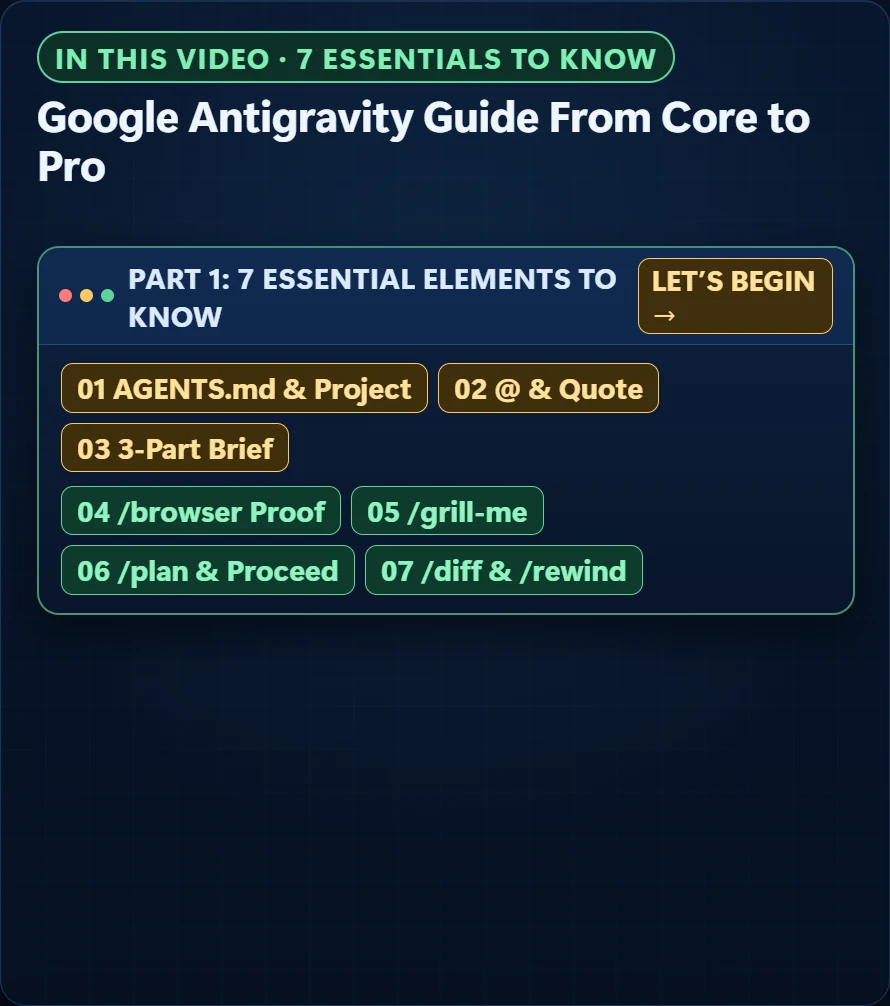
The 7 essentials covered in this video: 1. AGENTS.md and Scoped Projects: Stop repeating tone or off-limits rules in every chat—open your workspace as an isolated Project with scoped permissions and sandbox rules, and store permanent instructions in root AGENTS.md or GEMINI.md. 2. @ Mentions and Quote: Never force blind disk scans; type @ to attach exact files, folders, manual @Rules, or prior @Conversation threads, or highlight lines and click Quote in the app. 3. Three-Part Executive Briefs: Ditch vague prompts and combine the exact target, strict off-limits zones, and the local test command that proves completion so the agent catches and repairs its own errors. 4. Screenshots and /browser Proof: Drop a screenshot straight into the prompt box instead of describing broken layouts in words, and run /browser so an isolated browser subagent checks desktop and mobile views, console errors, and visual proof screenshots. 5. /grill-me Scope Interviews: Let the agent inspect your existing repository first so it never asks what code already answers, then resolve open edge cases one question at a time with a recommended choice before any code is touched. 6. /plan, Inline Comments, and Proceed: Start multi-file architecture work with /plan to generate a side-panel Implementation Plan artifact; leave inline comments on specific steps to trim scope instead of rewriting from scratch, then click Proceed. 7. Review, /diff, and /rewind: Audit every added and deleted line in the app Review pane or terminal /diff before keeping edits, and use /rewind to roll back a derailed experiment to a clean checkpoint without scrapping the session.
Part 2 and Part 3 are coming up next in this series with advanced orchestration commands and expert workflows. Save this breakdown and follow so you do not miss the next two episodes.
Previous video, Gemini Neon is here — the balanced model between Carbon and Hydrogen: https://youtu.be/Xg9X689XQ74
Written guide & whiteboard visuals: https://oguzerol.com/en/agentic_ai_skills/google_antigravity_7_essentials_to_know/ Google Antigravity 3-Part Series:
- Part 1 (7 Essentials): https://youtu.be/A0IbSMc5kKo
- Part 2 (7 Orchestration Rules): https://youtu.be/UXY5oCwvYjY
- Part 3 (7 Expert Rules): https://youtu.be/teHZSD0XZPs
When working on real code with an AI agent, output quality rarely fails because the underlying model is weak. More often, productivity stalls because every fresh conversation starts from zero—forcing the agent to search blindly across unrelated folders, guess missing requirements, and modify files you never meant to touch. As Gemini rolls out stronger reasoning and coding models, Google Antigravity evolves alongside them across both its desktop workspace and terminal interface, giving you concrete controls to keep every session fast, bounded, and verifiable.
In the previous video guide, we mapped out how Gemini Neon, Carbon, and Hydrogen work together inside Antigravity. This guide opens Part 1 of a multi-part series focused on Antigravity itself: the first seven essential workflows and commands you should put in place from day one so the agent works cleanly without constant micromanagement.
1. Put permanent rules in root AGENTS.md inside an isolated Project
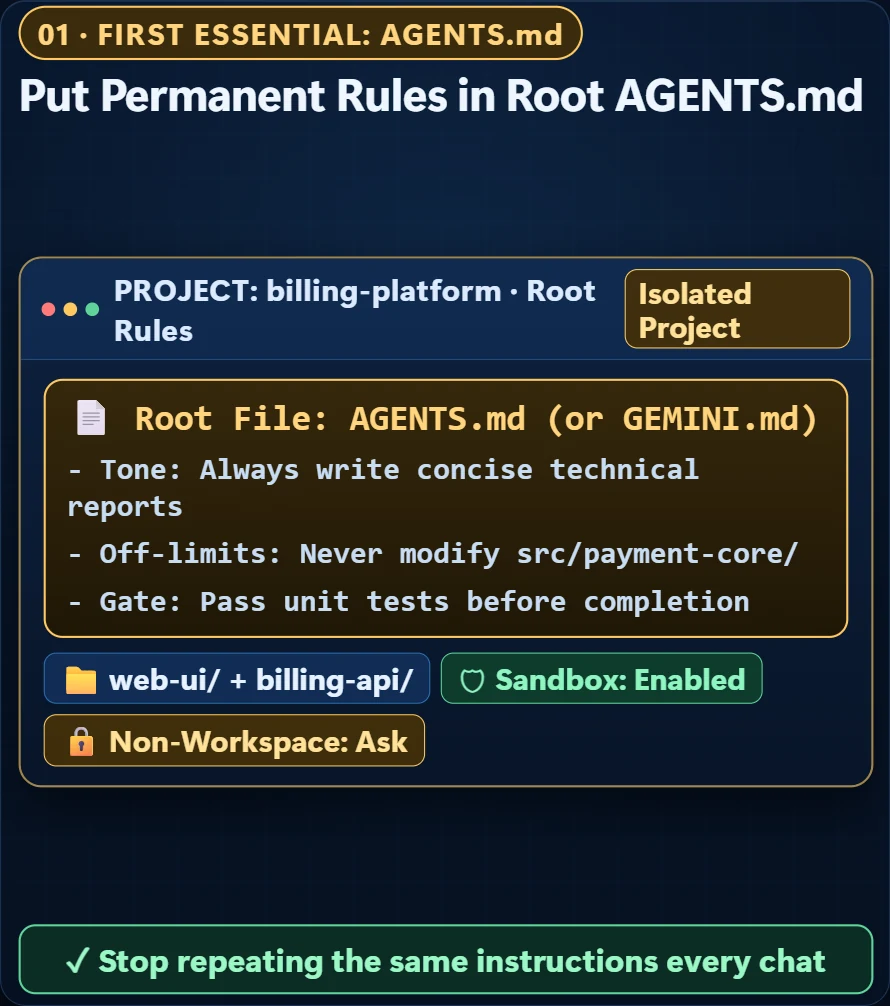
Repeating the same guardrails at the top of every chat—writing style, reporting tone, protected folders, or required test gates—wastes turns and invites human error the moment you forget one line. The clean fix is twofold: open your repository inside a scoped Project with isolated permissions and sandbox rules, and store permanent instructions inside AGENTS.md or GEMINI.md at the workspace root.
Configuring your workspace as an isolated Project scopes file access, internet permissions, sandbox boundaries, and auto-execution settings per project rather than exposing your machine loosely. When a new session begins, Antigravity walks upward from your working directory to the repository root, loads AGENTS.md or GEMINI.md automatically as always-active rules without requiring frontmatter, and injects them from a dedicated rules budget. Because this budget sits in its own lane inside the agent harness, permanent project rules do not eat into your Skill or MCP tool capacity.
The common mistake here is turning AGENTS.md into a sprawling dump of old session logs and edge-case notes. Once a rule file exceeds the per-file size limit, trailing lines are truncated; if total rules exceed the overall rules budget, oversized files get demoted from full inline instructions to lightweight path pointers. Keep your root AGENTS.md crisp and focused on non-negotiable invariants—architecture boundaries, forbidden directories, and verification standards—while tucking deep reference notes into separate files loaded only on demand.
2. Lock context with @ mentions and Quote instead of blind disk scans
Telling an agent to “check the billing module” forces it to wander across your directory tree, open stale legacy scripts, and burn through quota before even touching the bug. Instead, type @ directly inside the prompt box to attach exact targets from the very first turn.
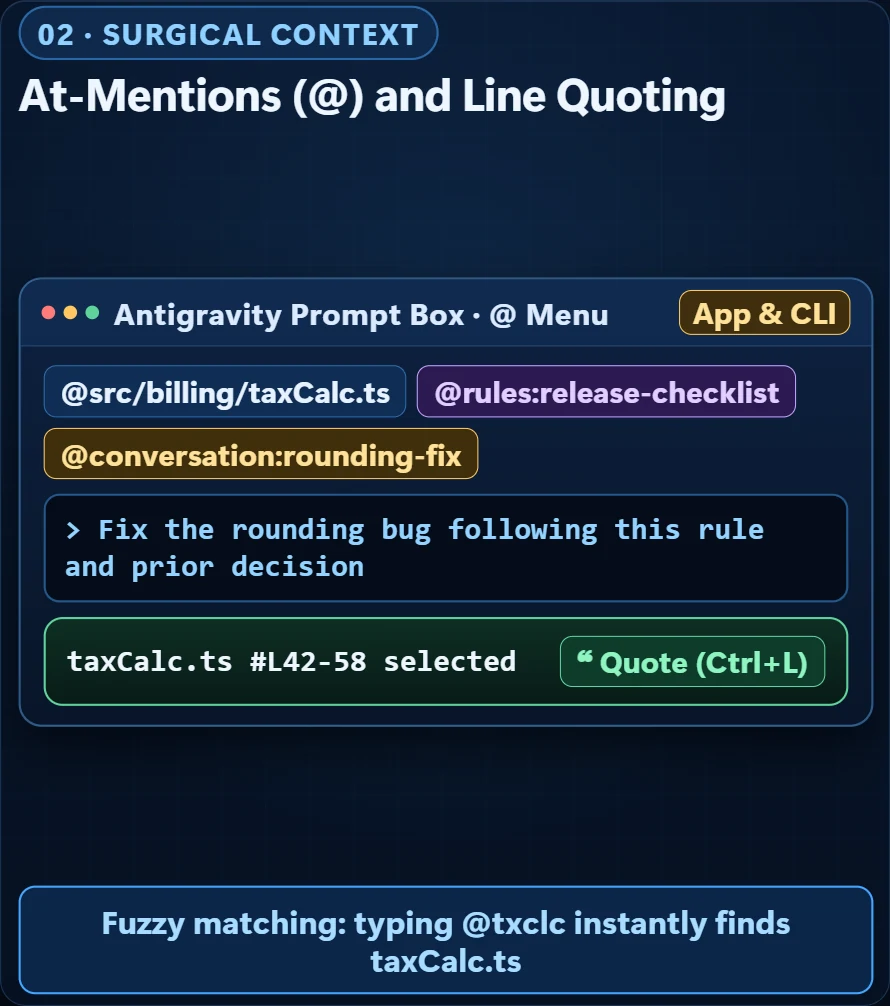
Antigravity supports fuzzy matching in its @ menu, so typing just a few distinguishing characters jumps straight to the file or folder you want. Crucially, attaching @file or @folder does not dump raw file contents into your prompt and bloat your message; it passes a clean path pointer so the agent reads the exact file on demand. Note also that referencing a folder outside your workspace with @ does not override workspace permission boundaries—sandbox protections remain enforced.
| Context tool | Where it works | What the agent receives | Best used when |
|---|---|---|---|
@file / @folder | App and Terminal CLI | Clean file or directory path without raw text bloat | You know the exact module or directory involved |
@Rules | Antigravity App | Full text of a manual-trigger rule file | Applying a specific checklist to one turn only |
@Conversation | Antigravity App | Prior thread title and session identifier | Pulling architectural decisions from an earlier thread |
Quote (Ctrl+L) | Antigravity App | Exact file path plus selected line range (#L42-58) | Targeting a broken function or specific lines inside a large file |
Whenever a bug lives inside a handful of lines inside a sprawling source file, highlighting those lines in the editor and clicking Quote locks the agent directly onto that slice without forcing extra search calls.
3. Issue a three-part executive brief instead of vague prompts
Open-ended requests like “fix the signup form” force the agent to guess everything you left unsaid—what validation rules apply, whether database tables may change, and how success should be proven. Under ambiguity, models frequently refactor neighboring code or touch sensitive layers like payment logic. Replace vague chat requests with a three-part executive brief in a single message:
- Exact Target: Specify the concrete file and behavior to build or change (for example, adding corporate tax ID validation inside
@signupForm.tsx). - Strict Off-Limits: Name the directories, schemas, or modules that must remain untouched (
Do not modify src/payments/ or database migrations). - Local Test Proof: State the exact local command that verifies completion (
Run npm test -- signup and ensure every check passes before finishing).
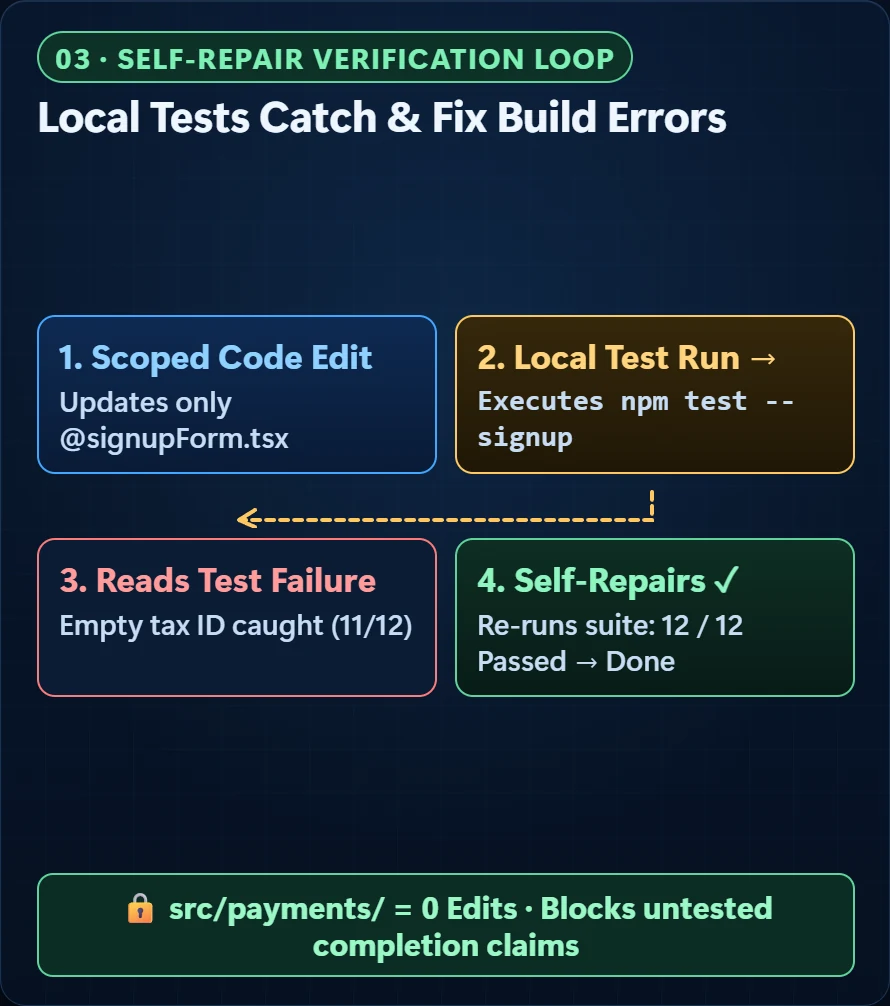
Naming that verification command does more than state your expectations: it activates an automated self-repair verification loop. Once the agent writes its edit, it executes the test command locally, reads any failing assertion—such as a missing check on an empty tax ID field—patches its own error, and re-runs the suite until every check passes cleanly.
4. Stop describing broken layouts in words: drop a screenshot and require /browser proof
Trying to explain a misaligned navigation drawer or overlapping mobile button in two paragraphs of prose slows diagnosis down. Drop a screenshot straight into the prompt box—or paste it with Ctrl+V—so the model inspects the rendered UI directly and identifies the broken container or breakpoint at a glance.
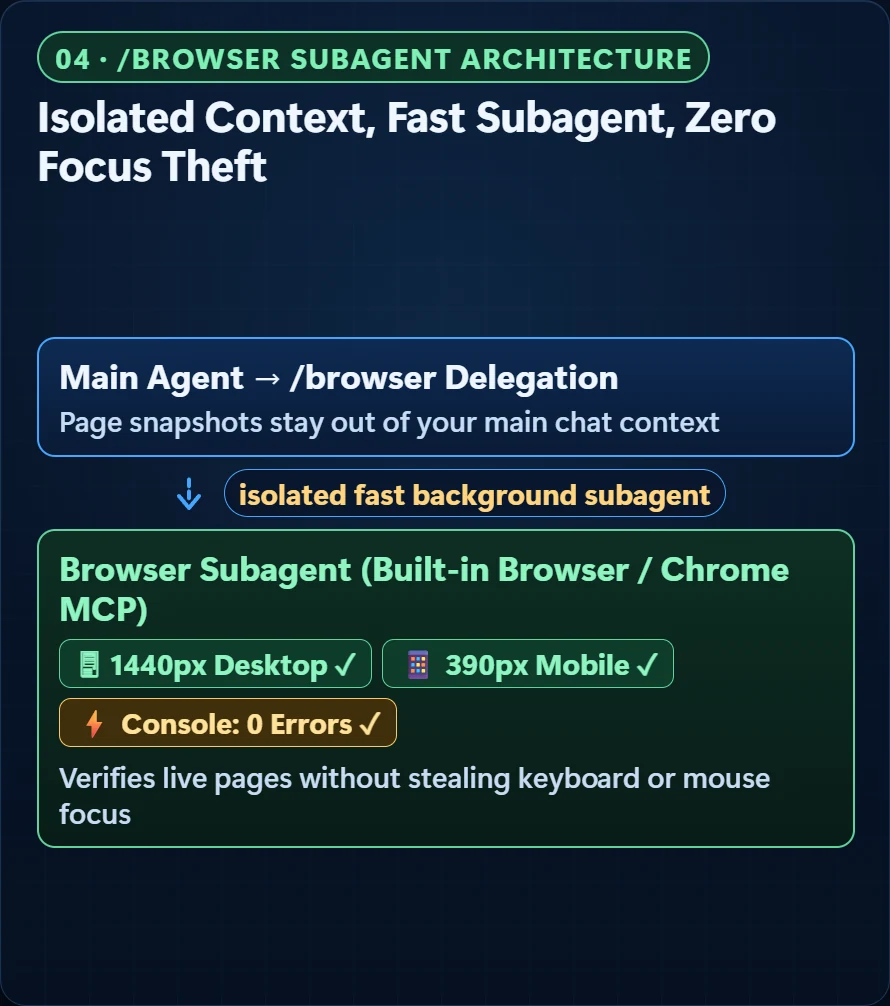
Just as important, never accept a clean build as proof that a frontend task is finished. Code can compile without a single TypeScript or bundler warning while still clipping buttons on narrow mobile viewports or throwing runtime console errors. For UI work, use /browser so Antigravity delegates live inspection to an isolated browser subagent.
Running UI checks through /browser keeps your workflow fast and clean in two ways:
- The browser subagent operates in its own isolated context window, meaning verbose page snapshots and DOM logs never clutter your main conversation history.
- Whether using the built-in browser panel in the app or Chrome DevTools integration, it opens your local page across both desktop and mobile viewports without stealing keyboard or mouse focus, checks that console and network errors sit at zero, and attaches proof screenshots before finishing the task.
5. Lock down forgotten edge cases upfront with /grill-me
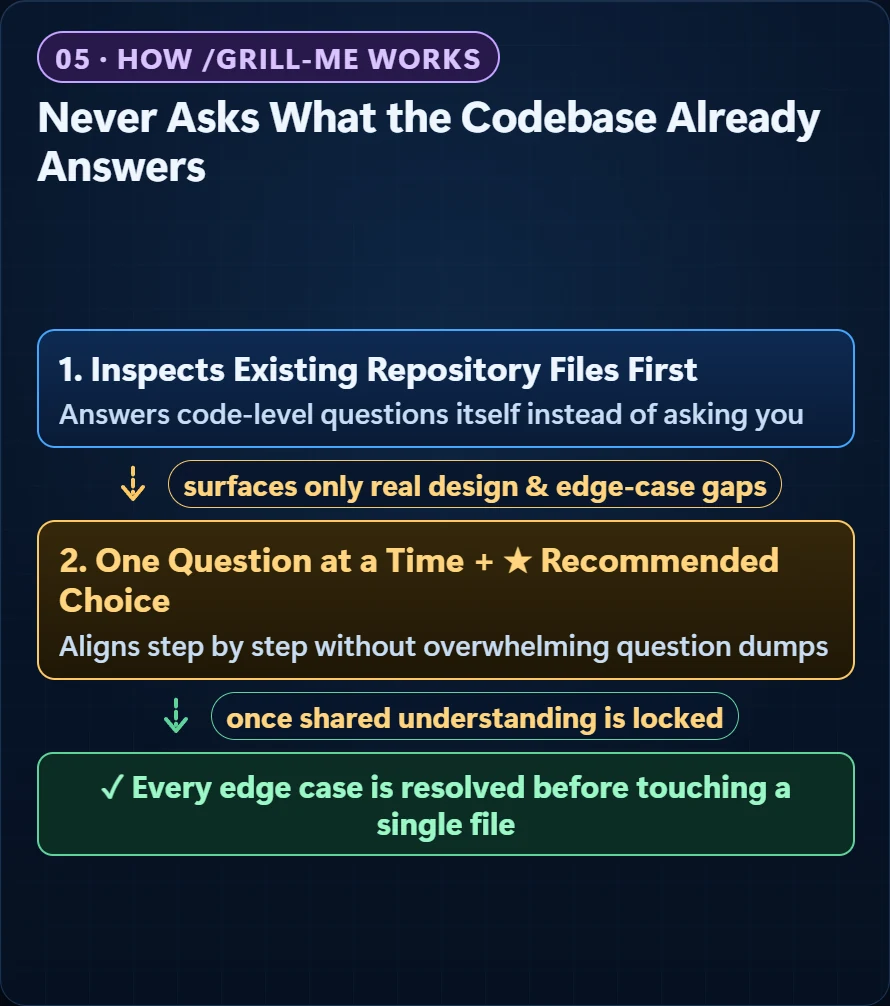
Starting a complex feature before resolving hidden edge cases almost always ends in mid-build rework: twenty turns into implementation, a missing retry rule or queue overflow decision breaks assumptions and forces you to tear up half the architecture.
Prefixing your prompt with /grill-me stops the agent from touching a single line of code until the spec is tight. Before asking you anything, it quietly explores your existing repository so it never wastes your time with technical questions the files already answer. It then surfaces only genuine design gaps and interviews you one question at a time, pairing each question with a recommended default choice until every ambiguity is locked down. You can even stack /plan /grill-me so the clarified requirements feed straight into a structured implementation blueprint.
6. Start multi-file changes with /plan, inline comments, and Proceed
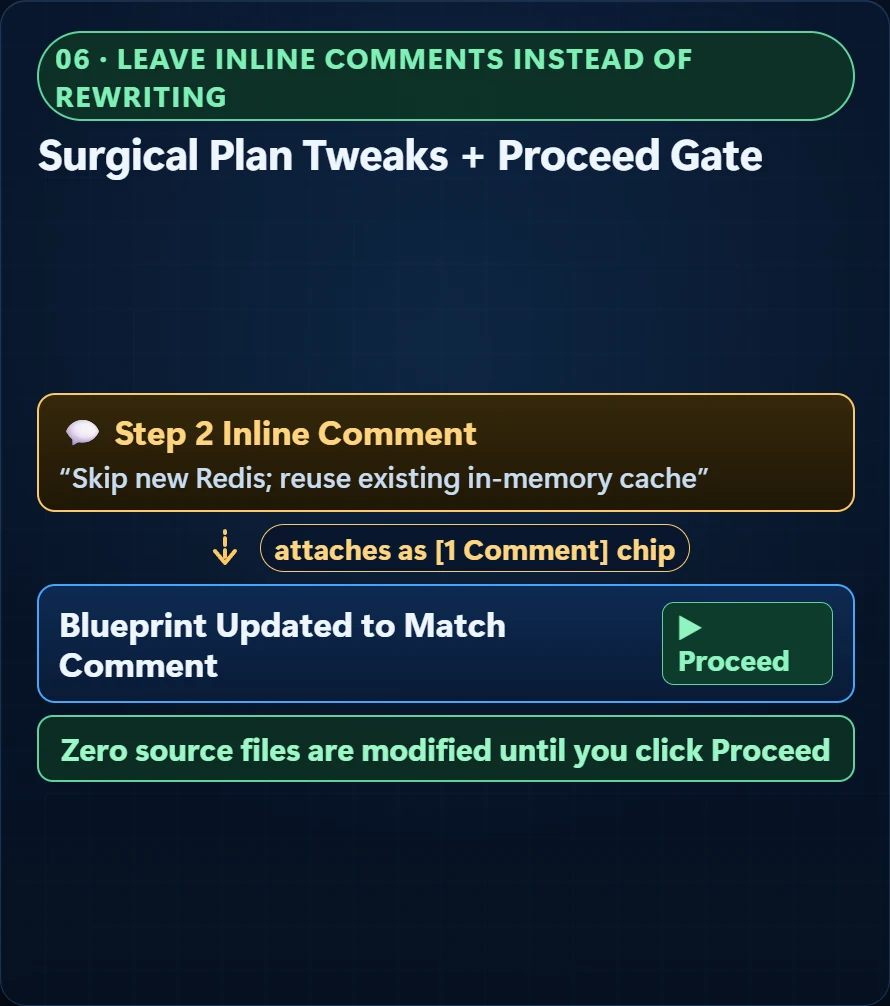
Jumping straight into edits across multiple modules, auth guards, and test suites invites unwanted dependencies and bloated rewrites. When a change spans multiple files or carries architectural risk, start with /plan.
Antigravity scans dependencies first and drafts a dedicated Implementation Plan artifact in the side panel—without modifying a single source file yet. If you spot a step you dislike, such as provisioning a new cache service when you want to reuse an existing in-memory store, resist the urge to reject the whole blueprint and re-prompt from scratch. Highlight that exact step and leave an inline comment; it attaches to your prompt box as a [1 Comment] chip so the agent trims or swaps only that piece. Once the blueprint matches your standards, click Proceed to hand control into execution.
7. Audit every line with Review or /diff, and roll back cleanly with /rewind
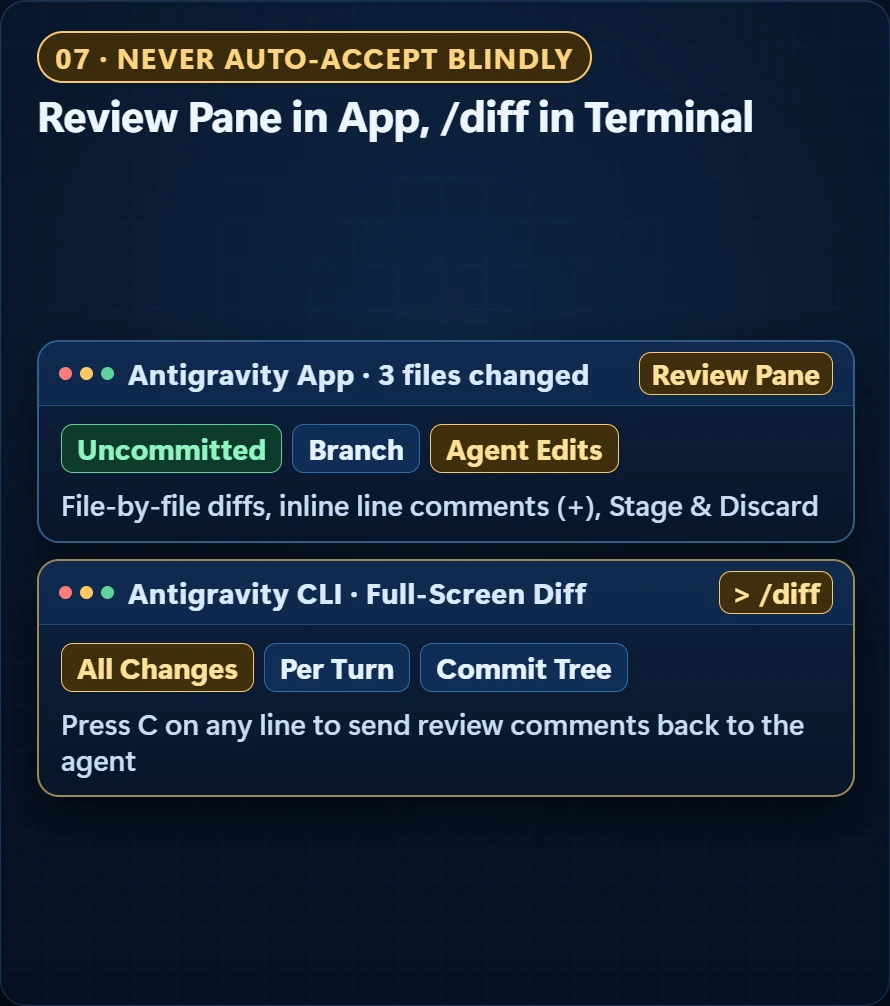
Even when every automated test passes, accepting generated edits sight unseen leaves room for unintended side effects, dead helpers, or quiet rule drift. Antigravity gives you dedicated diff inspection on both surfaces:
- In the Antigravity App (
Reviewpane): Click thefiles changedcard to open the Review pane, filter betweenUncommitted,Branch, andAgent Edits, audit every deleted (-) and added (+) line, attach inline+comments on individual lines, and explicitlyStageorDiscardper file. - In the Terminal CLI (
/diff): Run/difffor a full-screen diff viewer offeringAll Changes,Per Turn, andCommit Treeviews, and pressCon any line to send targeted feedback right back to the agent.
Whenever an experiment still veers off course, resist throwing away the entire session and losing all the context you built up. Run /rewind (also aliased as /undo) to jump your thread and state cleanly back to an earlier checkpoint message, then continue forward from solid ground.
With these seven core controls in place, your daily Antigravity workflow becomes predictable and easy to verify. The next two parts of the series build directly on top of these foundations:
- Continue with Part 2, Google Antigravity 7 Orchestration Rules, covering model orchestration tiers, task queuing, and multi-agent coordination.
- Then explore Part 3, Google Antigravity 7 Expert Rules, covering reusable skills, persistent learning loops, and remote automation workflows.
Frequently Asked Questions
What is the difference between AGENTS.md and GEMINI.md, and what happens if they grow too large?
Both files load automatically from your repository root at session start as always-active project rules; using AGENTS.md keeps rules portable across agent tools that share the same repository. If a rule file grows past the per-file size limit, trailing lines get truncated, and if total rule size exceeds the dedicated rules budget, oversized files get demoted to lightweight path pointers instead of full inline text—so keep only core invariants at the root.
Do @Rules, @Conversation, and Quote work in the terminal CLI as well as the desktop app?
@file and @folder mentions work across both the Antigravity desktop app and the terminal CLI to pass clean file paths on demand. Manual rule attachment (@Rules), past thread linking (@Conversation), and line-range quoting (Quote / Ctrl+L) are built specifically for the desktop app interface.
When should I use /grill-me versus /plan?
Use /grill-me before any design or implementation begins whenever requirements still hide unexamined edge cases; it explores your codebase first and interviews you one question at a time until ambiguities close. Use /plan once the target is clear and you want a side-panel Implementation Plan artifact to review and comment on before files are edited—or stack /plan /grill-me to run both back to back.
Does /browser clutter my main chat context or hijack my mouse and keyboard?
No. Running /browser spins up an isolated browser subagent in its own separate context window, keeping heavy DOM snapshots and console logs out of your main conversation. Checks run in the background or dedicated browser panel so your desktop keyboard and mouse focus remain untouched.
How do /diff and /rewind work together when an agent change goes off track?
First inspect what changed using the app Review pane or CLI /diff (Per Turn or All Changes) to spot where logic drifted. For small fixes, drop a line-level comment; if the approach itself took a wrong turn, run /rewind to roll the session back to a clean checkpoint turn without losing earlier project context.
Follow for content about AI
More videos
 7 Google Antigravity Expert Rules: Skills, Learn, SSH & Automation
 7 Google Antigravity Orchestration Rules: Neon, Carbon & Swarm
 Gemini Neon Is Here: Balanced Between Carbon and Hydrogen
 Don't Hunt for Free AI: Pay for It and Use It
 From Chat to Autonomous Agents: 7 Stages
 Expense Tracking with AI Automation: Google Sheets or Excel
 Motion Design with Just Claude Opus: 32 Experiments and Prompts
 Can You Run AI Locally on a 16 GB Graphics Card?
 Customer Wrote at Night, Request Ready by Morning
 Give AI the Address, Not the Route: Which Job Goes to Which Model
 Stop Using Excel and Google Sheets as a Database: To a Web App
 ADHD Didn't Change. The Tools Did: A Scattered Brain and Agents
 Can AI Fix Its Own Mistakes? I Checked It Is Not I Fixed It
 OpenRouter and Hugging Face Aren't Models: Three Ways In
 How Do AI Agents Work? Same Model, Different Results
 AI Agents for AEC Firms: How the Five-Layer Setup Works