
7 Google Antigravity Expert Rules: Skills, Learn, SSH & Automation
On YouTube
7 Google Antigravity Expert Rules: Skills, Learn, SSH & Automation
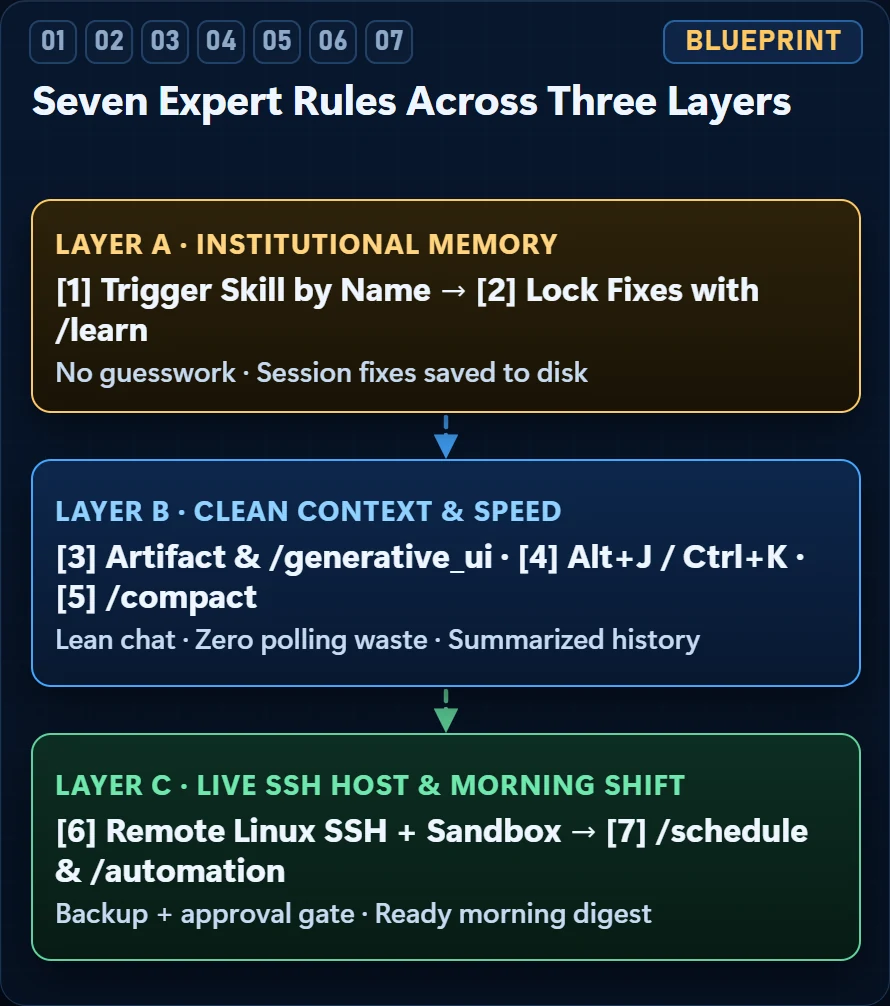
If you re-explain yesterday's fix to your agent today, you are working with an intern whose memory resets every morning. In part three of our Google Antigravity series, here are seven expert rules that give your agent institutional memory, safe remote server access, and an automated morning shift:
Full description
1. Trigger skills by name: To protect context, Antigravity uses progressive disclosure. At startup it reads only each skill's name and short description, loads the full guide only when relevant, and runs helper scripts as black boxes. Mention the skill by name or slash command so it loads that exact playbook. 2. Lock in hard-won fixes with /learn before closing a chat: Closing the window throws away the lesson. Run /learn first to distill your corrections into a reviewable rule or skill proposal artifact, saving permanently only after you approve. 3. Keep massive outputs out of the chat stream (Artifact and /generative_ui): Dumping hundreds of table rows into chat forces every follow-up turn to reread that wall of text. Route reports and diagrams into a standalone Artifact, or use /generative_ui in the desktop app for interactive charts and tables, keeping only brief decisions in chat. 4. Stop polling background tasks (Alt+J and Ctrl+K): Status-check messages waste turns because reactive wakeup resumes the agent automatically when background work finishes. When a subagent pauses for confirmation in the terminal, press Alt+J to jump straight to it, or Ctrl+K to approve instantly without switching views. 5. Audit memory bloat and compress long threads (/context and /compact): After hundreds of steps, replies drag and stale assumptions cloud fresh work. Inspect memory in the customizations menu or the terminal's /context panel; run /compact on the same job, or start a clean conversation when switching projects. 6. Enforce safety gates on remote SSH hosts: The desktop app connects directly to remote Linux servers over SSH and keeps projects and terminals alive after closing the window. Tighten project-scoped sandbox rules on production machines, and instruct it to read and back up first while awaiting approval with a rollback command. 7. Automate recurring morning checks (/schedule and /automation): Pick /schedule for session timers, or /automation in the desktop app for durable cron routines. It pins your local timezone and captures exact permission grants through one test run; once enabled in Automations, your site, ad, or pull-request digest is ready before you sit down.
Save this part three guide for your workflow, share it with a friend, and follow for more agent workflows.
Written guide & whiteboard visuals: https://oguzerol.com/en/agentic_ai_skills/google_antigravity_7_expert_rules_skills_learn_ssh_automation/ Google Antigravity 3-Part Series:
- Part 1 (7 Essentials): https://youtu.be/A0IbSMc5kKo
- Part 2 (7 Orchestration Rules): https://youtu.be/UXY5oCwvYjY
- Part 3 (7 Expert Rules): https://youtu.be/teHZSD0XZPs
If you find yourself re-explaining yesterday’s fix to your AI agent every time you open a fresh thread, the bottleneck is not raw model intelligence—it is missing workflow infrastructure. Without persistent rules, explicit skill triggers, and clear context boundaries, even a frontier model behaves like an intern whose memory gets wiped overnight.
In part one of our Google Antigravity series we covered the seven essentials to know; in part two we mapped out the seven orchestration rules alongside our Gemini Neon, Carbon, and Hydrogen breakdown. Now in part three, we close the loop with seven expert rules that give your workspace institutional memory, leak-free context, safe remote SSH access, and an automated morning shift.
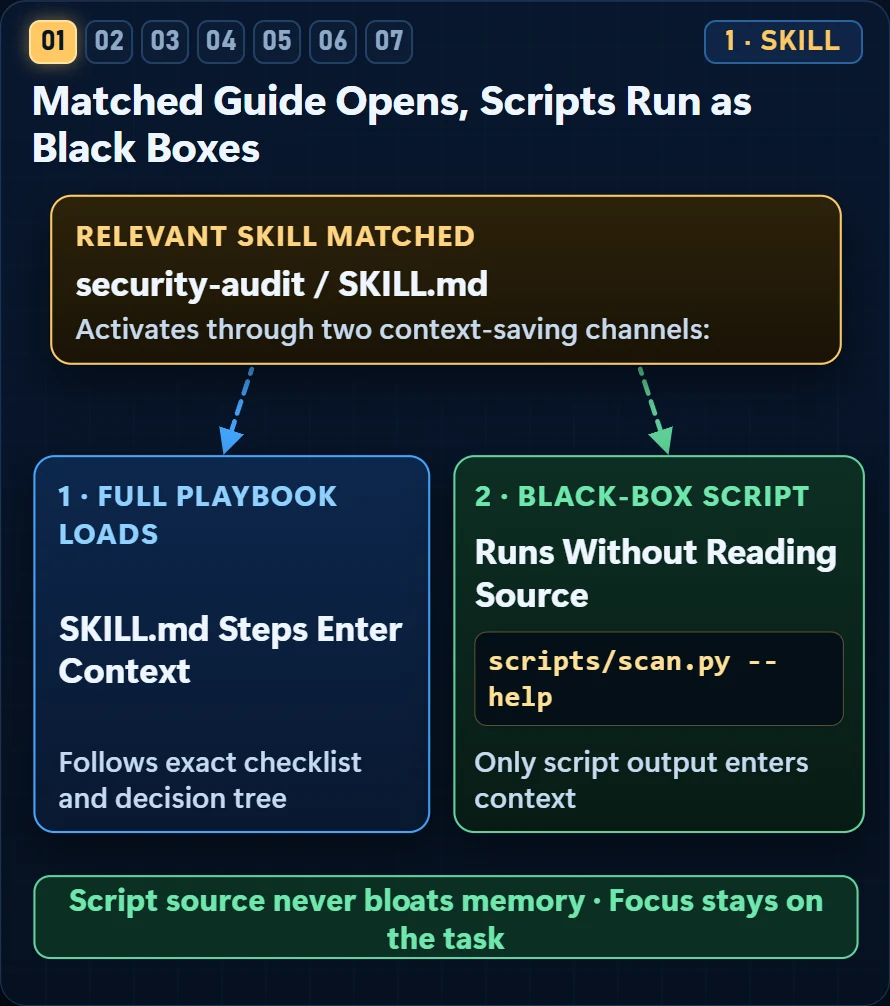
1. Trigger skills by name or slash command (Skills)
Once your workspace grows a library of specialized playbooks—such as database migrations, security audits, SEO checks, or invoice parsers—stuffing every single manual into every conversation would quickly exhaust your context window. Antigravity solves this through progressive disclosure:
- Lightweight startup index: At the start of a turn, Antigravity reads only each skill’s
nameand short one-linedescriptionfrom.agents/skills/, leaving the heavy guides closed on the shelf. - On-demand loading: Only when a skill matches your request does the agent read the full
SKILL.mdplaybook. - Black-box helper scripts: Utility scripts in
scripts/execute outside the context window via--helpand return only their output—keeping implementation code out of your active conversation memory.
Because the agent only sees a short summary up front, vague prompts like “Check if the project looks safe” invite guesswork and may skip the intended workflow altogether. Mention the skill explicitly by name or invoke it with /<skill-name> so Antigravity locks onto that exact playbook right away.
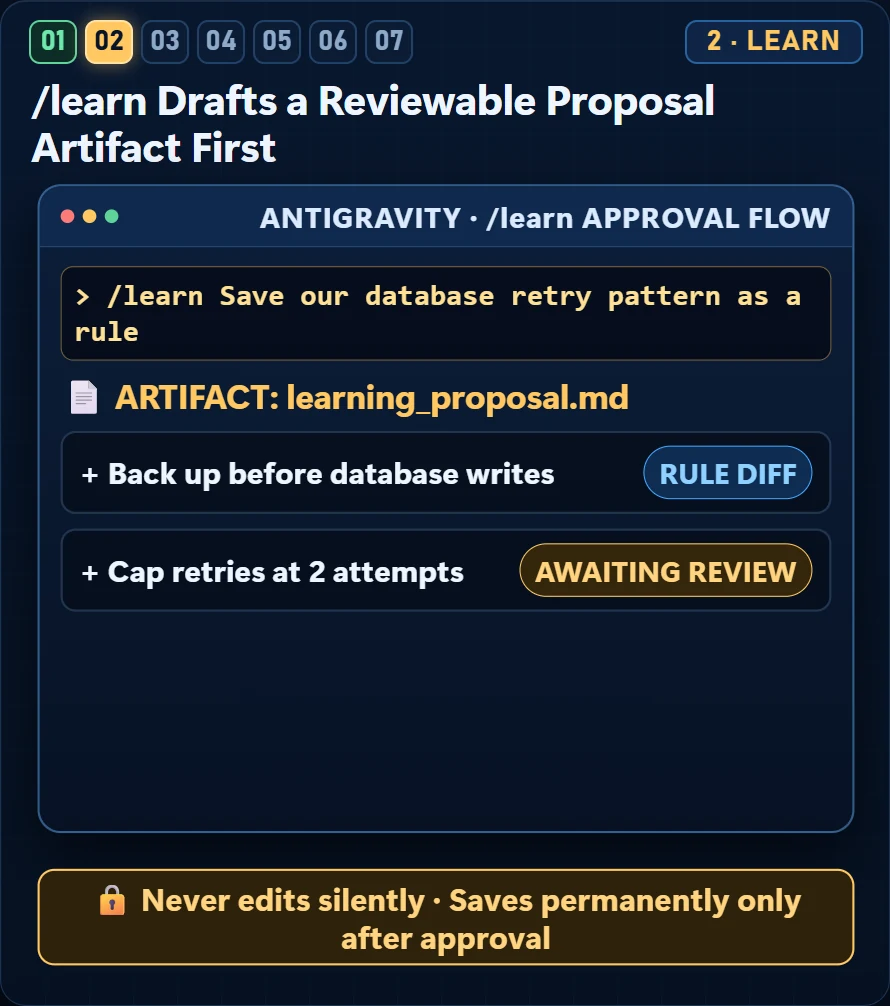
2. Lock in hard-won fixes with /learn before closing a chat
Picture spending forty minutes debugging an edge case—perhaps dialing in a database retry policy or catching a silent configuration quirk—only to close the chat window as soon as the tests turn green. Tomorrow morning, a brand-new conversation has zero record of what you taught the agent today.
Before closing a session where you corrected behavior or uncovered a durable pattern, run /learn (available in both the Antigravity desktop app and the terminal CLI). Rather than silently overwriting your workspace files, /learn distills your session corrections into a reviewable learning_proposal.md Artifact in the side pane. Nothing lands permanently until you approve:
- Short principle or guardrail: Saved into
AGENTS.mdor.agents/rules/*.mdso every future session inherits it automatically. - Repeatable multi-step workflow: Packaged into
.agents/skills/<name>/SKILL.mdas a reusable skill you can invoke on demand.
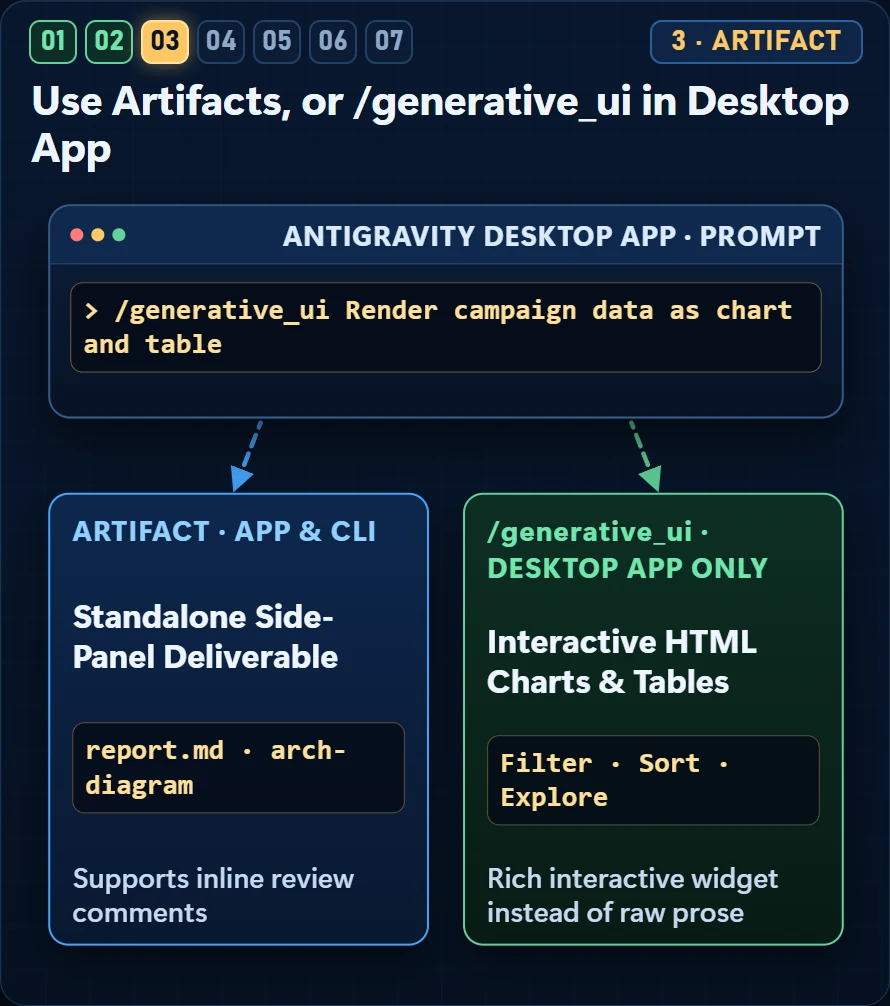
3. Keep massive outputs out of the chat stream (Artifact and /generative_ui)
Asking an agent to print a three-hundred-row table, verbose diagnostics, or long schema diagrams straight into chat bubbles carries a hidden performance tax. Every single follow-up message forces the model to reread that entire wall of text, slowing replies down and diluting focus on your next instruction.
Route heavy deliverables out of the chat stream using the right surface tool:
Artifact(App and CLI): Send full comparison reports, architectural diagrams, and implementation plans to a standalone side-panel document where you can inspect sections and leave inline feedback without bloating chat./generative_ui(Desktop App only): When you need interactive charts or filterable, sortable data tables, trigger/generative_uiin the desktop app so the visual interface lives in the side panel while your main thread keeps only a brief three-line decision summary.
4. Stop polling background tasks — reactive wakeup, Alt+J, and Ctrl+K
When a test suite or background subagent is running, firing off “done yet?” or “what’s the status?” messages does not make the job finish any faster—it only burns extra turns and interrupts focus. Antigravity relies on reactive wakeup: the parent agent waits cleanly and resumes automatically the moment background work completes or needs input.
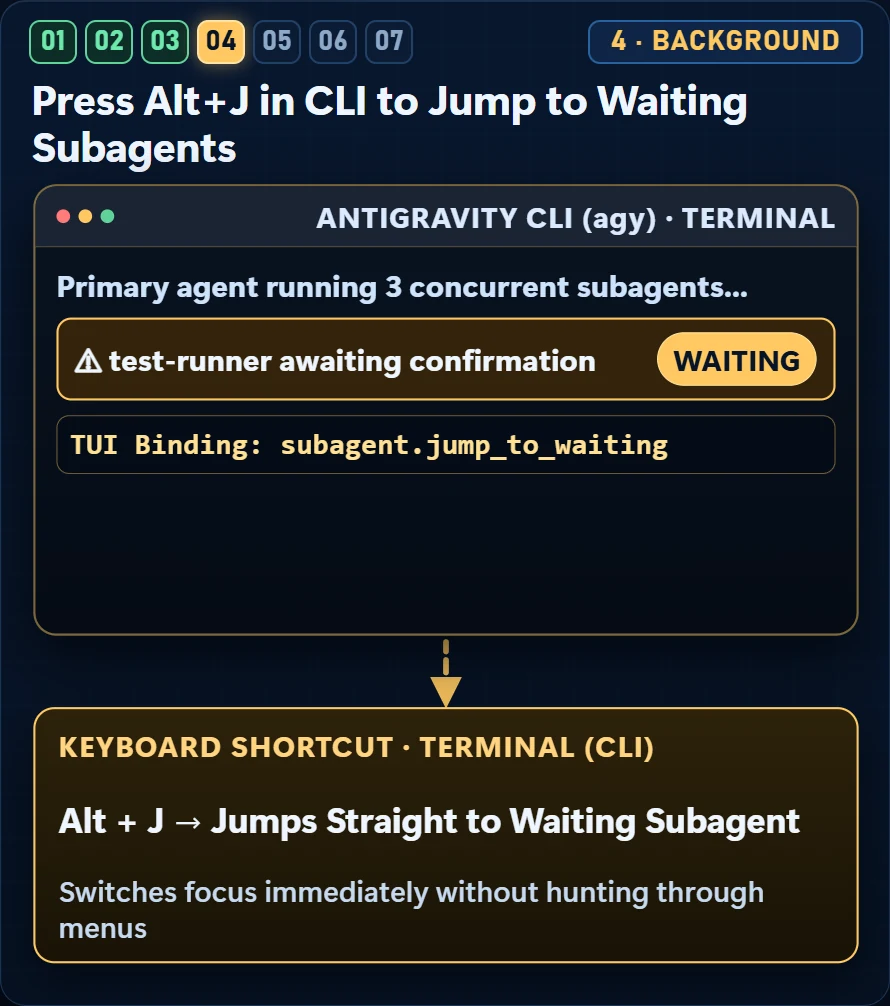
When you are working inside the terminal CLI and a background subagent pauses for command confirmation, two built-in shortcuts keep you moving without breaking flow:
Alt+J: Jumps straight to the waiting subagent session (jump_to_waiting) so you can inspect what it needs.Ctrl+K: Grants fast approval (approve_fast) in one keystroke right from the status alert without switching views or abandoning what you are typing in the main prompt.
(Note: Alt+J and Ctrl+K belong to the terminal CLI workflow; in the desktop app, pending approvals surface directly on the task card.)
5. Audit memory bloat and compress long threads (/context and /compact)
After hundreds of tool calls, file reads, and iteration cycles, long conversations degrade in two ways: latency creeps up, and stale assumptions from an early detour start clouding fresh decisions.
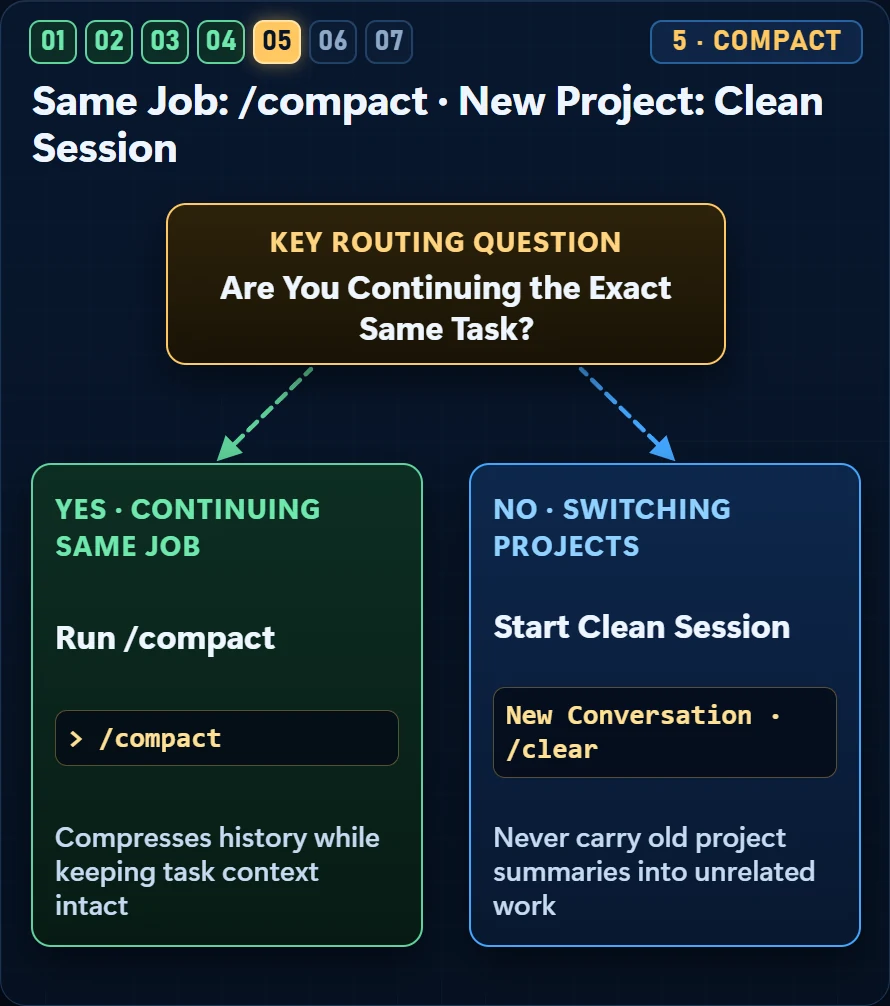
Do not guess what is filling your window—inspect it directly. Check memory usage from the Customizations view in the desktop app or the /context panel in the terminal CLI to spot oversized rules, heavy tool definitions, or accumulated history. From there, follow a crisp decision fork:
- Continuing the exact same task? Run
/compact(supported in both the desktop app and CLI) to summarize raw tool logs and earlier retries while preserving key decisions and opening wide working room. - Switching to a different project or unrelated topic? Never compress old baggage into a new job—open a fresh, clean conversation so stale context has zero chance of leaking across boundaries.
6. Enforce safety gates on remote Linux hosts (SSH and Sandbox)
The Antigravity desktop app connects directly to remote Linux servers over OpenSSH (~/.ssh/config), running your workspace, terminals, and agents on the remote host itself—and keeping them alive even after you close the desktop window.
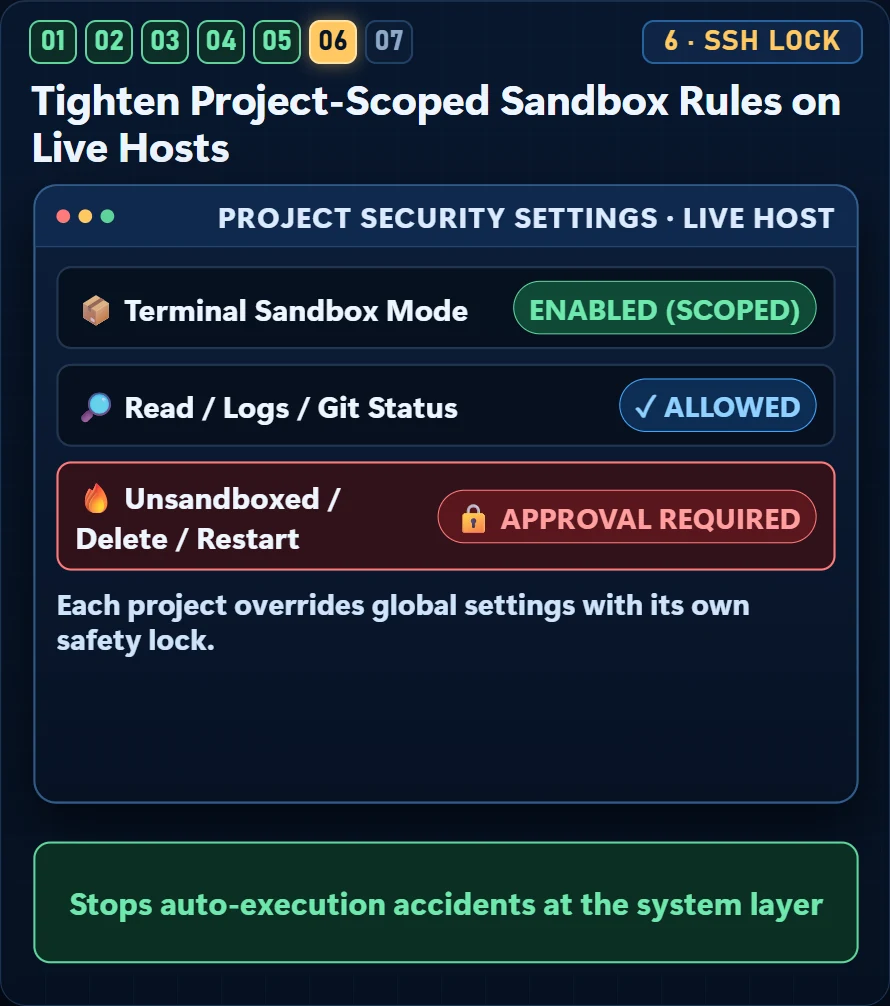
That persistent reach makes production guardrails non-negotiable. Before letting an agent inspect or modify a live machine, put two locks in place:
- Project-scoped
sandboxand permissions: Tighten sandbox boundaries inside Project Settings so read-only inspection (ls,cat,git status, log checks) flows smoothly while out-of-sandbox commands, file deletions, service restarts, and database writes pause at an approval gate. - Three-gate prompt discipline: Explicitly instruct the agent on live servers to (1) read and diagnose first, (2) take a backup, and (3) present a rollback command and wait for your approval before writing live.
7. Automate recurring morning checks (/schedule and /automation)
Checking site health, reviewing ad spend, or triaging open pull requests does not require typing the same morning prompt every day. Antigravity splits timed work cleanly by surface:
/schedule(App and CLI): Sets up session-scoped one-shot timers or active cron schedules inside a running conversation./automation(Desktop App only): Creates durable background shifts managed in theAutomationstab, running in fresh isolated sessions even when you are away from your keyboard.
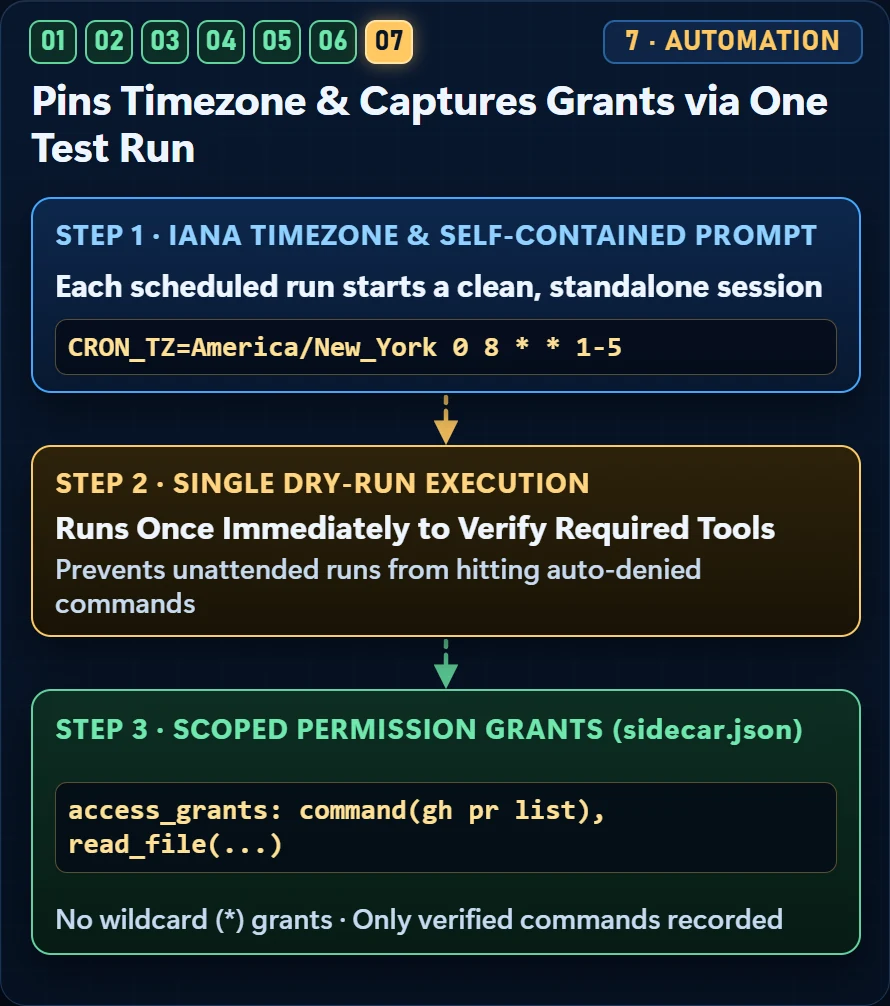
To keep unattended runs from stalling mid-flight, /automation pins your local timezone (CRON_TZ), starts toggled off by default, and executes a single live test run first. That test pass records the exact access_grants permissions required—without opening risky wildcard access—so scheduled runs won’t freeze on an unexpected prompt later. Once you flip the toggle on in the Automations dashboard, your morning digest sits ready before you open your laptop.
Frequently Asked Questions
Why does Google Antigravity only read skill names and short descriptions at startup?
Loading every full skill manual into every turn would bloat your context window and slow every reply down. Through progressive disclosure, Antigravity reads only a lightweight index at startup, loads the full SKILL.md guide only when relevant, and runs helper scripts as black boxes so their source code stays out of chat context.
Does /learn overwrite AGENTS.md or skill files automatically?
No. Running /learn never edits your permanent rules or skills behind your back. It distills session corrections into a separate learning_proposal.md Artifact first, writing to AGENTS.md, .agents/rules/*.md, or .agents/skills/ only after you review and approve the proposal.
When should I use an Artifact versus /generative_ui?
Use Artifact (available in both the desktop app and terminal CLI) for structured Markdown reports, architectural diagrams, and implementation plans where you want inline review comments. Use /generative_ui (desktop app only) whenever you want interactive charts or filterable, sortable tables rendered in the side panel while keeping chat minimal.
When should I run /compact instead of starting a new conversation?
Use /compact when you are continuing the same task or debugging thread and want to free context while keeping established decisions intact. Whenever you switch to a different project or unrelated topic, open a brand-new conversation instead so stale assumptions never bleed into fresh work.
How does /automation avoid permission failures while I am away?
During setup in the desktop app, /automation pins your local timezone (CRON_TZ), stays disabled until you flip the toggle, and performs one test run to capture the exact access_grants permissions the job needs—avoiding wildcards while ensuring unattended morning shifts finish cleanly.
Follow for content about AI
More videos
 7 Google Antigravity Orchestration Rules: Neon, Carbon & Swarm
 7 Essentials You Need to Know When Using Google Antigravity
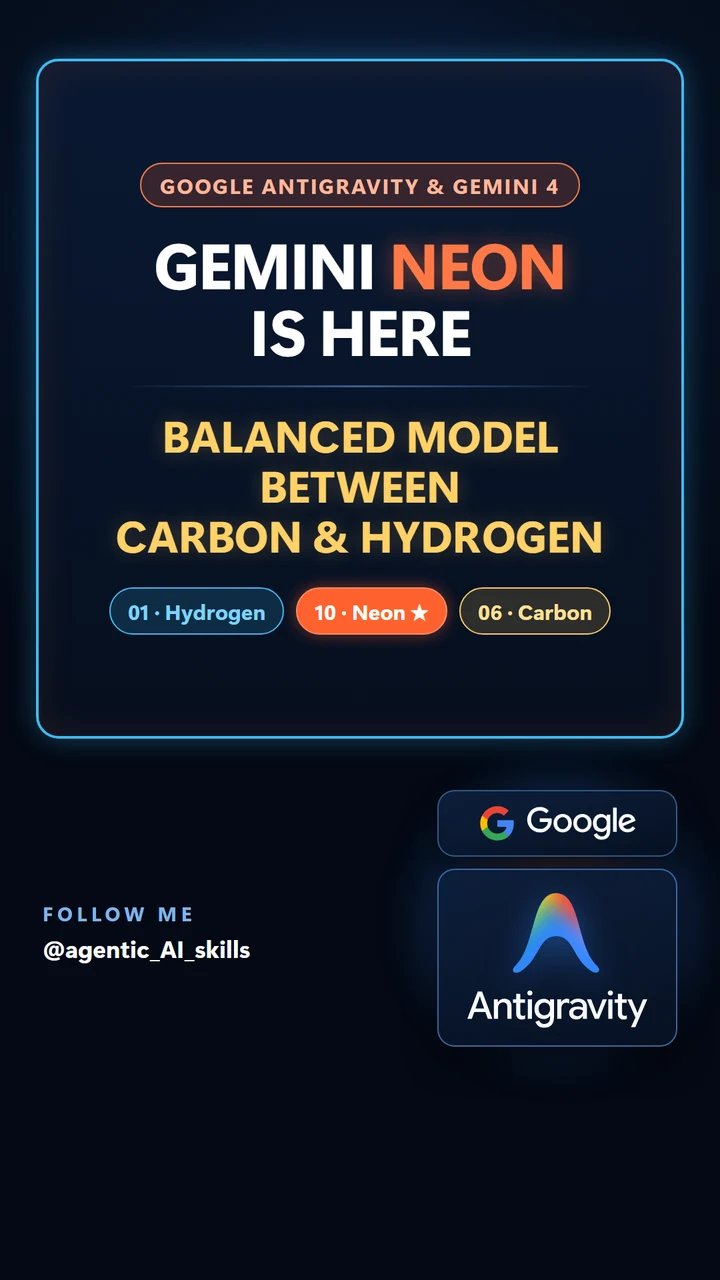 Gemini Neon Is Here: Balanced Between Carbon and Hydrogen
 Don't Hunt for Free AI: Pay for It and Use It
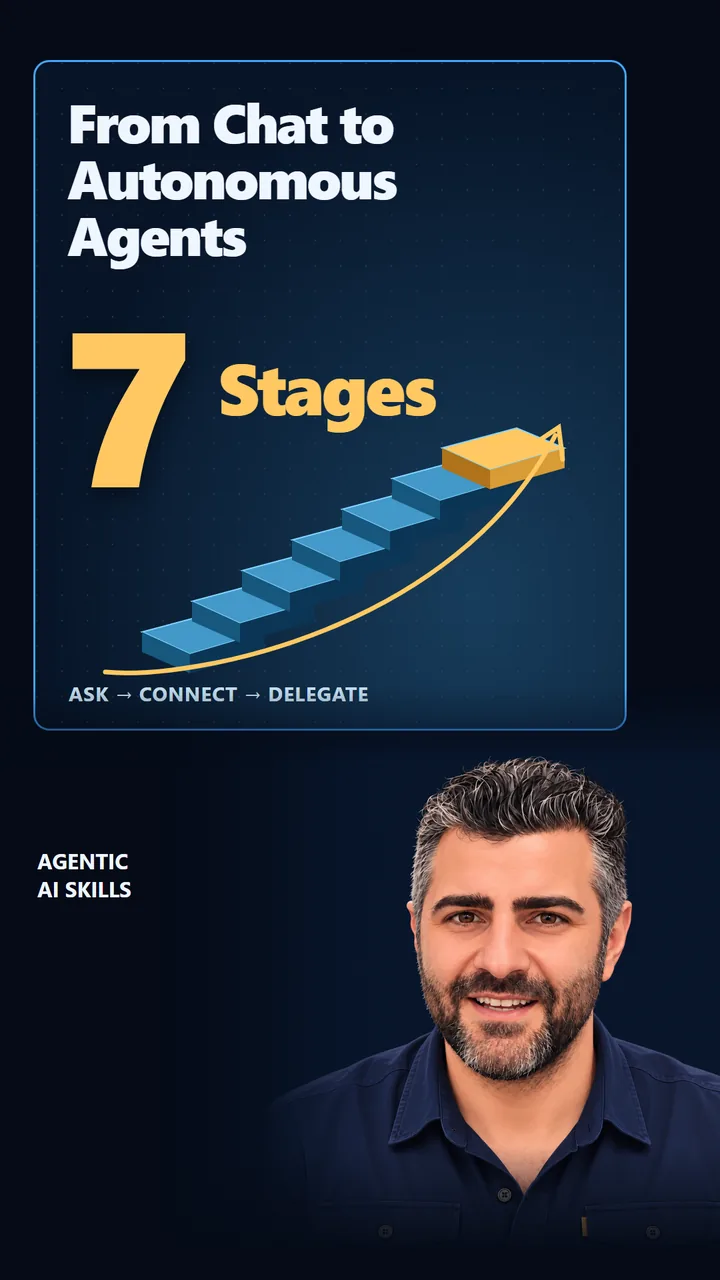 From Chat to Autonomous Agents: 7 Stages
 Expense Tracking with AI Automation: Google Sheets or Excel
 Motion Design with Just Claude Opus: 32 Experiments and Prompts
 Can You Run AI Locally on a 16 GB Graphics Card?
 Customer Wrote at Night, Request Ready by Morning
 Give AI the Address, Not the Route: Which Job Goes to Which Model
 Stop Using Excel and Google Sheets as a Database: To a Web App
 ADHD Didn't Change. The Tools Did: A Scattered Brain and Agents
 Can AI Fix Its Own Mistakes? I Checked It Is Not I Fixed It
 OpenRouter and Hugging Face Aren't Models: Three Ways In
 How Do AI Agents Work? Same Model, Different Results
 AI Agents for AEC Firms: How the Five-Layer Setup Works