
Preparing Presentations With ChatGPT: Content First, Design Separately
ChatGPT speeds up the content of a presentation: slide flow, headlines, bullet text and speaker notes become a draft in minutes. It does not reliably give you a clean, on-brand design by itself; that needs its own step. Below are the process, a prompt you can copy, and the mistakes I see.
Which route will you take?
| Route | What you get | When it fits |
|---|---|---|
| Take text from ChatGPT and paste it into PowerPoint, Google Slides or Canva | Full control; you do the design | If you have a brand template; the most dependable route |
| ChatGPT’s PowerPoint add-in | Builds and edits the draft inside your open deck | If you use PowerPoint. OpenAI’s help page describes a side-panel add-in (ChatGPT for PowerPoint); it’s in beta, so check your plan and its limits there |
| A .pptx file generated by ChatGPT | A quick but plain file | Third-party sources tie this to the agent feature on paid plans and call the output plain; the feature changes often, so check whether you have it |
| Presentation tools such as Gamma | Automatic design from text | If you want a fast visual result; still review the output |
Whichever you choose, the rule is the same: you control the content, including every number ChatGPT writes.
Step by step
- Answer three things yourself first: who are you presenting to, how many minutes do you have, and what decision should the audience reach? You give ChatGPT these answers; it can’t find them for you.
- Ask for a structure with limits. For example “8 slides, each with a title and at most 3 bullets”. Left open, it comes out too long and scattered.
- Ask for speaker notes separately. The slide text stays sparse and the detail goes into the notes.
- Fix with precise requests. Instead of rewriting everything: “shorten slide 3”, “make the bullets on slide 5 more concrete”.
- Move it into a design tool and do colour, layout and chart choices there.
A prompt template:
“Suggest an 8-slide structure for a 10-minute presentation on: [topic]. Audience: [investors / internal team / prospective customers]. Each slide gets a title, 3 bullets (max 8 words each) and a 2-3 sentence speaker note. Tone: [formal / friendly / persuasive].”
If you first need to turn your numbers into a table, see ChatGPT for Excel. For the same logic applied to workflows in general, see the AI automation guide.
The same logic works for brochures
The answer to “preparing a brochure with ChatGPT” isn’t different from presentations: ChatGPT writes the headings, a short pitch and the call to action; the fold layout, images and print size need work in a tool such as Canva or Word. If it’s going to print, read the text yourself first; ChatGPT can invent product features or prices.
Three mistakes I see
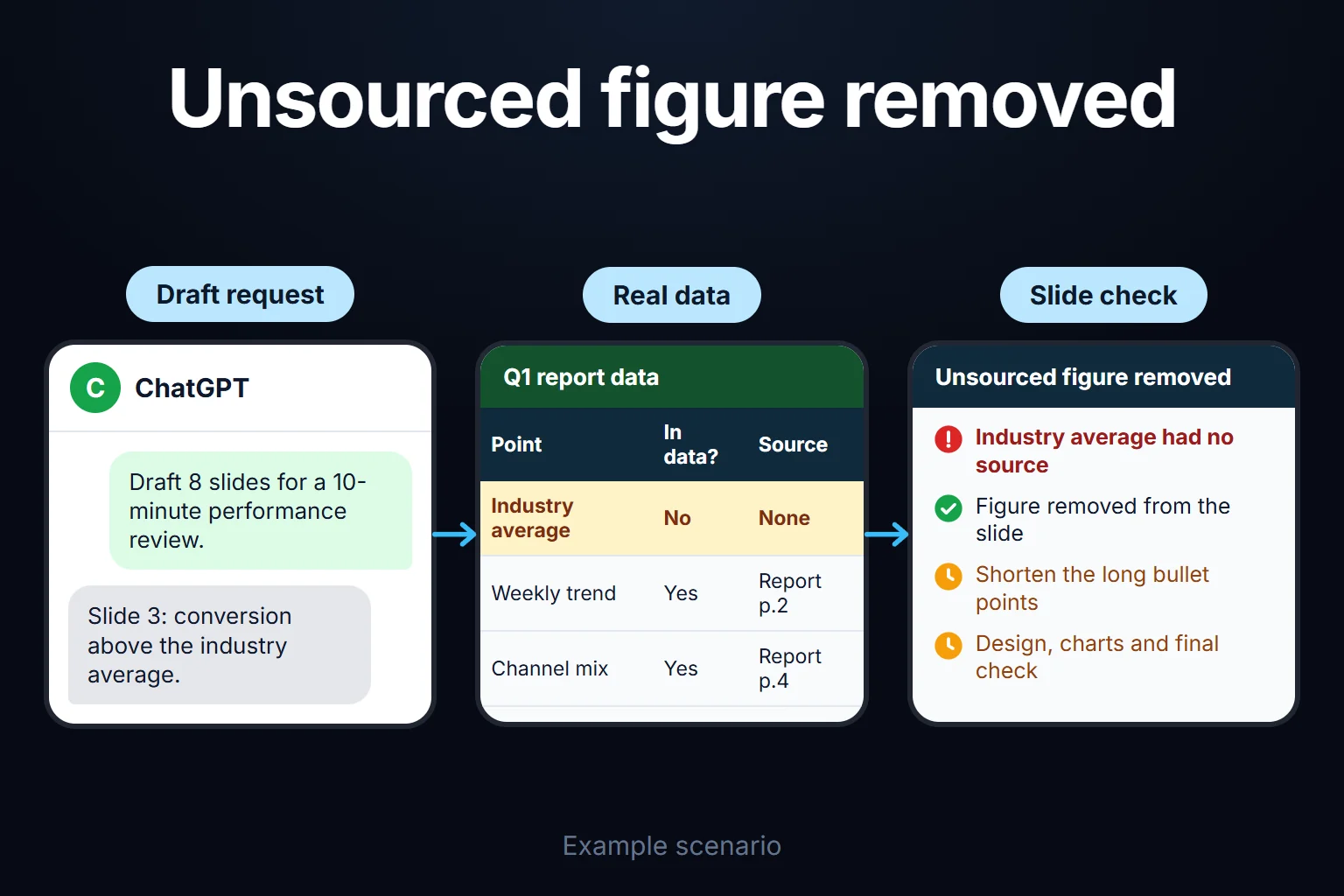
- Invented numbers. Ask for market size, a percentage or an “industry average” and you may get a convincing number with no source. Verify it against your own source before it goes on a slide; no source, no slide.
- Clichés and long bullets. Phrases like “add value” and “create synergy” come up a lot. Shorten them in your own words.
- Tone mismatch. If your brand has a voice, the raw output usually differs from it; editing is a necessary step, not decoration.
An example from my own work
For a performance report presentation for a client, I gave ChatGPT the raw data and key findings and got a 12-slide draft. I used the transitions and headlines almost unchanged. About a third of the bullets were longer than they needed to be, and on one slide an “industry average” figure ChatGPT added on its own didn’t match the real data, so I deleted it. The draft took about 20 minutes, edits and design about 2 hours. Writing it from scratch would probably have taken half a day.
You can ask me for this work
I run the process from content draft to design: fully remote, hourly-billed work that typically takes 2 hours to 2 weeks. See the presentation preparation service page, or write to me directly.
Frequently Asked Questions
Does ChatGPT do the presentation design too?
It does text and structure well. For layout, brand consistency and chart choices, plan to refine the output in PowerPoint, Google Slides, Canva or Gamma. ChatGPT’s PowerPoint add-in can help you design inside the deck, but advanced formatting support may be limited.
Can I trust the numbers ChatGPT gives?
Not for industry-specific statistics, market size or rates. It can produce a wrong figure that looks realistic. Verify every number on a slide against its source.
Can Claude prepare a presentation draft too?
Yes, the same method applies: ask for topic, audience, slide count and speaker notes. The clarity of the prompt matters more than the tool.