Source: https://oguzerol.com/en/excel-cell-permissions-panel/ [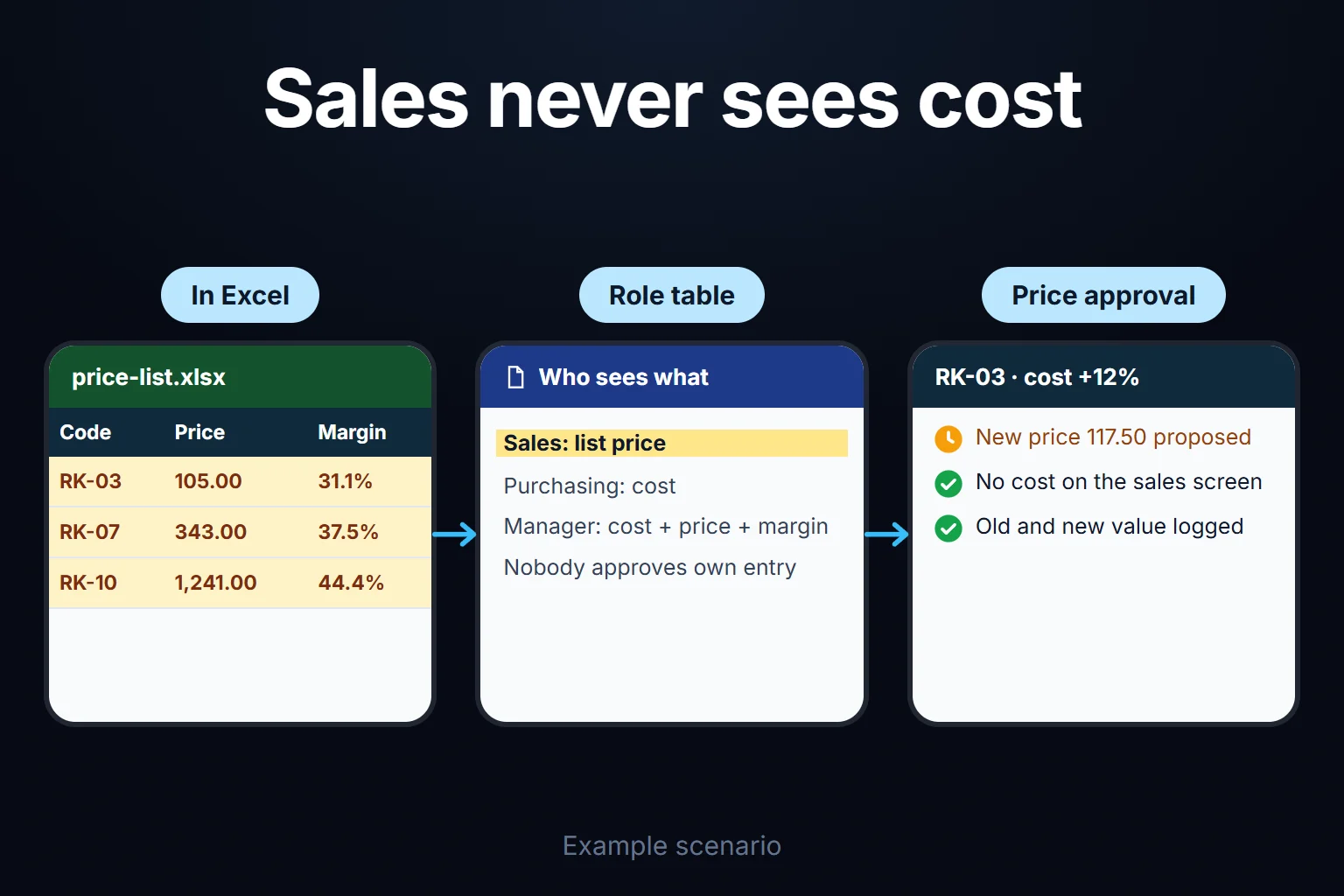 View full size](https://oguzerol.com/gorseller/hizmet-kapaklari/excel-hucre-yetkileri-paneli-seri-v1-en.webp) # Excel User Permissions: Who Can See and Who Can Edit What [Oğuz Erol](https://oguzerol.com/en/about-me/) | 17 min read The only reliable way to keep cost away from sales in Excel is to keep it out of the file sales opens: move cost into a separate file and share that file in OneDrive or SharePoint only with the people who need it. Hidden columns, hidden sheets, very hidden sheets and password protection don’t do this; Microsoft says worksheet-level protection “is not intended as a security feature”. Editing rights can be partly split inside the file: sheet protection is the same for everyone, while **Allow Edit Ranges** works per person. For per-person permissions Microsoft requires a computer running Windows and joined to a domain (the company’s central user directory); otherwise you’re left with a shared range password. Excel’s in-file tools have no way to show different rows or columns to different people; for that you need separate files, row-level security in Power BI, or a web app with role-based screens. ## What do Excel’s permission tools protect, and what don’t they? The table comes from Microsoft pages I read on 16 October 2026. | Excel tool | Protects | Doesn’t protect | | --- | --- | --- | | Cell lock + Protect Sheet | Typing into locked cells | Viewing; same for everyone, removable by anyone without a password | | Allow Edit Ranges | A range opened to named people | Individuals without a domain (shared password); per-user rights on Mac | | Protect Workbook (structure) | Adding, deleting, unhiding sheets | Cells; the file’s contents | | Hide / very hidden sheet | Visibility on screen | The data in the file; copying, formula access | | File permission (OneDrive, SharePoint) | Who opens the file | Parts of the file; all or nothing | | Password to open (encryption) | Opening by anyone without the password | Any split between people who know it | | Sensitivity label / IRM | Who may open, edit or print the document | Cell or column splits; the unit described is the document | The top four rows work **inside** the file; the bottom three work **at the door** and genuinely cut access, but for the whole file. **To hide cost from sales, the one suitable row is file permission, meaning cost lives in a separate file;** encryption and labels also only separate anything once the file is split. Microsoft’s [protection and security page](https://support.microsoft.com/en-us/excel/protection-and-security-in-excel) covers encryption and **Restrict Access** (IRM), and the [Purview documentation](https://learn.microsoft.com/en-us/purview/encryption-sensitivity-labels) covers sensitivity labels, both for documents; neither mentions cell- or column-level settings. ## How far do sheet protection and range permissions limit editing? Sheet protection blocks typing into locked cells in the same way for everyone; it doesn’t tell people apart. The same Microsoft page warns not to assume a file is secure because you protected it with a password. How sheet, range and file permissions fit together in a shared file is in [sharing an Excel file with multiple users](https://oguzerol.com/en/share-excel-file-with-multiple-users/). **Review > Allow Edit Ranges** opens a range on a protected sheet to given people. Microsoft’s [range permissions page](https://support.microsoft.com/en-us/office/lock-or-unlock-specific-areas-of-a-protected-worksheet-75481b72-db8a-4267-8c43-042a5f2cd93a) says per-user permissions need a Windows computer on a domain; without one, you set a password on the range. Anyone who knows the password can edit, so the password recognises a secret, not a person. Microsoft also lists as a known issue that [Excel for Mac doesn’t support Active Directory permissions for unlocking ranges](https://support.microsoft.com/en-us/support/known-issues/can-t-edit-certain-cells-in-a-protected-worksheet-in-excel-for-mac). For Excel for the web, Microsoft’s [protect a worksheet page](https://support.microsoft.com/en-us/office/protect-a-worksheet-3179efdb-1285-4d49-a9c3-f4ca36276de6) describes no per-user option: you define “Unlocked ranges” with an optional range password. **Protect Workbook** doesn’t protect cells. Per Microsoft’s [protect a workbook](https://support.microsoft.com/en-us/office/protect-a-workbook-7e365a4d-3e89-4616-84ca-1931257c1517) page, the structure lock also stops people viewing hidden sheets; it keeps a hidden sheet off the menu, not the data in the file. ## Why isn’t hiding a viewing permission? Hiding changes the screen, not the file; every hidden value stays in the file and reaches whoever opens it. - **A hidden column comes along when copied.** Microsoft’s [copy visible cells only](https://support.microsoft.com/en-us/office/copy-visible-cells-only-6e3a1f01-2884-4332-b262-8b814412847e) page says Excel copies hidden or filtered cells by default. If “select locked cells” is allowed on a protected sheet (by default it is, per Microsoft’s protect a worksheet page), someone who copies the range into a new file pastes the hidden column too. - **A hidden sheet unhides from the menu** unless the workbook structure is protected. - **A very hidden sheet is off the menu, still in the file.** Microsoft’s [sheet visibility reference](https://learn.microsoft.com/en-us/office/vba/api/excel.xlsheetvisibility) says the user can’t make an `xlSheetVeryHidden` sheet visible from the interface; only code can. Its data isn’t encrypted. - **Formulas ignore hiding.** A formula pointing at a hidden sheet keeps calculating; that’s why hidden helper sheets exist. Knowing the sheet name, anyone can type `=Cost!C2` into an editable cell (I haven’t run this in Excel; see Attempt 2). - **The file is a zip archive.** Microsoft’s [Open XML formats](https://support.microsoft.com/en-us/office/open-xml-formats-and-file-name-extensions-5200d93c-3449-4380-8e11-31ef14555b18) page says all you need to open and edit an Office file is a ZIP utility and an XML editor. Protection and very hidden status are flags in that XML; values sit next to them as plain text. - **Hidden information can be derived.** Hide the cost but show the margin and you’ve shown the cost: cost = price × (1 − margin). ## Example: a fittings manufacturer’s price list, three attempts and a fix *The company, products and figures below are fictional; I built the scenario in a Python script and checked every number on this page there. Amounts are shown without a currency.* A hydraulic fittings manufacturer has 12 items on its price list. Purchasing enters unit costs. The manager multiplies cost by a product-group factor (A 1.45, B 1.60, C 1.80) and rounds to the nearest 0.50 for the list price. The rule: **sales sees only the list price, purchasing only the cost, the manager both.** Four rows: | Code | Item | Cost | List price | Margin | | --- | --- | --- | --- | --- | | RK-03 | Elbow fitting 1/2 | 72.30 | 105.00 | 31.1% | | RK-07 | Swivel fitting 1/2 | 214.50 | 343.00 | 37.5% | | RK-10 | Manifold block, 4-way | 689.40 | 1,241.00 | 44.4% | | RK-11 | Pressure test fitting | 57.80 | 104.00 | 44.4% | ### Attempt 1: cost column hidden, sheet password-protected One sheet. The cost column was hidden, the sheet password-protected and column formatting disallowed, so sales can’t unhide it. The margin column stayed visible “so sales knows how much discount to give”. Where it broke: twice. First, copying; when a salesperson copies the list into a customer quote, the hidden cost column comes along (going by Microsoft’s default copy behaviour above; I haven’t tested it in Excel). Second, the margin; recalculating cost from a margin shown to one decimal came within 0.60 of the true cost on all 12 items. For RK-10 the estimate was 690.00 against 689.40. All four group B items also showed 37.5%, revealing the factor (1 ÷ 0.625 = 1.60); dividing each group B price by 1.60 gave the cost to within 0.13. ### Attempt 2: cost on a very hidden sheet, sheets and workbook password-protected Cost and factor moved to a very hidden “Cost” sheet. The list price came from a formula pointing at it, with formula cells marked “Hidden”. The margin column was removed. Each sheet got a password, and the workbook structure a third. Where it broke: the file itself; no Excel or password needed. Renaming a copy from .xlsx to .zip and opening it is enough; the script did exactly that and opened the copy with Windows’ built-in Expand-Archive command. The workbook definition showed the Cost sheet as “veryHidden”, the structure lock on and the protection flag present; right next to them were all 12 costs as plain numbers, and all 12 “Hidden” price formulas as plain text, sheet name included. The protection flag is a single line of XML too. The script deleted the sheet and workbook protection lines and the “veryHidden” flag and repackaged the file; a Python library (openpyxl) then read it unprotected, with the Cost sheet visible. That Excel would open it the same way is an inference I haven’t tested. With the formulas “Hidden”, sales can’t see the sheet name on screen; they learn it from the formula text in the zip or by guessing (“Cost”). Whoever opened the zip has already seen the costs; whoever guesses types `=Cost!C2` into the editable discount cell. I didn’t run that in Excel, as this computer has none; the script tests the file layer only. ### Attempt 3: two separate files, two separate permissions This time cost left the file sales opens. The master file (cost, factor, price) was shared in SharePoint with purchasing and the manager only. Sales got a separate “Price List”: code, item and price, pasted as values. On confidentiality this held: a value that isn’t in the file can’t leak. The “can edit / can view / can’t download” options on Microsoft’s [sharing page](https://support.microsoft.com/en-us/office/share-files-and-folders-with-microsoft-365-1fe37332-0f9a-4719-970e-d2578da4941c) do the job, because the boundary is at the door. Microsoft says “Can’t download” prevents people from downloading the item; it doesn’t say notes or screenshots are blocked, and my inference is they aren’t. So a shared file should hold only what that person may see. Where it broke: between the files. One day purchasing entered new costs: RK-03 up 12%, RK-05 up 9%, RK-08 up 10%, RK-11 up 8%. The manager updated the master; the sales copy was due that evening. That afternoon a salesperson sent a five-line quote from the old copy, with 5% discount: | Item | Qty | Old price | Current price | Current cost | | --- | --- | --- | --- | --- | | RK-03 | 400 | 105.00 | 117.50 | 80.98 | | RK-05 | 120 | 226.50 | 247.00 | 154.34 | | RK-07 | 60 | 343.00 | 343.00 | 214.50 | | RK-08 | 80 | 429.00 | 471.50 | 294.80 | | RK-11 | 500 | 104.00 | 112.50 | 62.42 | Four of five lines had risen in cost. After discount the quote came to 167,276.00 instead of 181,630.50: underpriced by 14,354.50, gross margin 29.1% instead of 34.7%. Not a loss, but a discount nobody approved, in writing. Separate files solved confidentiality and left consistency to memory. ### How it was solved The fix: one place of record (a database on a server) and a screen per role. As needed, this can include: - Cost and margin are **never sent** to the sales screen. - Purchasing enters costs without seeing list prices. - A cost change puts the affected prices in the manager’s approval list; once approved, the sales screen updates. No second copy, nothing to go stale. - Quotes pull prices from the list and record the price version used. - Who changed what and when is logged with old and new values. The business rules you define are applied as data is entered. Even discount limits and approval thresholds can leak cost indirectly; the [cost-protected quoting portal](https://oguzerol.com/en/cost-protected-quoting-portal/) page shows how, and how to narrow it. Staying in Excel, I’d use Attempt 3 but produce the sales copy without pasting. The in-Excel route is Power Query: a separate “Sales Price List” workbook, owned by the manager, connects to the master through Get Data and the Excel workbook connector, keeps only code, item and price, and loads the result to a sheet. Microsoft’s [Excel connector documentation](https://learn.microsoft.com/en-us/power-query/connectors/excel) covers the connection; menu names vary by Excel version, and for a SharePoint file the page recommends the Web connector. Per the same page, Power Query in Excel can’t access encrypted files, and files labelled with sensitivity types other than “Public” or “Non-Business” are encrypted; label-encrypt the master and this set-up stops working. On the day a cost changes, right after approving the new prices, the manager refreshes the query and saves; sales opens the file in SharePoint with “can view”, and a “price list date” in the first cell goes onto every quote. Margin and factor never enter the sales file. I haven’t tried this set-up in Excel. Check two things first: a copy of the sales file opened as a zip must contain no cost values, and refresh must work only for the manager, who can open the master; if a salesperson’s refresh doesn’t fail, the master’s permissions are wrong. A person still refreshes, so the drift shrinks but doesn’t vanish. ## Is there a way in Excel to show different rows to different people? Not with Excel’s in-file tools. Anyone with access to an Excel file has access to all its rows; a filter only changes the screen. Three real routes: 1. **A separate file per person**, shared through file permissions. Confidentiality is complete, but updates multiply the copies, and Attempt 3’s drift can hit each one. 2. **Row- and object-level security in Power BI.** Microsoft’s [row-level security (RLS)](https://learn.microsoft.com/en-us/fabric/security/service-admin-row-level-security) documentation says role filters restrict data at row level; [object-level security (OLS)](https://learn.microsoft.com/en-us/fabric/security/service-admin-object-level-security) hides specific tables or columns, cost for instance, from some viewers. Both apply only to the workspace **Viewer** role, not Admin, Member or Contributor; and Power BI is for reporting, so sales doesn’t enter quotes there. If you only need “who sees what” and already use Power BI, this is enough. 3. **A web app with role-based screens**, when seeing, entering and approving must follow one rule. ## How do you write a role table? A role table writes out four actions for each role: **sees, enters, approves, exports.** Write it before picking a tool: 1. **List pieces of information, not columns:** cost, list price, margin, factor, supplier, discount. 2. **Write what each item can be derived from.** Derivable information gets its source’s permission. 3. **Give the four actions their own columns.** Exporting is separate: an exported file is outside your rules. 4. **Write the row scope.** Everything, own region, or own records? 5. **Write what happens after approval.** Who can change an approved price, leaving what trace? For the example company, first the information (steps 2, 4 and 5): | Item | Derived from | Who sees | Row scope | After approval | | --- | --- | --- | --- | --- | | Cost | Source; recoverable from price and margin | Purchasing, manager | All items | New value entered, old one logged | | Factor | Source (manager proposes); also price ÷ cost | Manager | Product group | Manager proposes, MD approves | | Margin | Price and cost | Manager | All items | Calculated, never entered | | Supplier | Source | Purchasing, manager | All items | New value entered, old one logged | | List price | Cost × factor | Sales, manager | All items | Changes only with new approval | | Discount | Sales input | Sales, manager | Sales: own quotes | Sent quote doesn’t change | Then the roles: | Role | Sees | Enters | Approves | Exports | | --- | --- | --- | --- | --- | | Sales rep | List price, own quotes | Quote, discount | — | Customer copy of own quote | | Purchasing | Cost, supplier | Cost updates | — | Cost list | | Manager | Cost, price, margin, all quotes | Factor proposal | New prices, discounts over the limit | Everything | Two rules go underneath. One I recommend: nobody approves their own entry. Purchasing enters cost, the manager approves price, and a second authority, say the managing director, approves the manager’s factor proposal; that role appears only at this step, so it has no row. And whoever has direct server or database access sees everything; who holds it, and whether it’s logged, is agreed in writing at the first step. ## Where does a web app start? When two roles enter data into the same table but mustn’t see each other’s information, Excel’s in-file tools run out. Three questions decide it: - **Can the hidden information live in a separate file, and does it change rarely?** Stay in Excel: Attempt 3 plus file permissions. - **Is the need only viewing, and do you have Power BI?** Use RLS and OLS for Viewer-role users; no entry screen, no app. - **Do several roles write to the same record, do rows vary by person, must approved records lock, and is an audit log required?** That’s where a web app with role-based screens starts, because these rules must work on one record at once and fall apart across files. If the app uses AI, no row reaches the model before passing the permission filter, and the answer mentions only what that person can see. Screens and rules can be set up as needed; the first version’s contents, price and timeline depend on scope and are agreed in writing at the first step. In automation work, the most common mistake I see is starting with the most complex process; here a first version could be the price list, roles and audit log. The app runs on a server (VPS) that can be opened in your company’s name. The data is yours; you can take it as Excel or CSV whenever you like. For a small or mid-sized team there’s no per-user licence; the cost is the server’s monthly fee plus maintenance. The full source code sits in a repository you have access to, with run instructions, a dependency list and a list of known limits. Scope and sample screens are on the [Excel to web app](https://oguzerol.com/en/turn-your-excel-into-a-web-app/) page. ## Let’s split your table together Send a first draft of your role table via the [contact page](https://oguzerol.com/en/contact/); there’s no need to send a file with figures. In the first meeting we’ll sort which rules belong in Excel, Power BI or an app. ## Frequently Asked Questions ### If I encrypt the file with a password to open, is cost protected? Only from people without the password. Microsoft says two things: per its [protection and security page](https://support.microsoft.com/en-us/excel/protection-and-security-in-excel), file encryption prevents other users from opening the file; per its [protect a worksheet page](https://support.microsoft.com/en-us/office/protect-a-worksheet-3179efdb-1285-4d49-a9c3-f4ca36276de6), protecting a worksheet is not the same as protecting the file with a password. My analogy: encryption locks the door, sheet protection the cells inside. Give sales the password and all that stands between them and the cost is sheet protection, which Microsoft says isn’t a security feature. Withhold it and sales can’t open the list at all. Encryption only helps once the file is split by role, as in Attempt 3. ### Is it different in Google Sheets? For editing, yes: according to [Google’s protected ranges page](https://support.google.com/docs/answer/1218656?hl=en), **Data > Protect sheets and ranges > Set permissions > Custom** grants editing rights by Google account. For viewing, no: the same page says the feature shouldn’t be used as a security measure, that viewers can still access content on hidden sheets, and that someone who copies the file can unhide them (read on 16 October 2026). ### Couldn’t everyone just use Sheet View to see only their own rows? No; Sheet View is a convenience, not a restriction. Microsoft’s [Sheet View page](https://support.microsoft.com/en-us/excel/create-and-manage-sheet-views-in-excel) describes a custom view that keeps your filter unaffected by others’ sorting; but others sharing the workbook can see your views on the View tab, and cell edits are saved with the workbook. [Back to top ↑](https://oguzerol.com/en/excel-cell-permissions-panel/#icerik) ## You may also find these useful [Google Sheets Protect Cells: Restrict Editing AccessProtect cells in Google Sheets to restrict editing of formulas and selected fields. Separate warnings, editing permissions and confidential data access.](https://oguzerol.com/en/google-sheets-protect-cells/)[Google Sheets Multiple Users and Concurrent Data Entry: Filters, Deleted Rows and ProtectionSeveral people entering data in one Google Sheet? Learn how shared filters, duplicates, deleted rows and protection behave, then pick the right setup.](https://oguzerol.com/en/concurrent-data-entry-app/)[Turn Excel or Google Sheets Into a Multi-User Web AppI convert the Excel or Google Sheets file your team shares into a web app on a server: one database, permissions per person, a full change log. See how.](https://oguzerol.com/en/turn-your-excel-into-a-web-app/) [Browse all articles →](https://oguzerol.com/en/articles/) WHAT YOU CAN ASK FOR ## How do I work? Work-hour packages Tell me about your business and what you need on WhatsApp or by phone; we agree on **a work block of somewhere between 5 and 40 hours** and I start doing what is needed. What you get is not a calendar window — it is net working hours spent directly on your business. I can use 40 hours working three days straight, or deliberately spread it out and finish it over a year — whatever the work calls for. I do not spend my time estimating how long something will take, I spend it doing the work; every hour I spend leaves a lasting result in your business. We keep going for as long as you find it useful. WORK BLOCKS ## Why not monthly? Is 40 hours a week? On a fixed monthly fee both sides are watching the wrong thing: you watch a fixed cost, the other side watches how many more contracts like this they can line up. Working by the hour puts us both in front of the same thing — the real value of the work that got done. I know not having an upfront answer to "how much will this cost in total?" is the natural cost of this model. But instead of paying a fixed fee for months to a setup that is not producing results, you only pay for the qualified time spent on your work — and you see exactly where that time went, start to finish. That is why my clients keep coming back. 5hours300€ + VAT60€ per hour[Choose this block](https://wa.me/905496546489?text=Hi%2C%20I%27d%20like%20info%20about%20the%205-hour%20work%20block.) 10hours500€ + VAT50€ per hour[Choose this block](https://wa.me/905496546489?text=Hi%2C%20I%27d%20like%20info%20about%20the%2010-hour%20work%20block.) 20hours800€ + VAT40€ per hour[Choose this block](https://wa.me/905496546489?text=Hi%2C%20I%27d%20like%20info%20about%20the%2020-hour%20work%20block.) 40hours1,400€ + VAT35€ per hour[Choose this block](https://wa.me/905496546489?text=Hi%2C%20I%27d%20like%20info%20about%20the%2040-hour%20work%20block.)