Source: https://oguzerol.com/en/excel-data-cleaning/
[
View full size](https://oguzerol.com/gorseller/senaryo/excel-data-cleaning-senaryo-en.webp)
# Excel Data Cleaning: Fixing a Messy Export With Formulas and Power Query
[Oğuz Erol](https://oguzerol.com/en/about-me/) | 16 min read | Published: 29 July 2026 | Updated: 16 October 2026
## Quick summary
Clean a messy ERP export in Excel with formulas and Power Query, then prove it with a row-count and total reconciliation. A 473-row worked example.
The right order for cleaning a messy Excel table (merged cells, subtotal rows, amounts stored as text, mixed dates) is: **diagnose** first (which problem, how many rows), then build clean columns **next to the raw data without touching it**, and finally **verify** (do the cleaned row count and total match the source system’s own figures?). A one-off job is done with formulas; a job that repeats every month is built once in Power Query and refreshed. Skip the verification and you get a table that looks clean but adds up wrong. In the example below, a SUM on the raw sheet shows 2.57 times the real sales total.
This page is for finance and operations teams turning an ERP or accounting export, with hand-typed rows on top, into something they can analyse. Formulas use English Excel names and commas; in other language versions, function names differ and the argument separator is often a semicolon. I read every Microsoft source on this page on 16 October 2026.
## Example: a 473-row shipments sheet
*The company, customers and every number below are fictional; I generated the scenario with a Python script and checked every figure on this page in that script.*
Picture a bearings distributor. Each month a sales specialist pulls the ERP shipments report into Excel and pastes under it the warehouse’s hand-typed list of urgent shipments made outside the ERP. Management wants monthly sales by customer, city and product.
| section | rows | contents |
| --- | --- | --- |
| ERP report | 409 | 2 title rows, 1 blank, 1 header, 356 shipment rows in 24 customer groups, a subtotal and a blank row under each group, “Grand Total (356 records)” at the bottom |
| Warehouse list | 64 | 1 blank row, a repeated header, 62 hand-typed rows |
Columns: A Customer, B City, C Date, D Delivery No, E Product Code, F Qty, G Unit Price, H Amount. Data runs from row 5 to row 473.
## Diagnose first: how many rows have which problem?
Count every problem before cleaning, and start with those that corrupt totals without an error, marked **silent**:
| problem | in the example | how to find it | how to fix it |
| --- | --- | --- | --- |
| **Subtotal, grand total** (silent) | 24 + 1 rows | Delivery No empty | Exclude with a data-row column |
| **Numbers stored as text** (silent) | 37 amounts | Left-aligned, green triangle | NUMBERVALUE |
| **Spelling variants** (silent) | 7 cities, 18 spellings | Filter drop-down | Mapping sheet |
| **Duplicates** (silent) | 6 rows | Delivery + product twice | Running COUNTIFS |
| **Text dates, three formats** (silent) | 62 dates | Left-aligned, check separator | One column per format |
| **Spaces, non-breaking spaces** (silent) | 41 + 9 codes | Length changes after TRIM | SUBSTITUTE + TRIM |
| Merged cells | 24 groups, 332 empty cells | Find > Format | Take the value above |
| Two facts in one cell | Customer = code + name | Hyphen | LEFT, MID |
| Blank and title rows | 26 blank, 2 title, 2 header | Delivery No empty | Exclude |
The first six corrupt results with no visible error; the last three show. Blank rows: 1 at the top, 24 under groups, 1 before the warehouse list.
The details:
- **Two kinds of space.** The ERP added trailing spaces to 41 product codes; 9 warehouse codes were copied from an email and end in a non-breaking space (character 160). According to Microsoft, TRIM removes only the normal space (32), not the non-breaking one ([Microsoft Support, TRIM](https://support.microsoft.com/en-us/office/trim-function-410388fa-c5df-49c6-b16c-9e5630b479f9)). The raw sheet shows 69 distinct product codes; after cleaning, 30. To find them: `=LEN(E5)<>LEN(TRIM(E5))` and `=ISNUMBER(FIND(CHAR(160),E5))`.
- **Text amounts.** 37 of the 62 warehouse amounts are text, typed on a laptop with continental-European settings: 28 like “46.000,00”, 9 like “970,00” followed by a non-breaking space. SUM skips them. To find them: `=ISTEXT(H5)`.
- **Three date formats.** All 62 warehouse dates are text: 35 dd.mm.yyyy, 19 mm/dd/yyyy (a laptop with US settings), 8 yyyy-mm-dd. Here “03/02/2026” is the 2nd of the month; read as dd/mm it becomes the 3rd of another month.
- **Spelling variants.** The warehouse wrote Manchester as “manchester”, “MCR”, “Manchster” and “Manchester ” (trailing space), Leeds as “leeds” and by its district name “Headingley”, Glasgow as “glasgow” and “Glasgow.”. Two ERP customer records also have the city wrong: 15 rows “LEEDS”, 16 rows “glasgow”. 61 rows in all. No function turns “Headingley” into Leeds; you write that into a mapping table.
- **Merged cells.** Each customer’s name sits in one merged cell spanning the group; unmerge, and 332 cells are empty. To find them: Home > Find & Select > Find > Format > Alignment > Merge cells > Find All ([Microsoft Support](https://support.microsoft.com/en-us/excel/find-merged-cells)).
- **Code and name in one cell:** “C1001 - Ashworth Bearings plc”. 7 warehouse rows have the hyphen without spaces (“C1120-Thorne Agri Machinery”), 3 have an Alt+Enter line break in the name, and one customer has a hyphen in its name: “Smith - Jones Engineering”. Names differ between sources, so I key the analysis on the code.
- **6 duplicates.** 4 urgent shipments were later also entered in the ERP; 2 rows were pasted twice in the warehouse list.
## Cleaning with formulas, without touching the raw columns
I leave raw columns A–H alone and add clean columns to the right, each beside its raw value; copy the file first anyway. Column J guards every formula, so non-data rows stay empty. Put these headers in row 4; the PivotTable uses them as field names.
| column | row-4 header | what it does | used in |
| --- | --- | --- | --- |
| J | Is Data | Flags data rows | Every formula, counts, PivotTable filter |
| K | Customer Code | Splits code, fills merged cells | PivotTable |
| L | Customer Name | Splits name, drops line breaks | Report |
| M | City Clean | Correct city from Mapping | PivotTable, mapping check |
| N, O, P | Date dmy, Date mdy, Date ISO | Date part per format | Date Clean |
| Q | Date Clean | One real date | Period check, monthly view |
| R | Product Clean | Code without spaces | Key, PivotTable |
| S | Amount Clean | Amount as a number | Totals, checks, PivotTable |
| T | Key | Delivery + product | Duplicate |
| U | Duplicate | Flags later occurrences | Counts, PivotTable filter |
Row numbers follow the example (5–473); adjust them to your file.
- **J, data row?** `=AND(D5<>"",D5<>"Delivery No")`.
- **K, customer code:** `=IF(J5,IF(A5="",K4,LEFT(TRIM(A5),5)),"")`. An empty A takes the code from above.
- **L, customer name:** `=IF(J5,IF(A5="",L4,TRIM(SUBSTITUTE(MID(A5,FIND("-",A5)+1,200),CHAR(10)," "))),"")`. FIND takes the first hyphen, so “C1064 - Smith - Jones Engineering plc” splits correctly.
- **M, city:** `=IF(J5,XLOOKUP(TRIM(B5),Mapping!$A:$A,Mapping!$B:$B,"NO MAPPING"),"")`. “Mapping” holds raw spelling in A, correct city in B; 17 rows here.
- **N, O, P, date parts:** empty if the cell lacks that separator.
- N (dd.mm.yyyy): `=IF(ISNUMBER(FIND(".",C5)),DATE(RIGHT(C5,4),MID(C5,4,2),LEFT(C5,2)),"")`
- O (mm/dd/yyyy): `=IF(ISNUMBER(FIND("/",C5)),DATE(RIGHT(C5,4),LEFT(C5,2),MID(C5,4,2)),"")`
- P (yyyy-mm-dd): `=IF(ISNUMBER(FIND("-",C5)),DATE(LEFT(C5,4),MID(C5,6,2),RIGHT(C5,2)),"")`
- **Q, date:** `=IF(J5,IF(ISNUMBER(C5),C5,SUM(N5:P5)),"")`. It assumes a two-digit day and month; “5.3.2026” breaks MID.
- **R, product code:** `=TRIM(SUBSTITUTE(E5,CHAR(160),""))`.
- **S, amount:** `=IF(J5,IF(ISNUMBER(H5),H5,NUMBERVALUE(SUBSTITUTE(H5,CHAR(160),""),",",".")),"")`. NUMBERVALUE takes the separators as arguments and ignores spaces ([Microsoft Support, NUMBERVALUE](https://support.microsoft.com/en-us/office/numbervalue-function-1b05c8cf-2bfa-4437-af70-596c7ea7d879)). VALUE would need text in a format your regional settings recognise ([Microsoft Support, VALUE](https://support.microsoft.com/en-us/office/value-function-257d0108-07dc-437d-ae1c-bc2d3953d8c2)); with UK or US settings “46.000,00” is not.
- **T, key:** `=D5&"|"&R5`.
- **U, duplicate:** `=AND(J5,COUNTIFS(T$5:T5,T5,J$5:J5,TRUE)>1)`. In 4 of the 6 duplicates the kept row is the ERP row (the ERP section is on top); in the other 2 (DP0415, DP0452) it is the first warehouse row.
The clean row count and total in one cell each: `=COUNTIFS(J5:J473,TRUE,U5:U473,FALSE)` returns 412 and `=SUMIFS(S5:S473,J5:J473,TRUE,U5:U473,FALSE)` returns 8,331,492.30. I tested the formulas’ logic in the script, not in Excel; try them on a copy first. I haven’t measured when whole-column references slow down; if they do, use Power Query.
**Where the functions stop:**
- **CLEAN** removes characters 0–31 ([Microsoft Support, CLEAN](https://support.microsoft.com/en-us/office/clean-function-26f3d7c5-475f-4a9c-90e5-4b8ba987ba41)), the line break too, leaving no space: “Bradshaw PlasticsLtd” instead of column L’s “Bradshaw Plastics Ltd”.
- **TEXT** turns a number into text; Microsoft advises keeping the original value in its own cell ([Microsoft Support, TEXT](https://support.microsoft.com/en-us/office/text-function-20d5ac4d-7b94-49fd-bb38-93d29371225c)). I use it only in a check column, `=TEXT(Q5,"yyyy-mm-dd")`, never to “fix” amounts or dates.
- **DATE** does not error, it rolls over: a month above 12 moves into the next year, a day past the month’s end into the next month ([Microsoft Support, DATE](https://support.microsoft.com/en-us/office/date-function-e36c0c8c-4104-49da-ab83-82328b832349)). Read with column N’s logic, the 19 mm/dd/yyyy rows raise no error: 11 land in the next year, 8 in another month.
**Why the quick fixes were not enough.** Microsoft’s first suggestion for numbers stored as text is the green triangle and Convert to Number ([Microsoft Support](https://support.microsoft.com/en-us/office/convert-numbers-stored-as-text-to-numbers-40105f2a-fe79-4477-a171-c5bad0f0a885)); another route is Paste Special’s Multiply ([Microsoft Support](https://support.microsoft.com/en-us/office/paste-options-8ea795b0-87cd-46af-9b59-ed4d8b1669ad); the page doesn’t say it converts text; untested by me). Neither handles continental separators or dates, and both are manual every month.
**Three Excel commands:**
- **Text to Columns** (Data tab) splits by a delimiter ([Microsoft Support](https://support.microsoft.com/en-us/office/split-text-into-different-columns-with-the-convert-text-to-columns-wizard-30b14928-5550-41f5-97ca-7a3e9c363ed7)). A hyphen delimiter splits “Smith - Jones Engineering” into three columns, so I prefer LEFT.
- **Flash Fill** (Ctrl+E) fills a column from a few examples you type; Microsoft’s page lists Microsoft 365 and Excel 2016–2024 ([Microsoft Support](https://support.microsoft.com/en-us/office/using-flash-fill-in-excel-3f9bcf1e-db93-4890-94a0-1578341f73f7)). With rows as inconsistent as these, check every row it fills.
- **Remove Duplicates** deletes duplicates permanently, keeps the first occurrence and compares displayed values; Microsoft recommends copying the data first ([Microsoft Support](https://support.microsoft.com/en-us/office/filter-for-unique-values-or-remove-duplicate-values-ccf664b0-81d6-449b-bbe1-8daaec1e83c2)). Before cleaning, with all columns selected, it finds 2 of the 6 duplicates; with Delivery No and raw product code, 5; with the clean key, all 6. I flag with column U first.
## Repeatable cleaning with Power Query
If the job repeats monthly, build it once in Power Query and choose Data > Refresh All for each new file. According to Microsoft, it leaves the source unchanged and reruns every step on refresh; it is in Microsoft 365 and Excel 2016 to 2024, but not supported in Excel 2016 and 2019 for Mac ([Microsoft Support](https://support.microsoft.com/en-us/excel/about-power-query-in-excel)). Unlike a formula, a step calling a renamed source column fails loudly with “column wasn’t found” ([Microsoft Learn](https://learn.microsoft.com/en-us/power-query/dealing-with-errors)).
**Both routes reach the same 412.** The formula route reduces the single 473-row sheet to 412 with J and U. In Power Query the two sources are separate queries: 356 ERP rows + 62 warehouse rows − 4 already in the ERP − 2 copies = 412, total again 8,331,492.30. Take the source total from the raw file, since the ERP query filters out the Grand Total row; if your report has none, use the ERP screen’s total for the same period and filters.
**ERP query:**
1. Data > Get Data > From File > From Workbook, then Transform Data.
2. **Remove Top Rows**: 3, as in Microsoft’s example ([Microsoft Learn](https://learn.microsoft.com/en-us/power-query/table-promote-demote-headers)).
3. **Use First Row as Headers**. Delete the automatic “Changed Type” step.
4. On Customer, **Fill > Down**: it fills nulls with the last value above ([Microsoft Learn](https://learn.microsoft.com/en-us/power-query/fill-values-column)). A merged cell keeps its value in the first cell; check that the other rows arrive as null before filling. I have not tried this in Power Query.
5. Filter out blank Delivery No: subtotals, blank rows and the Grand Total go, 356 rows remain.
6. **Split Column > By Delimiter**, ”-”, **Left-most delimiter**, then Trim both parts ([Microsoft Learn](https://learn.microsoft.com/en-us/power-query/split-columns-delimiter)).
**Warehouse query:**
1. Load the file, promote headers, and delete the automatic “Changed Type” step; Date must stay text.
2. For the date, Add Column > Custom Column: `= let t = [Date] in if Text.Contains(t, "/") then Date.FromText(t, [Format="MM/dd/yyyy", Culture="en-US"]) else if Text.Contains(t, "-") then Date.FromText(t, [Format="yyyy-MM-dd"]) else Date.FromText(t, [Format="dd.MM.yyyy"])` ([Microsoft Learn](https://learn.microsoft.com/en-us/powerquery-m/date-fromtext)). With a single format, **Change Type > Using Locale** would do ([Microsoft Learn](https://learn.microsoft.com/en-us/power-query/data-types)); with three mixed, any single locale breaks a group.
3. Amount: remove the non-breaking space and Trim, then Change Type > Using Locale > Decimal Number with a decimal-comma locale such as German (Germany).
4. Turn the line feeds in Customer into spaces with Replace Values’ special-character option ([Microsoft Learn](https://learn.microsoft.com/en-us/power-query/replace-values)), then split as in the ERP query.
**In both queries:**
- Product code: Custom Column with `= Text.Trim(Text.Replace([Product Code], Character.FromNumber(160), ""))`. The Text.Trim page doesn’t mention that character ([Microsoft Learn](https://learn.microsoft.com/en-us/powerquery-m/text-trim)).
- City: load “Mapping” as a query and connect it with **Merge Queries**; unmatched rows come back null.
- Duplicates: merge the warehouse query against the ERP query on Delivery No + Product Code as a **Left Anti** join; 4 rows drop out. I cover join types on the [comparing and matching two Excel lists](https://oguzerol.com/en/comparing-and-matching-two-excel-lists/) page. For the 2 exact copies, **Remove Duplicates** is enough; in Power Query it is case-sensitive and doesn’t guarantee keeping the first instance ([Microsoft Learn](https://learn.microsoft.com/en-us/power-query/working-with-duplicates)), harmless for exact copies only.
- Last step: **Append Queries**. 412 rows.
I tested the M expressions’ logic in the script; I have not run them in Power Query.
## Verifying the cleanup: row count and total
A cleanup is only finished when the final row count and total match the source system’s own figures.
| step | rows |
| --- | --- |
| Raw sheet | 473 |
| − title, blank and header rows (2 + 26 + 2) | 443 |
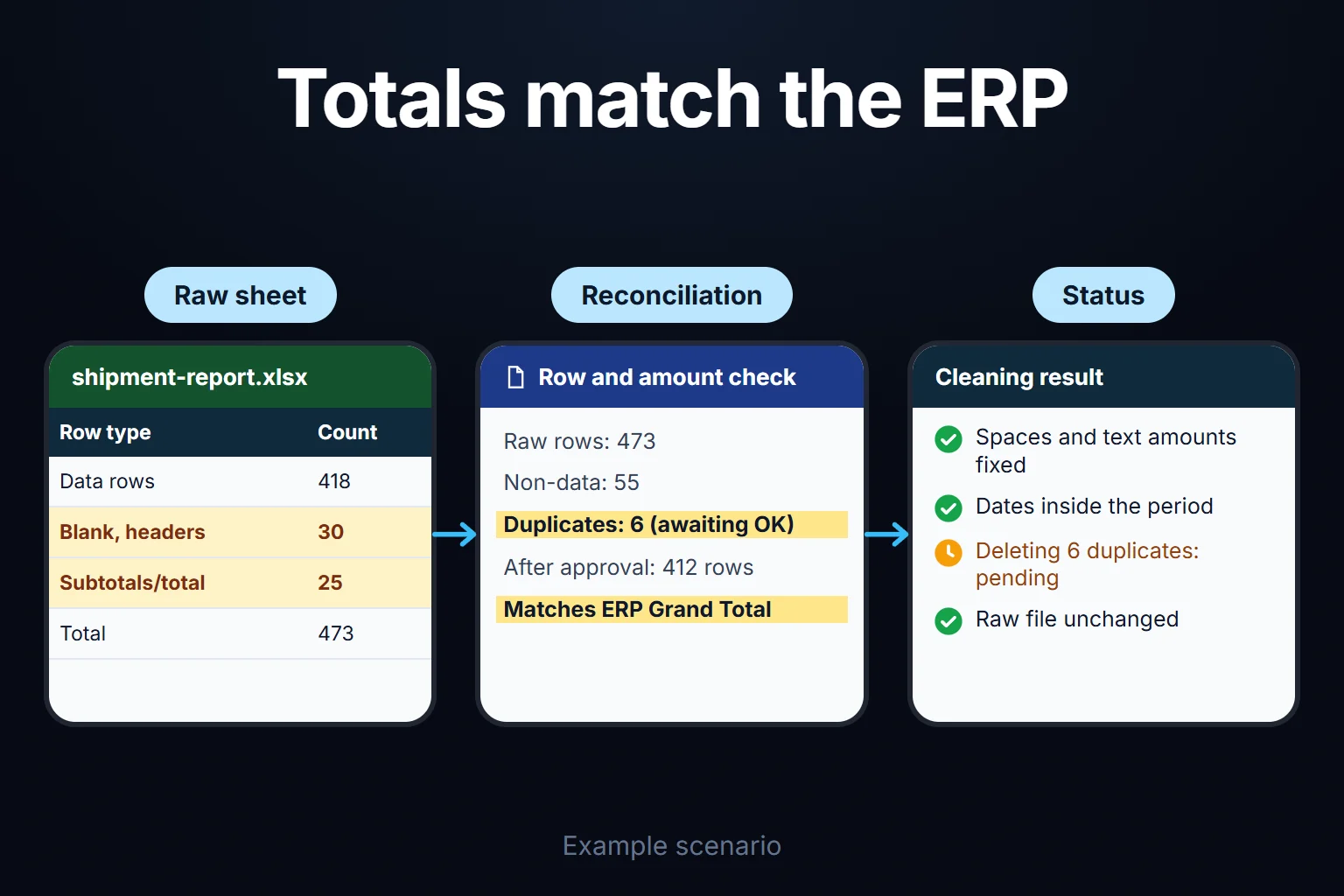
| − subtotals and grand total (24 + 1) | 418 data rows |
| − duplicates (4 also in the ERP, 2 copies) | **412** |
412 = the 356 records the ERP reports + 56 unique shipments in the warehouse list.
| item | amount |
| --- | --- |
| ERP report “Grand Total” row (356 records) | 6,935,262.60 |
| + warehouse list, 62 rows, converted amounts | 1,511,632.70 |
| − 6 duplicate rows | 115,403.00 |
| = total of the clean table | **8,331,492.30** |
The 356 clean ERP rows also add up exactly to the Grand Total.
A `=SUM(H:H)` on the raw sheet shows 21,429,325.70, 2.57 times the real total. The ERP amount is counted in three layers: the 356 rows themselves (6,935,262.60), the 24 subtotals (6,935,262.60 again) and the Grand Total (once more). On top come the 25 warehouse amounts stored as numbers (623,537.90); the 37 text amounts are not counted at all.
Even when totals match, I run three row checks:
- **Amount = qty × unit price:** `=IF(J5,ROUND(F5*G5,2)=S5,"")`. No row is FALSE after correct conversion; with the separators swapped, all 37 text amounts would fail.
- **Period check:** period start in Z1, end in Z2: `=IF(J5,AND(Q5>=$Z$1,Q5<=$Z$2),"")`. None falls outside; misread mm/dd rows would show all 19.
- **Mapping check:** `=M5="NO MAPPING"`; counted on data rows only, `=COUNTIFS(J5:J473,TRUE,M5:M473,"NO MAPPING")` should be 0.
City cleaning in figures: numeric rows spelled exactly “Manchester” total 995,410.80, duplicates included; 4 numeric rows with other spellings add 31,105.40, 4 text amounts add 48,945.90, 1 duplicate of 23,000.00 drops out: 1,052,462.10. I haven’t tested whether SUMIFS or a PivotTable treats “manchester” and “Manchester” as one.
## The monthly report from the clean table: a PivotTable
Once cleaned, the monthly report by customer, city and product is one PivotTable: load the Power Query result as a table and choose Insert > PivotTable. On the formula route the source is J4:U473; Microsoft wants a single, non-blank header on every column and no merged cells, hence the row-4 headers ([Microsoft Support](https://support.microsoft.com/en-us/office/create-a-pivottable-to-analyze-worksheet-data-a9a84538-bfe9-40a9-a8e9-f99134456576)). Filter Is Data to TRUE and Duplicate to FALSE, put Customer Code, City Clean or Product Clean in Rows and Amount Clean in Values. For the monthly view, add Date Clean to Rows, right-click a date and Group by Months ([Microsoft Support](https://support.microsoft.com/en-us/office/group-or-ungroup-data-in-a-pivottable-c9d1ddd0-6580-47d1-82bc-c84a5a340725)). Microsoft says values Excel reads as text are counted, not summed; Amount Clean holds empty text on non-data rows, so switch the field to Sum in Value Field Settings if needed. The same empty text may block date grouping; I have tested neither. The Power Query result has no such rows.
## When several people repeat this every month: stop the problem at the source
Power Query repeats the cleanup but does not stop the mess being made; when several people feed the list monthly, the lasting fix is applying the rules at entry.
**First, in the ERP.** The 31 rows of wrong cities (15 “LEEDS”, 16 “glasgow”) come from two customer records. Fix them in the ERP once, not in Power Query every month. If the warehouse can enter urgent shipments in the ERP, drop the separate list.
**Second, the warehouse list.** If you stay in Excel, add Data Validation: drop-downs for city and customer, a date type for dates. According to Microsoft, validation messages do not appear when data is copied or filled ([Microsoft Support](https://support.microsoft.com/en-us/office/more-on-data-validation-f38dee73-9900-4ca6-9301-8a5f6e1f0c4c)); the example’s non-breaking spaces came from pasted rows.
If one person keeps the list and nobody needs to know who changed what, Power Query is enough and I would not recommend a separate app. With several people entering data, a rule-based entry screen can be set up as needed: customers picked by code, the city taken from the customer record, repeat entries of a delivery and product blocked, roles separated and changes kept in an audit trail. AI can be added as a helper that only suggests, and it can be arranged that only rows the user may see reach the model. Details are on the [controlled Excel import screen](https://oguzerol.com/en/controlled-excel-import-screen/) page. The most common mistake I see in automation projects is picking the most complex process to automate first. The app runs on a VPS that can be opened in your company’s name, the data is yours as Excel or CSV, a small or mid-sized team pays no per-user licence (cost: server plus maintenance), and the source code sits in your repository with run instructions, dependencies and known limitations.
Send last month’s raw file, with personal names masked, through the [contact page](https://oguzerol.com/en/contact/). In the first meeting we check together whether your row and amount reconciliation matches the source system’s figures. The first meeting is paid.
## Frequently Asked Questions
### I use Excel 2016 or 2019, or a Mac. What changes?
Power Query is in Excel 2016 and later on Windows, but not in Excel 2016 and 2019 for Mac. XLOOKUP is not available in Excel 2016 and 2019 ([Microsoft Support, XLOOKUP](https://support.microsoft.com/en-us/office/xlookup-function-b7fd680e-6d10-43e6-84f9-88eae8bf5929)). For the city column use `=IF(J5,IFERROR(VLOOKUP(TRIM(B5),Mapping!$A:$B,2,FALSE),"NO MAPPING"),"")` instead; without FALSE as the fourth argument, VLOOKUP defaults to an approximate match ([Microsoft Support, VLOOKUP](https://support.microsoft.com/en-us/office/vlookup-function-0bbc8083-26fe-4963-8ab8-93a18ad188a1)).
### What if one column holds both “1.250,00” and “1,250.00”?
Don’t guess the separator row by row. “1,250” alone could be one thousand two hundred and fifty or one point two five. Split the rows by source (which site, which file) and give each source to NUMBERVALUE with its own separators: `NUMBERVALUE(H5,",",".")` or `NUMBERVALUE(H5,".",",")`. Ask about rows whose source is unknown, then confirm with the amount = qty × unit price check.
### Can I paste the table into an AI chat and have it cleaned?
Two questions. First, personal data: a sole trader’s business name is a person’s name. Check the account and data terms your company has approved for that service, or mask the names. If you are in Turkey, transferring such a table to a service abroad falls under Article 9 of the data-protection law (KVKK, as amended by Law No. 7499, Art. 34). I don’t give legal advice. Second, accuracy: apply the same row and amount reconciliation to the table the chat returns. If the totals don’t match, don’t use it until you know why.
[Back to top ↑](https://oguzerol.com/en/excel-data-cleaning/#icerik)
## You may also find these useful
[Excel Automation: Which Job Needs Formulas, Power Query, VBA, Office Scripts or a Web App?Formulas, Power Query, VBA, Office Scripts or a web app: which one fits your repeating Excel job? A four-question decision table and a worked sample month.](https://oguzerol.com/en/excel-automation/)[ChatGPT for Excel: Writing Formulas, Catching Errors, AnalysisHow to prompt ChatGPT for Excel formulas and catch separator, shifting-range and blank-cell errors before they reach a report. Four worked examples.](https://oguzerol.com/en/chatgpt-for-excel/)[Comparing and Matching Two Excel Lists: Key Column, XLOOKUP, Power QueryCompare two Excel lists with XLOOKUP, COUNTIF and Power Query: clean the key, catch duplicate records, use fuzzy matching safely. See a 233-row worked example.](https://oguzerol.com/en/comparing-and-matching-two-excel-lists/)
[Browse all articles →](https://oguzerol.com/en/articles/)