Source: https://oguzerol.com/en/comparing-and-matching-two-excel-lists/
[
View full size](https://oguzerol.com/gorseller/senaryo/comparing-and-matching-two-excel-lists-senaryo-en.webp)
# Comparing and Matching Two Excel Lists: Key Column, XLOOKUP, Power Query
[Oğuz Erol](https://oguzerol.com/en/about-me/) | 8 min read | Published: 29 July 2026 | Updated: 22 October 2026
## Quick summary
Compare two Excel lists with a downloadable workbook, COUNTIF, XLOOKUP and Power Query. Separate missing, duplicate and changed records, then verify results.
To compare two Excel lists reliably, first define the **key that identifies one record**, separate missing and duplicate keys, then match unique records and compare their fields. XLOOKUP finds a record; it does not prove that the record is unique, correct, or identical in every column.
This guide is for finance, purchasing and operations teams. It covers a quick presence check, a downloadable worked example and a repeatable Power Query reconciliation. Formulas use English function names and commas; your regional settings may require semicolons.
## Decide what “the same” means
| Question | Suitable check | What is insufficient |
| --- | --- | --- |
| Are cells in the same position equal? | `=A2=D2` | Matching records after rows have moved |
| Does a code from A exist in B? | Clean key + COUNTIF | Similar-looking names |
| Which records exist in only one list? | Check both directions or use anti joins | Looking only from A to B |
| How often does a key occur? | Count it separately in both lists | Accepting XLOOKUP’s first result |
| Has a matched quantity or price changed? | Align by key, then compare fields | Comparing unaligned rows |
| Does this happen every month? | Power Query with refresh checks | Rebuilding the same manual process |
**A key depends on what a row represents.** A supplier code may identify a supplier card, but it will occur on many invoice lines. You may need invoice number + line number or order number + product code. Joining invoice lines by customer alone can turn valid records into an apparent duplicate problem.
## Download an eight-row worked example
[Download the two-list comparison workbook (.xlsx)](https://oguzerol.com/indir/compare-two-lists-example.xlsx). It has no macros and uses fictional data. “List A” and “List B” contain the sources; “Expected Results” and “Read Me” explain the checks. The formulas remain in the workbook. Expected results and file structure were checked; this release was not executed in desktop Excel.
| Code | List A: quantity / price | List B: quantity / price | Expected decision |
| --- | --- | --- | --- |
| 001 | 10 / 100 | 10 / 100 | Unchanged |
| 002 | 5 / 200 | 6 / 200 | Quantity changed |
| 003 | 8 / 50 | 8 / 55 | Price changed |
| 004 | 3 / 400 | Two rows of 3 / 400 | Duplicate: do not select automatically |
| 005 | 2 / 500 | Missing | Only in A |
| Blank | 1 / 100 | Missing | Missing key, a separate exception |
| `006` | 4 / 75 | `006`: 4 / 75 | Unchanged after approved trimming |
| 007 | 2 / 25 | 2 / 25 | Unchanged |
| 008 | Missing | 1 / 90 | Only in B |
Each source has eight rows. A’s rows split into **one missing key, one A-only record, one duplicate exception and five unique matches**. Of the five unique matches, three are unchanged and two have field changes. B contains an extra 008 and two occurrences of 004. Equal row counts do not mean equal lists.
## Clean the key without inventing an identity
Keep the original code in column A and create a separate key in column E on both sheets. In this example, surrounding spaces are not meaningful:
```
=TRIM(SUBSTITUTE(A2&"",CHAR(160)," "))
```
SUBSTITUTE converts a non-breaking space to an ordinary space. TRIM removes surrounding spaces and collapses repeated internal ordinary spaces. Do not apply that rule to identifiers whose internal spacing matters. Apply the same agreed rule to both sources. [Microsoft’s TRIM documentation](https://support.microsoft.com/en-us/office/trim-function-410388fa-c5df-49c6-b16c-9e5630b479f9) explains why TRIM alone does not remove non-breaking spaces.
**Do not automatically restore leading zeros.** `RIGHT("0000000000"&A2,10)` silently truncates long codes: `11234567890` becomes `1234567890`. That creates a different key. `001` and `1` identify the same record only if the source system’s rules say so. Verify a missing zero against the original source and retain the original value, corrected value and reason.
Import a CSV through **Data → From Text/CSV** and set identifier columns to text rather than simply opening it. Check Power Query’s automatic Changed Type step too. Formatting an already damaged number as text cannot recover digits. Excel’s numerical precision is 15 significant digits, so long identifiers must be reimported as text from the source. Source: [Microsoft on leading zeros and large numbers](https://support.microsoft.com/en-gb/excel/keeping-leading-zeros-and-large-numbers), checked 22 October 2026.
## Check missing and duplicate keys before looking up values
In the workbook, A:D contain raw data and E contains the cleaned key. On “List A”, F counts occurrences in A and G counts occurrences in B. These first formulas are for this controlled example, where every nonblank code is three-character text. For variable-length numeric-looking IDs or case-sensitive codes, use the EXACT approach below:
```
F2: =IF(E2="",0,COUNTIF($E$2:$E$9,E2))
G2: =IF(E2="",0,COUNTIF('List B'!$E$2:$E$9,E2))
```
Classify H2 before retrieving anything:
```
=IF(E2="","Missing key",IF(F2>1,"Duplicate in A",IF(G2=0,"Only in A",IF(G2>1,"Duplicate in B","Unique match"))))
```
The formula avoids silently choosing the first of several matches. If both sources have duplicates, H shows the first problem while F and G retain both counts. First check whether the key describes the row precisely enough. Only then correct erroneous duplicates at the source. Cards for different branches, currencies or account types should not be merged blindly.
Retrieve B’s quantity into I2 only for a unique match:
```
=IF(H2="Unique match",XLOOKUP(E2,'List B'!$E$2:$E$9,'List B'!$C$2:$C$9,"Not found",0),"")
```
For price, change the return range to D2:D9 and place the formula in J. XLOOKUP defaults to exact matching and returns the first result: **exact does not mean unique**. It is unavailable in Excel 2016/2019. The downloadable workbook uses INDEX/MATCH, which is also available in those versions. Source: [Microsoft XLOOKUP](https://support.microsoft.com/en-us/excel/functions/xlookup-function), checked 22 October 2026.
```
=IF(H2="Unique match",INDEX('List B'!$C$2:$C$9,MATCH(E2,'List B'!$E$2:$E$9,0)),"")
```
MATCH’s final `0` requests an exact match. Avoid hiding every error behind IFERROR returning “missing”: a broken reference would then look like a missing record. With VLOOKUP, explicitly use `FALSE` for the fourth argument; the key must also be in the lookup range’s first column.
**Repeat in reverse.** On “List B”, count E in “List A”‘s E column and apply the same missing/duplicate gates. That exposes the B-only 008, which an A-to-B lookup cannot report.
### Literal wildcards and case-sensitive identifiers
COUNTIF is case-insensitive and treats `*` and `?` as wildcards. A real code such as `AB*1` may therefore match other codes. Escape the tilde first, then the wildcards:
```
=COUNTIF('List B'!$E$2:$E$9,"="&SUBSTITUTE(SUBSTITUTE(SUBSTITUTE(E2,"~","~~"),"*","~*"),"?","~?"))
```
Keep the missing-key guard around this check. Escaping this criterion only changes COUNTIF; it does not change wildcard handling in the older MATCH formula or make it case-sensitive. COUNTIF references to a closed external workbook can also fail, which is why this example stores both sources in one file. Sources: [Microsoft COUNTIF](https://support.microsoft.com/en-us/excel/get-started/use-the-countif-function-in-microsoft-excel), [MATCH](https://support.microsoft.com/en-gb/excel/functions/match-function).
**For literal, character-by-character identity**, keep both cleaned key columns as text and use EXACT for both counts. G2 becomes:
```
=IF(E2="",0,SUMPRODUCT(--EXACT(E2,'List B'!$E$2:$E$9)))
```
For F2, use the local `$E$2:$E$9` range. EXACT distinguishes case and treats `*` as an ordinary code character. H can retain the same classification. In Excel supporting XLOOKUP, use the same equality rule when retrieving I2:
```
=IF(H2="Unique match",XLOOKUP(TRUE,EXACT(E2,'List B'!$E$2:$E$9),'List B'!$C$2:$C$9,"Not found",0),"")
```
Do not change the count while leaving retrieval on a different matching rule. Test `001` versus `1`, `AB` versus `ab`, and `A*1` versus `AX1` separately: a literal-identity rule should not match these pairs. In older Excel, a text-based Power Query join may be clearer than adapting the array expression to an ordinary MATCH formula. Source: [Microsoft EXACT](https://support.microsoft.com/en-us/excel/functions/exact-function).
## Compare fields after matching the record
Quantity difference in K2 is `=IF(H2="Unique match",I2-C2,"")`; price difference in L2 is `=IF(H2="Unique match",J2-D2,"")`. The direction is **B minus A**. A positive result says B is larger, not that B is correct.
Before comparing money, align currency, tax treatment, unit and accounting period. The workbook uses exact equality. If your agreed business rule allows a tolerance, `=ABS(J2-D2)<=0.01` demonstrates a **fictional 0.01 tolerance**, not a universal accounting rule. Dates can also differ because one contains a time component that the display format hides.
Filter H to isolate exceptions. In Excel versions with dynamic arrays:
```
=FILTER('List A'!A2:D9,'List A'!H2:H9="Only in A","No missing records")
```
The third argument provides an explanation when no rows qualify. The spill area must be empty. Source: [Microsoft FILTER](https://support.microsoft.com/en-us/excel/functions/filter-function).
The $2:$9 ranges are deliberately fixed for this teaching example. For growing lists, convert both sources into **Excel Tables with Ctrl+T** and use table/column references, or use Power Query. Check that newly added rows are included.
## Build a monthly comparison in Power Query
Power Query repeats the same transformation and join steps on new files. It also repeats a mistaken key rule, so the initial validation matters.
1. Import the two sources through **Data → Get Data → From File** as separate queries. Record file, sheet/table and period.
2. Set key columns to **Text**. Correct an automatic type-conversion step that drops zeros and reread the source.
3. Preserve the raw column and create a cleaned key separately. Move missing or invalid keys into an exception query.
4. On both sources, use **Group By → Count Rows** to investigate duplicate keys. Keep them separate for one-to-one reconciliation.
5. Choose **Merge Queries as New**, with A above B. Select the key columns. For a composite key, select the corresponding columns in the same order on both sides.
6. Use left anti for A-only records, right anti for B-only records and left outer for A’s match report. An inner join discards unmatched rows and is not a complete reconciliation.
7. Expand the required columns from B. Check row counts and amounts **after expansion**, before summing values.
8. Load the results. After replacing period files and running **Refresh All**, recheck source dates and exception counts.
Join columns must use compatible matching data types. Avoid an unseparated `A&B` composite key: `AB`+`C` and `A`+`BC` both produce `ABC`. Joining the two columns directly is clearer. Source: [Microsoft’s Power Query merge guide](https://learn.microsoft.com/en-us/power-query/merge-queries-overview).
Where an approved source rule requires **exactly ten ASCII digits**, this custom-column expression validates that shape. It does not pad or truncate. It also does not establish that a tax ID exists or belongs to the right company:
```
let
t = if [TaxID] = null then "" else
Text.Trim(Text.Replace(Text.From([TaxID]), Character.FromNumber(160), " ")),
valid = Text.Length(t) = 10 and Text.Select(t, {"0".."9"}) = t
in
if valid then t else null
```
Separate null results before merging, retaining original values and error reasons. M equality defines `null = null` as true, and NestedJoin joins on key equality. The resulting control rule is to exclude empty keys from trusted matching. This is an inference from documentation, not a reported Power Query runtime test. Sources: [M operators](https://learn.microsoft.com/en-us/powerquery-m/m-spec-operators), [Table.NestedJoin](https://learn.microsoft.com/en-us/powerquery-m/table-nestedjoin).
### Why 233 ERP rows can become 237 report rows
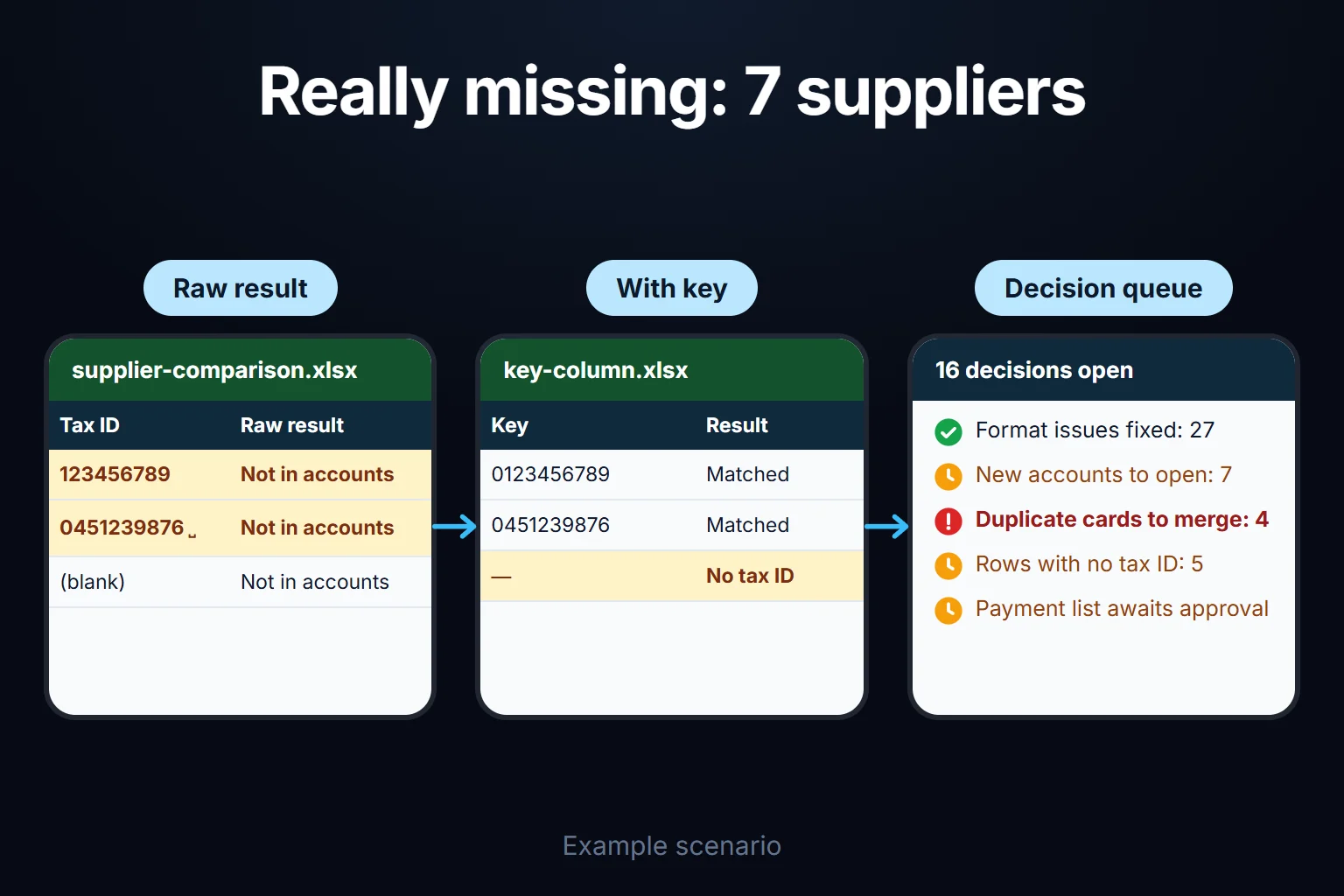
Consider a second fictional example: 233 ERP suppliers and 241 accounting cards. There are 226 shared suppliers, seven ERP-only suppliers, 11 accounting-only suppliers and an extra accounting card for four shared suppliers. Eighteen shared keys have lost a leading zero, nine have surrounding spaces and five ERP keys are missing.
**After the 18 lost zeros have been verified against the source and corrected**, and the nine spaces trimmed, 221 ERP rows find a match. Set the five missing keys aside: 228 ERP rows enter the join. A diagnostic join that still includes duplicate accounting cards produces:
| Check | Expected count | Explanation |
| --- | --- | --- |
| Left anti | 7 | New suppliers |
| Right anti | 16 | 11 old suppliers + counterparts of five blank ERP keys |
| Expanded inner join | 225 | 221 matching ERP rows + four additional cards |
| Expanded left outer join | 232 | 228 valid-key ERP rows + four additional cards |
| Report with five blank-key exceptions added separately | 237 | 232 joined rows + five exceptions |
237 report rows do **not** mean 237 suppliers. A duplicated accounting card may repeat the ERP amount. Resolve the multiplication before summing. A final report that separates duplicates and invalid keys will have different counts from this diagnostic table.
## Use fuzzy matching to find candidates
Fuzzy merging proposes similar names; it does not establish identity. In a fictional example, “Ozkan Metal Ltd” and “Ozkan Metal Inc” may be different companies. Removing legal suffixes increases similarity while removing a meaningful distinction. A similarity score is not a probability that the match is correct.
Compare unresolved records against a suitable candidate pool. Keep the candidate name, source code, verified identifier and decision together. An approved mapping table should record **source system, source record ID, target ID, approver, date and validity scope**. Recheck whether the source record has changed before applying last month’s decision. Power Query fuzzy merging works on text columns; see [Microsoft’s Fuzzy Merge documentation](https://learn.microsoft.com/en-us/power-query/merge-queries-fuzzy-match) for options and availability.
## Troubleshooting and refresh checks
| Symptom | First check |
| --- | --- |
| Identical-looking codes do not match | Text/number type, leading zeros, invisible spaces |
| Lookup returns an unexpected record | Duplicate counts on both sides and approximate matching |
| A merge multiplies rows | Duplicates on either side; a many-to-many join |
| New rows are absent | Fixed ranges, table size, source file and refresh |
| FILTER fails | Empty-result argument and occupied spill cells |
| Totals differ despite plausible rows | Duplicate expansion, currency, tax, period and rounding |
| Formulas and Power Query disagree | Case sensitivity and different cleanup rules |
For every refresh, record source rows, missing/invalid keys, duplicate keys, unique matches, A-only/B-only records and changed fields. Reconcile those counts to the sources rather than treating “no visible error” as proof.
## Frequently Asked Questions
### Is selecting both columns and highlighting duplicates enough?
No. That also highlights repeats inside one list. To highlight nonblank A2:A500 values absent from C, use a formula-based conditional formatting rule: `=AND(A2<>"",COUNTIF($C$2:$C$500,A2)=0)`. The wildcard and case limitations above still apply.
### Must both files be sorted in the same order?
Not for key-based matching. Direct `A2=D2` comparison assumes the cells occupy corresponding positions. Match records first, then compare their fields.
### Is a repeated code always an error?
No. Products can repeat across invoice or order lines. Add the field that identifies an individual row, or aggregate by code first if the question concerns total quantities. The business question determines which operation is correct.
### Can I give the files to an AI assistant?
Check your organisation’s approved data-sharing conditions and remove unnecessary personal or customer information. AI can help draft formulas and explain candidates. Key equality, counts and totals still need reproducible checks; an explanation is not matching evidence.
## When the monthly comparison becomes a workflow
Excel or Power Query can be sufficient for matching files. When several people must review exceptions, approve decisions and revisit earlier decisions, I assess the [Excel-to-web application](https://oguzerol.com/en/turn-your-excel-into-a-web-app/) around those needs. The aim is to preserve sources and show why each record matched. Start with the workbook to define your own keys and exceptions before choosing the implementation.
[Back to top ↑](https://oguzerol.com/en/comparing-and-matching-two-excel-lists/#icerik)
## You may also find these useful
[Building an App From Excel With AI: Seven Steps and Where AI StopsSeven steps to turn a shared Excel file into a multi-user web app: reading it, tables, roles, rules, migration, cutover. See where AI helps and where it stops.](https://oguzerol.com/en/turning-excel-into-a-web-app-with-ai/)[Excel Data Cleaning: Fixing a Messy Export With Formulas and Power QueryClean a messy ERP export in Excel with formulas and Power Query, then prove it with a row-count and total reconciliation. A 473-row worked example.](https://oguzerol.com/en/excel-data-cleaning/)[Controlled Excel Import Screen: Bringing Dealer, Branch and Supplier Files into One DatabaseImporting dealer and branch Excel/CSV files: column mapping, format clean-up, duplicate protection and rollback. See a 12-dealer sample month and the rules.](https://oguzerol.com/en/controlled-excel-import-screen/)
[Browse all articles →](https://oguzerol.com/en/articles/)